
Nurture Signal runs inside Canvas as an LTI 1.3 tool: teachers create and run checks for understanding from the courses they already teach, students launch straight into them, and scores post back to the Canvas gradebook.
A Canvas root-account administrator installs it from Canvas’s own app catalogue in a few minutes. The steps are below, and the questions a review usually asks are answered underneath.
First, allowlist Nurture’s domains. If your school filters web traffic, Nurture has to be allowed on the networks teachers and students use, or it loads to a blank screen. See the domains to allowlist.
Install Nurture Signal
As a Canvas root-account administrator:
-
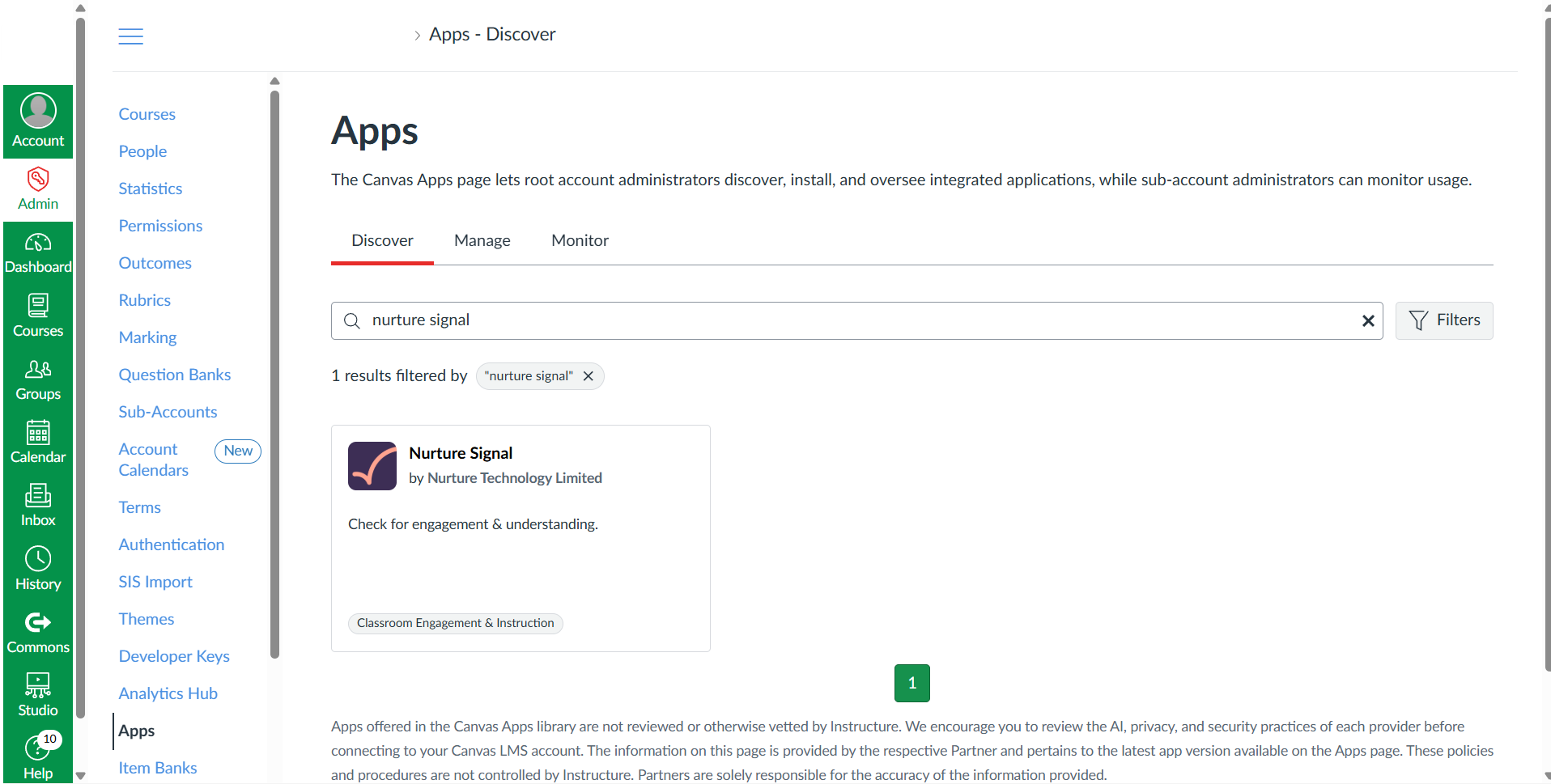
Go to Admin → Apps and search for Nurture Signal.
-
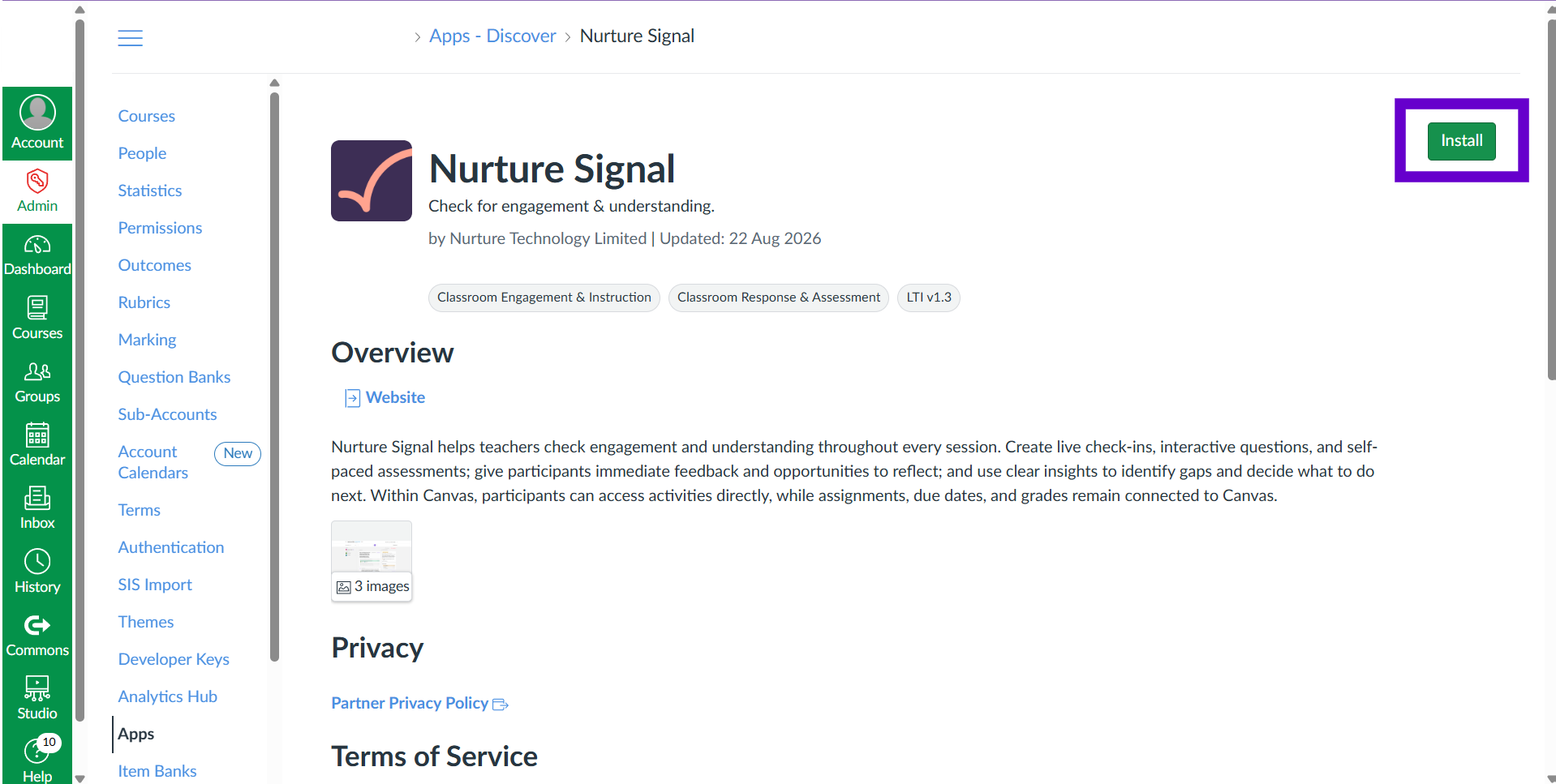
Open the app listing and click Install. This can take 30–60 seconds.
-
Step through the three panels of the Install App wizard, clicking Next on each. The defaults shown are our recommended settings:
-
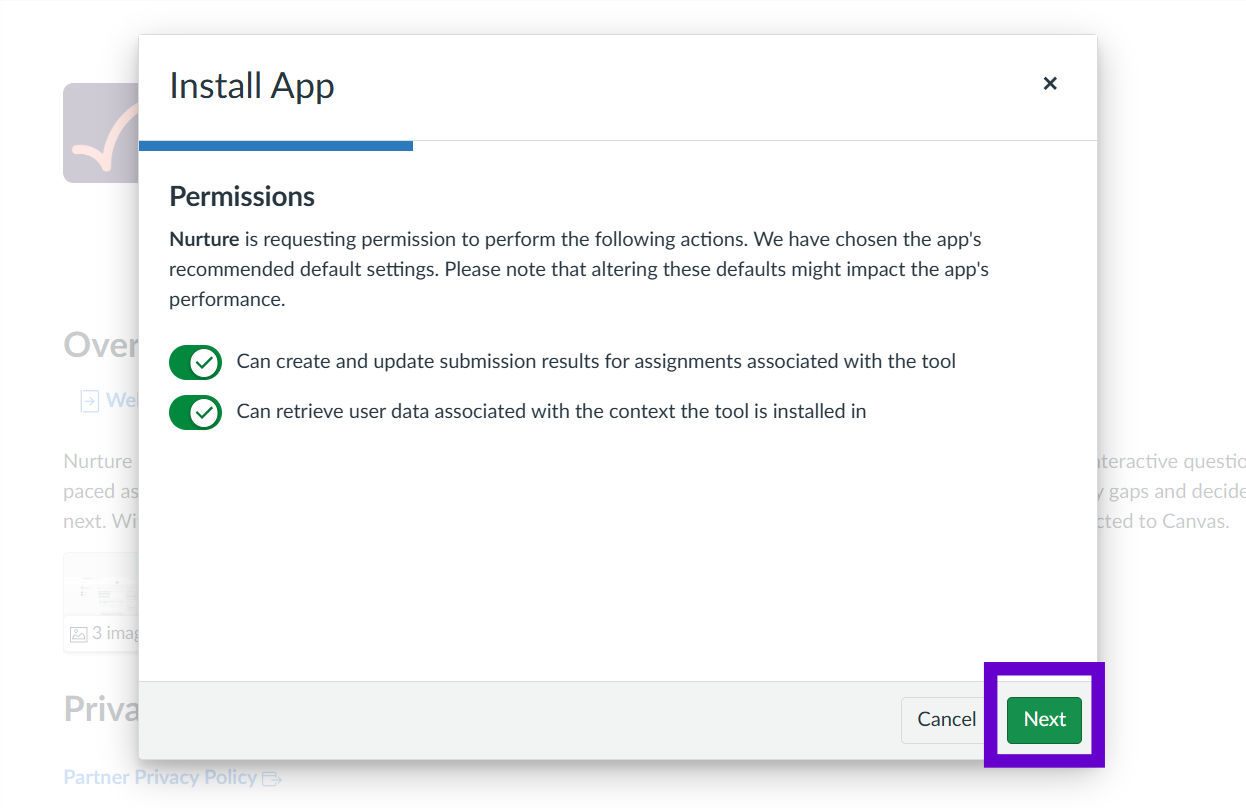
Permissions — Nurture can create and update submission results, and retrieve user data for the context it is installed in.
-
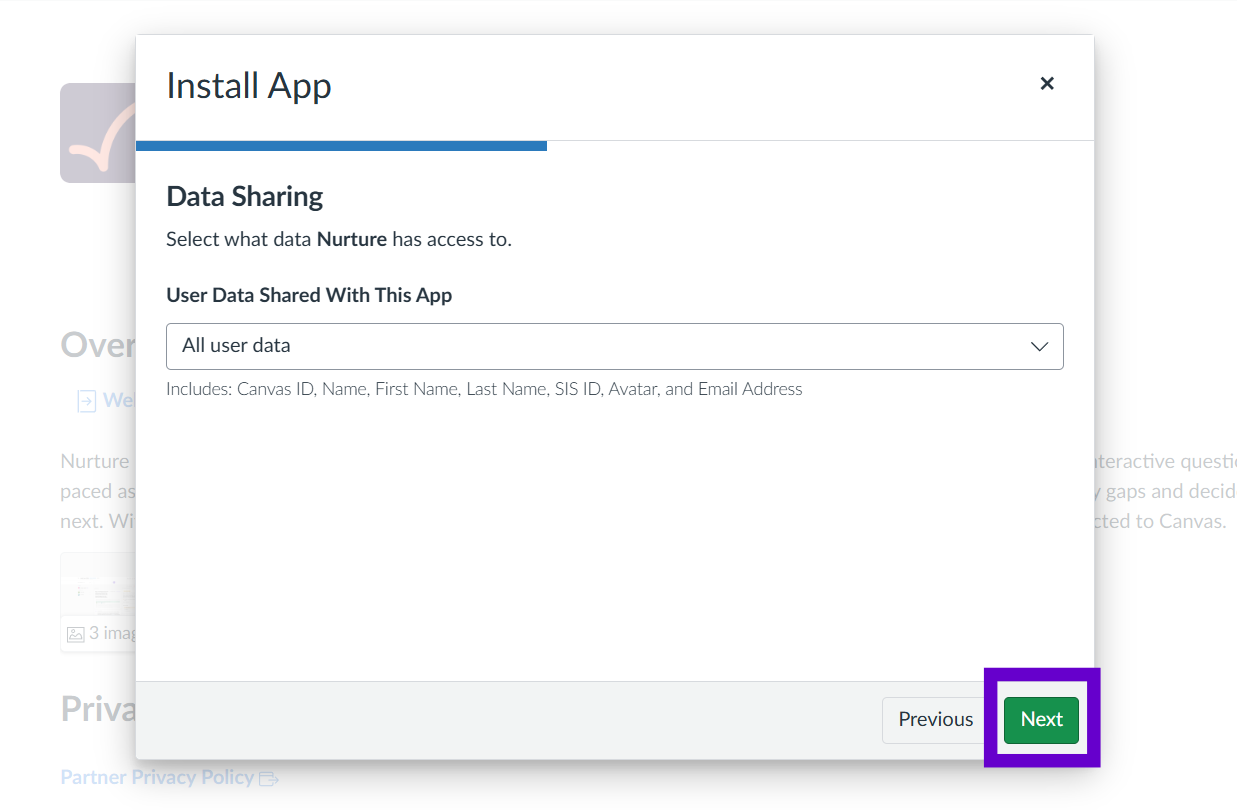
Data Sharing — leave All user data selected (Canvas ID, name, SIS ID, avatar and email). Of these, Signal keeps only the Canvas ID, name and email, plus the user’s course role from each launch.
-
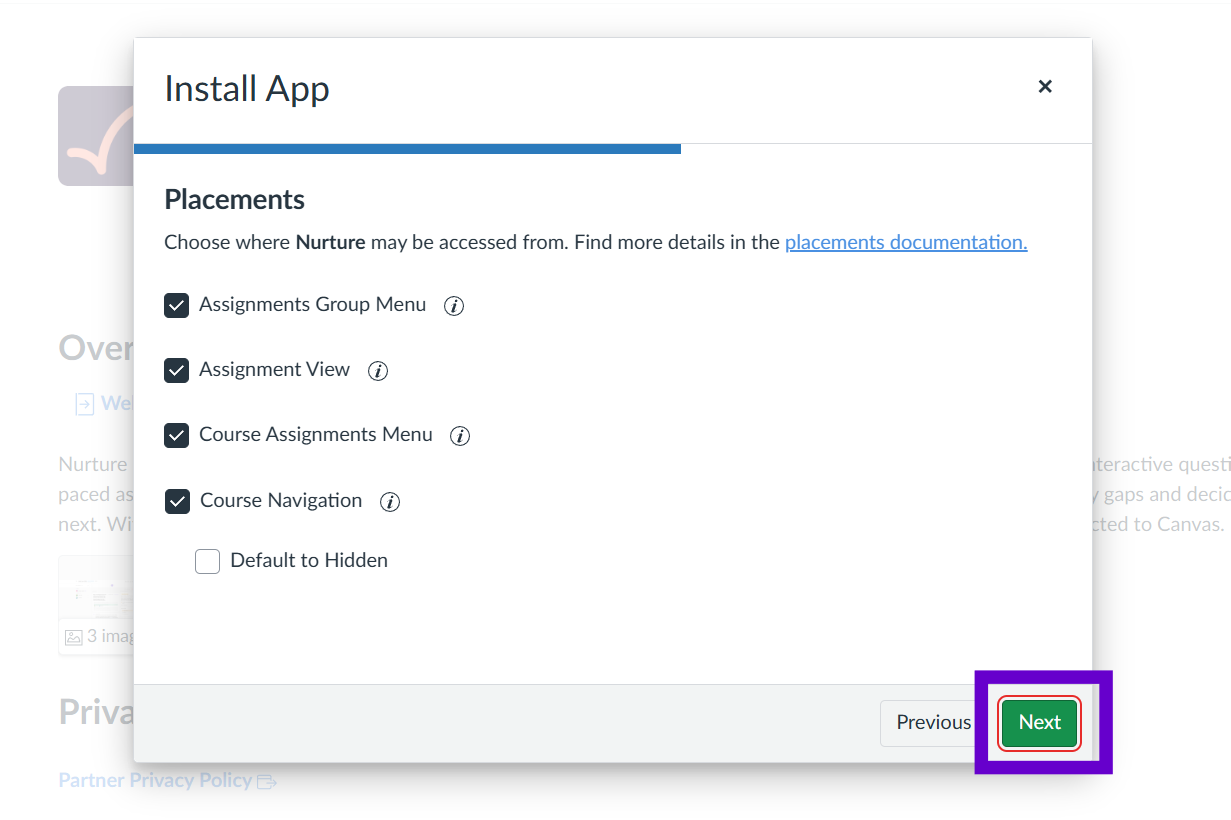
Placements — leave all four placements ticked: Assignments Group Menu, Assignment View, Course Assignments Menu and Course Navigation.
-
-
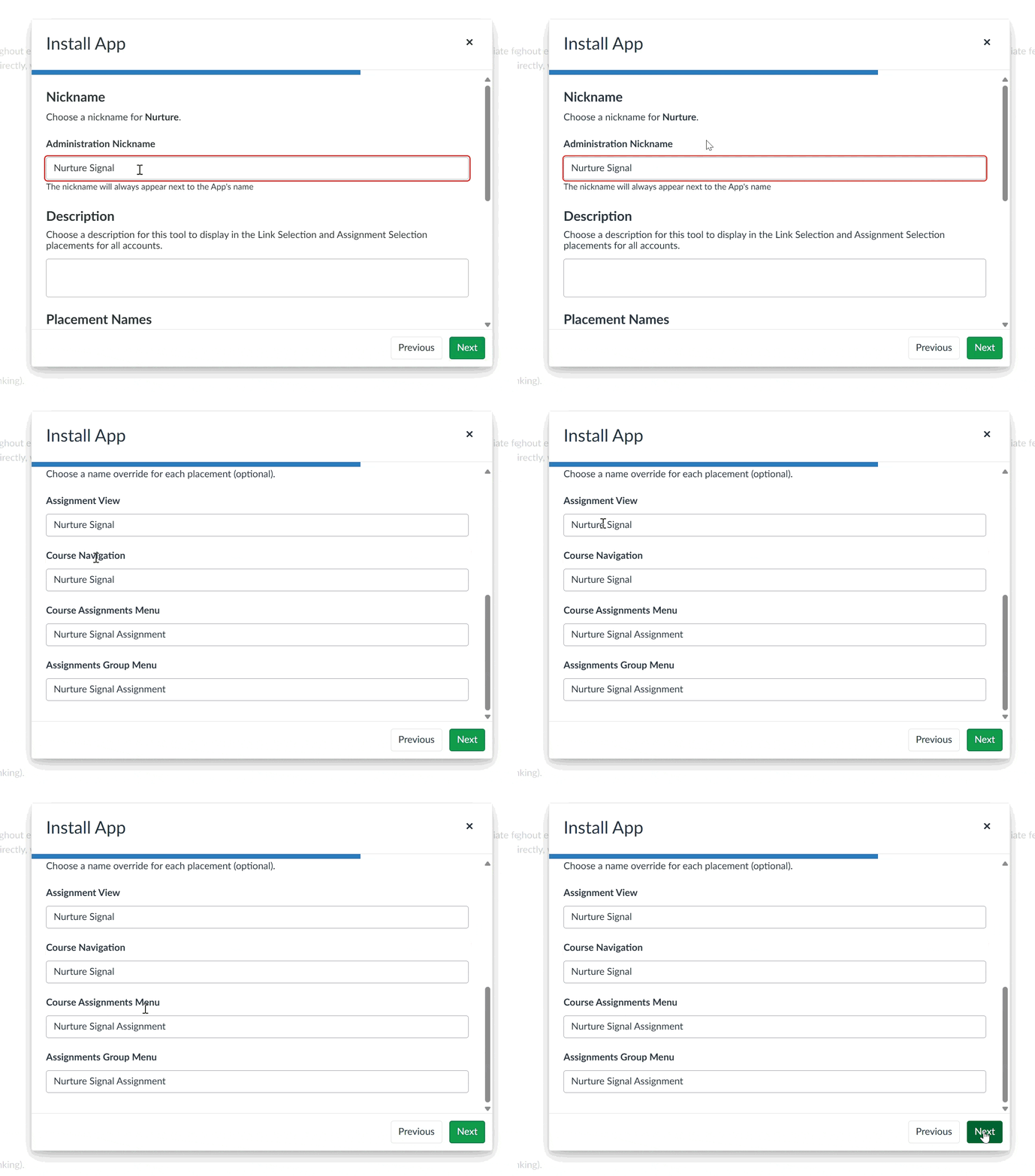
On the naming screen, rename the app in every field so teachers do not confuse it with our old app (the fields may default to just “Nurture”):
- Assignment View and Course Navigation → Nurture Signal
- Course Assignments Menu and Assignments Group Menu → Nurture Signal Assignment
-
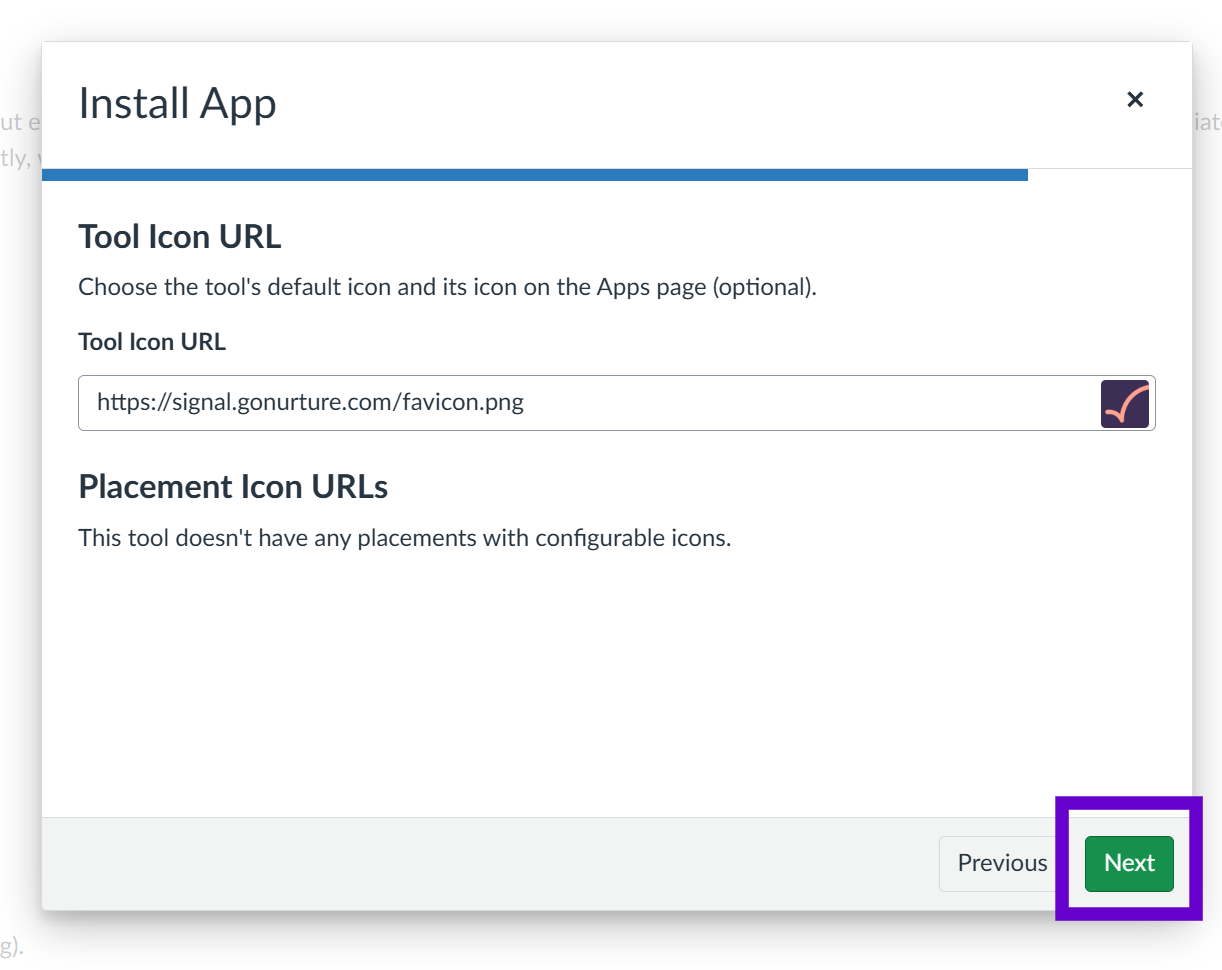
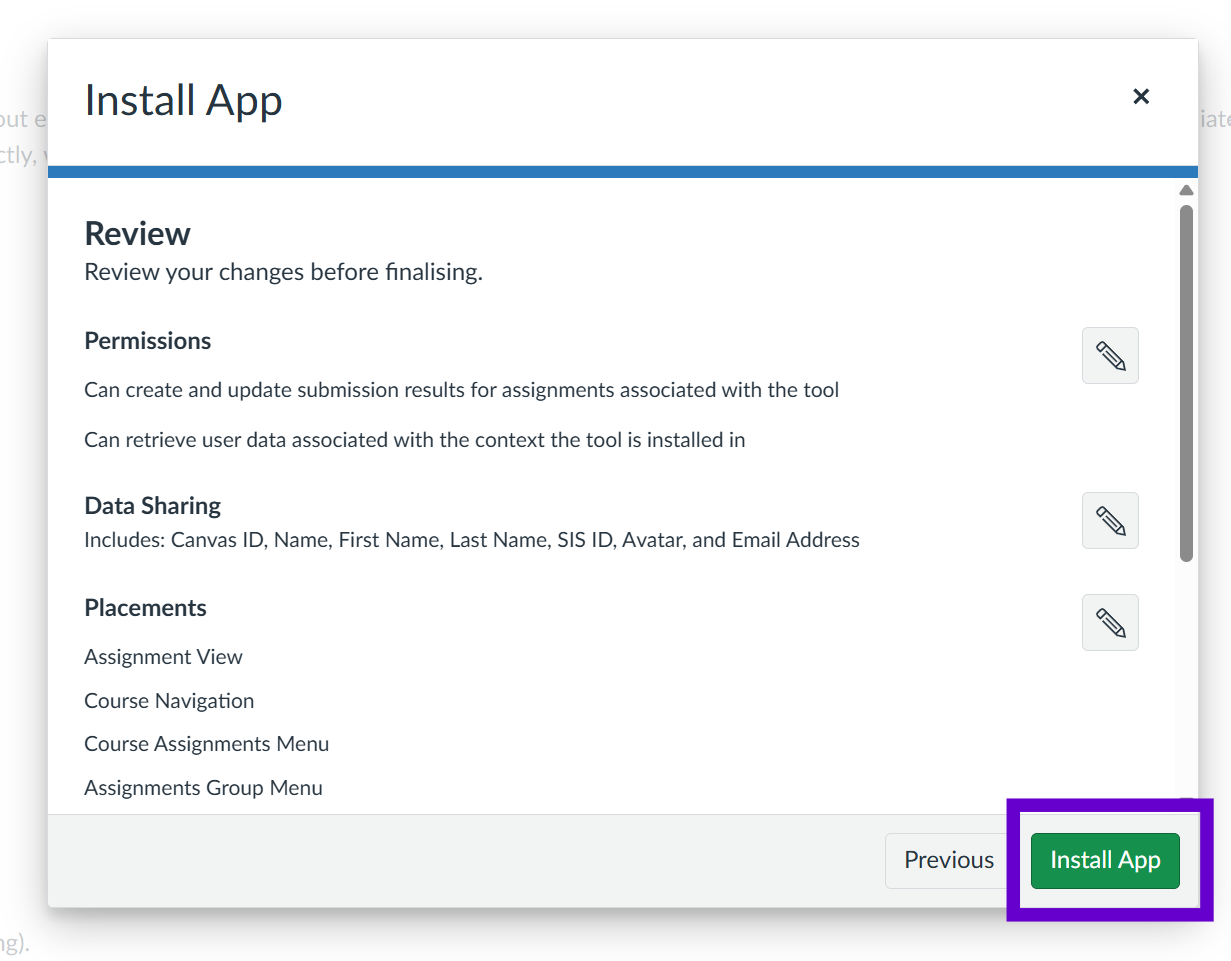
Leave the Tool Icon URL as it is and click Next, then on the Review screen check the summary and click Install App.
-
Make the app available to staff and students. Next to the Add Exception button, click the edit button (the pencil icon), change the status from Not Available to Available, and click Save. Nurture is then available for staff to use.
That is the whole install. Our team is on the call while it happens and verifies a test course with you before any class relies on it.
If the Install App window is blank
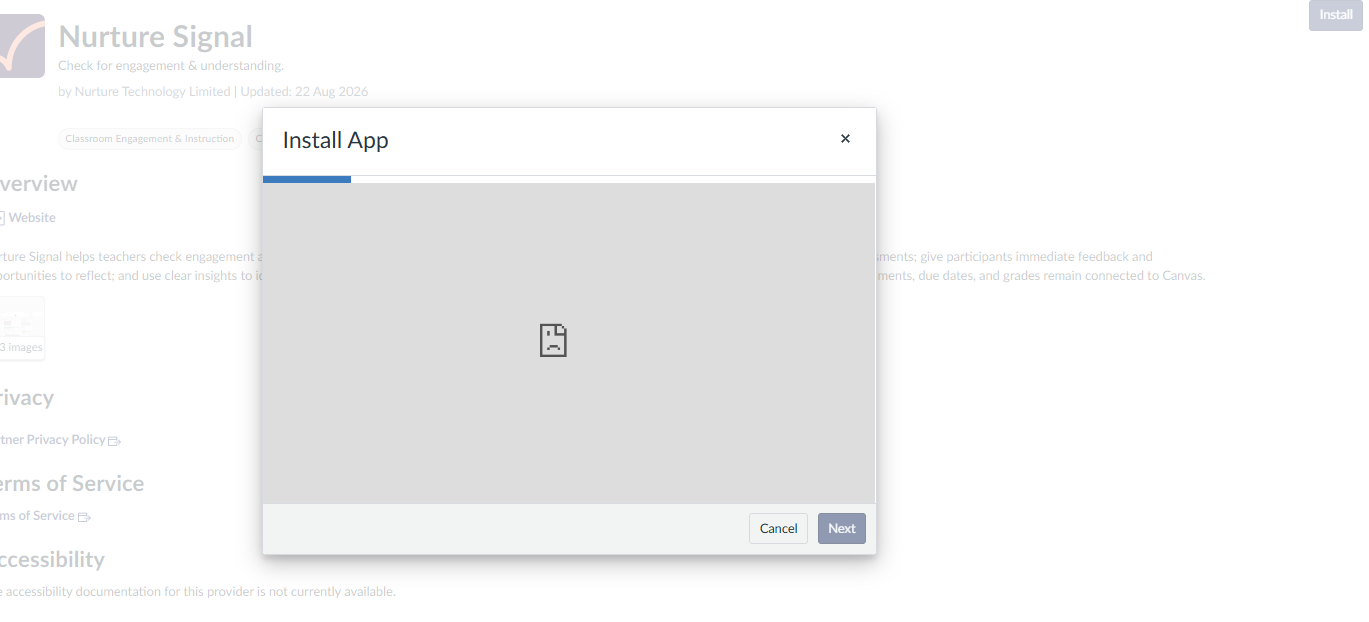
Installing works out of the box on both standard instructure.com domains and
custom “vanity” Canvas domains — there is no domain-allowlisting step to arrange
first. If the Install App window opens empty — a broken-image icon in the
middle and Next greyed out so you cannot continue — you are most likely on a
fully self-hosted Canvas instance, which needs a quick one-time setup from our
team before install completes. Contact us and we will take care
of it.
Questions your review will ask
What does the integration add for teachers and students? +
A Nurture entry in course navigation, an “Add Nurture Assignment” option on the Assignments page and assignment-group menus, and score passback into the Canvas gradebook. Teachers and students are recognised from the Canvas launch, so there is no separate Nurture login and no account for students to create. Canvas stays in charge of publishing, availability dates and the gradebook; Nurture follows them.
Can we pilot it with a few courses first? +
Yes. Instead of making Nurture available across the whole account, add an exception for a handful of sub-accounts or courses and widen it later — the teachers involved lose nothing when you do. Avoid making it available at both an account and a course beneath it at once, or its menu entries can appear twice.
Do we have to send you a Canvas API token? +
For the full integration, yes. Results and launches are authorised by the key pair Canvas and Nurture exchange during install. Creating assignments from an assignment group and keeping them in step with Canvas dates also needs a Canvas API token, issued from a dedicated Canvas account that can reach only the courses Signal will be used in. We store it encrypted and use it only for Signal’s own assignments. No admin token is emailed anywhere.
What can the app access? +
Score passback to the assignment it created, the verified name, email and course role from each launch, the Canvas identifiers for the course, user and assignment, and — through the API token — the course’s assignment list, used to find and update Signal’s own assignments. Your administrators can review it, turn it off, or remove the app at any time through the same Canvas tooling they use for every other external tool. Removing the app does not revoke the API token, so revoke it too, or deactivate its dedicated account.
How do we verify it before rollout? +
In a test course: Nurture opens from course navigation; “Add Nurture Assignment” appears on the Assignments page and in an assignment-group menu and creates the assignment there; a published assignment opens for the teacher; an enrolled student can open it and submit; and the score reaches the gradebook. We run this pass with you rather than handing over a checklist.
Does this work on Canvas Beta or Test? +
Yes. The steps are the same; the endpoints differ per Canvas environment, and we supply the right ones for the environment you install into.
What happens if we change our mind? +
Set the app back to Not Available, or remove it, in Canvas, and revoke the Canvas API token (or deactivate its dedicated account). The integration then stops. Your Canvas assignments and gradebook remain exactly as Canvas holds them.
Does Nurture replace the Canvas gradebook? +
No. Canvas remains the record. Nurture posts scores into the Canvas assignment it created, and follows the publishing and availability dates set on the Canvas side.