
Nurture Assessments runs inside Microsoft Teams as an app teachers add to their class team. This page is for the Microsoft 365 or Teams administrator: if teachers cannot install Nurture onto one of their teams, your tenant’s Teams and app settings are usually preventing it, and the steps below fix it. (Nurture Signal is not yet available on Teams.)
First, allowlist Nurture’s domains. If your school filters web traffic, Nurture has to be allowed on the networks teachers and students use, or the tab loads to a blank screen. See the domains to allowlist.
Set Nurture up in the Teams admin center
You need admin access to the Microsoft Teams admin center (admin.teams.microsoft.com).
-
Go to Teams apps → Manage apps.
-
Search for Nurture and open the app. The publisher may show as jumpAgrade, and the Custom app column should say No — that is the correct app to open.
-
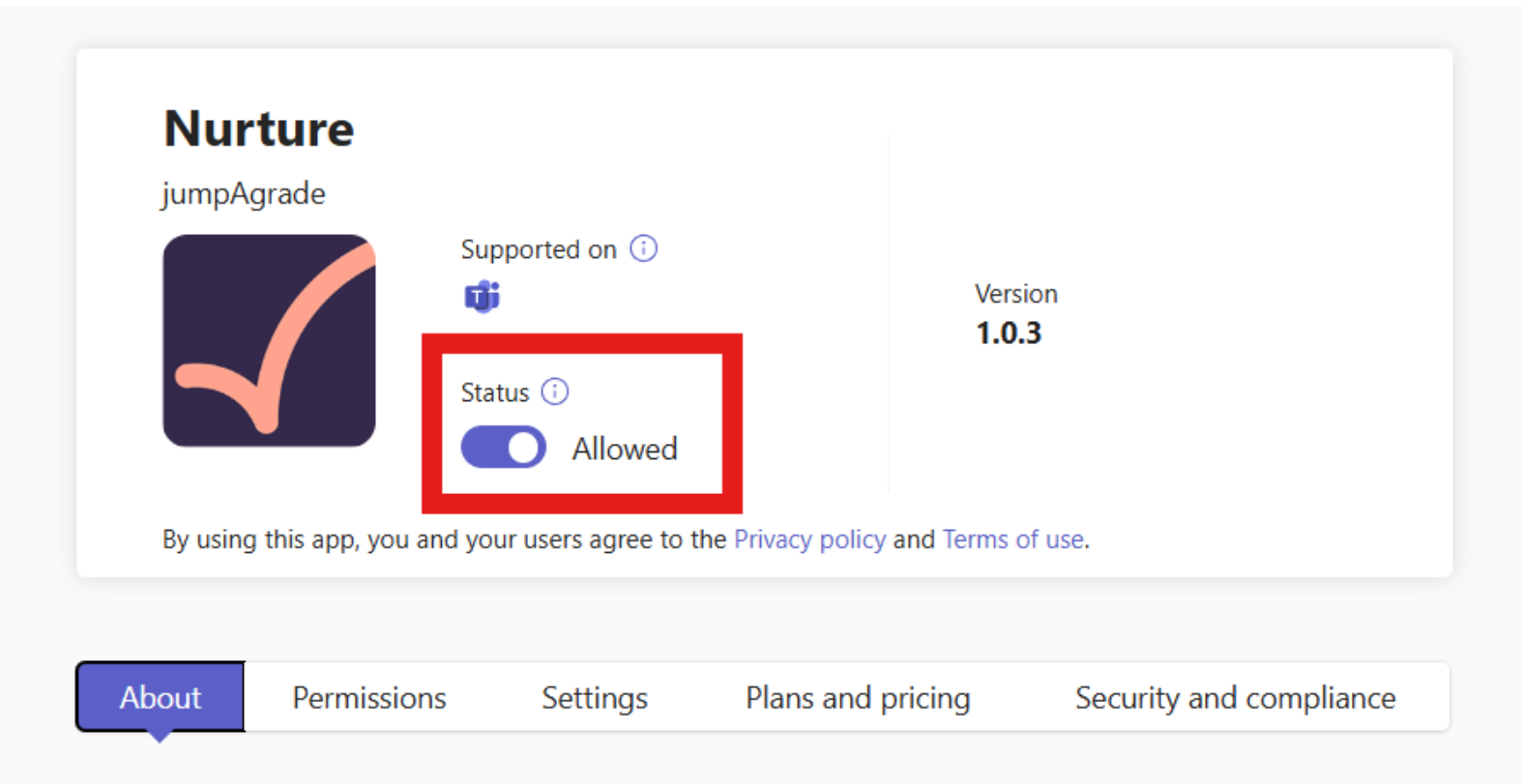
On the About tab, make sure Status is set to Allowed for your organisation.
-
Open the Permissions tab and make sure admin consent is granted for all required permissions — you should see a green “Admin consent granted for all required permissions” banner.
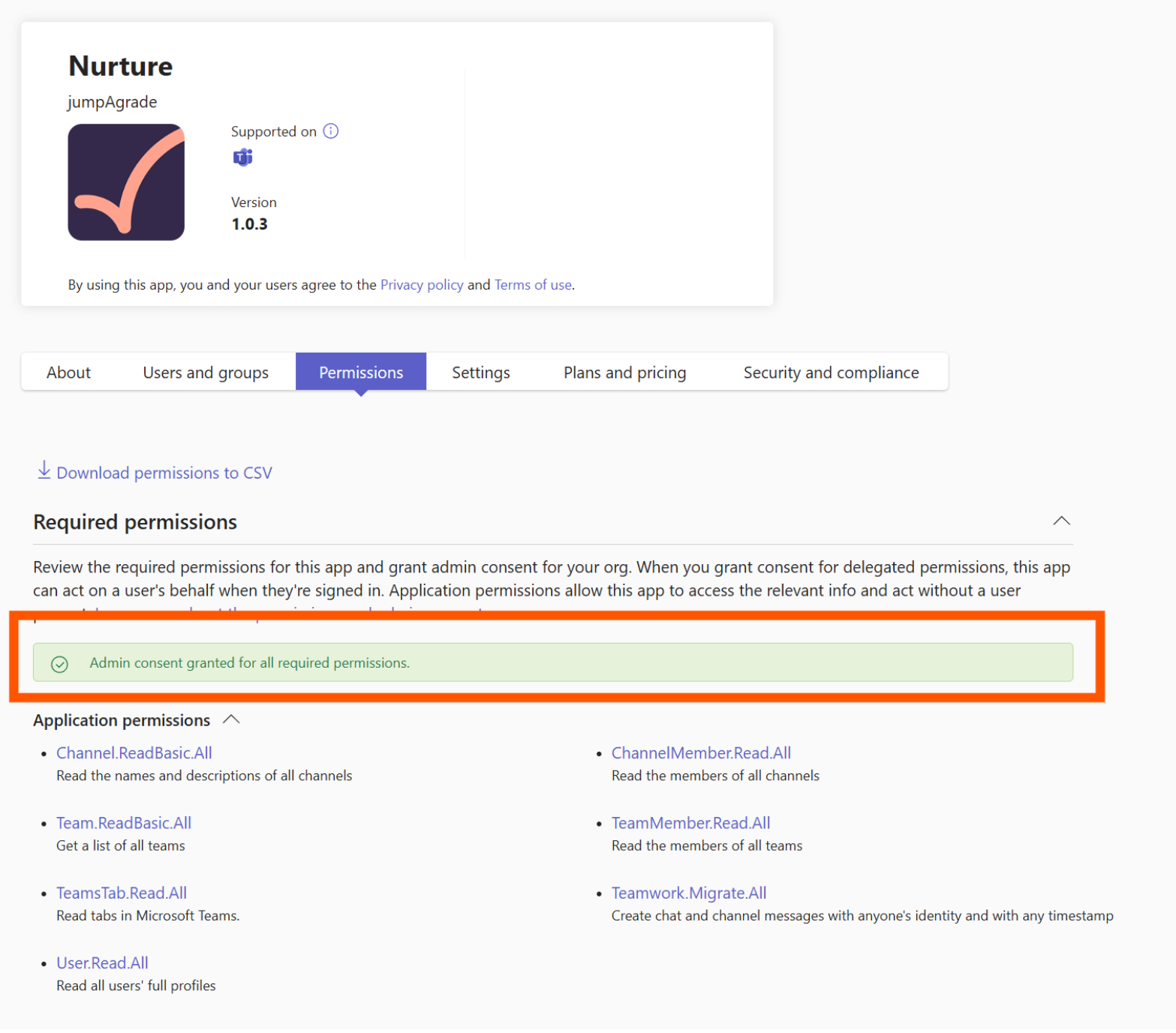
Nurture requests these application permissions:
Channel.ReadBasic.All— read the names and descriptions of all channelsChannelMember.Read.All— read the members of all channelsTeam.ReadBasic.All— get a list of all teamsTeamMember.Read.All— read the members of all teamsTeamsTab.Read.All— read tabs in Microsoft TeamsTeamwork.Migrate.All— create chat and channel messagesUser.Read.All— read all users’ full profiles
-
Open the Users and groups tab and check the app is available to the right people. Most tenants default to Available to everyone, and we recommend leaving it there so no teacher hits a permission issue when installing Nurture.
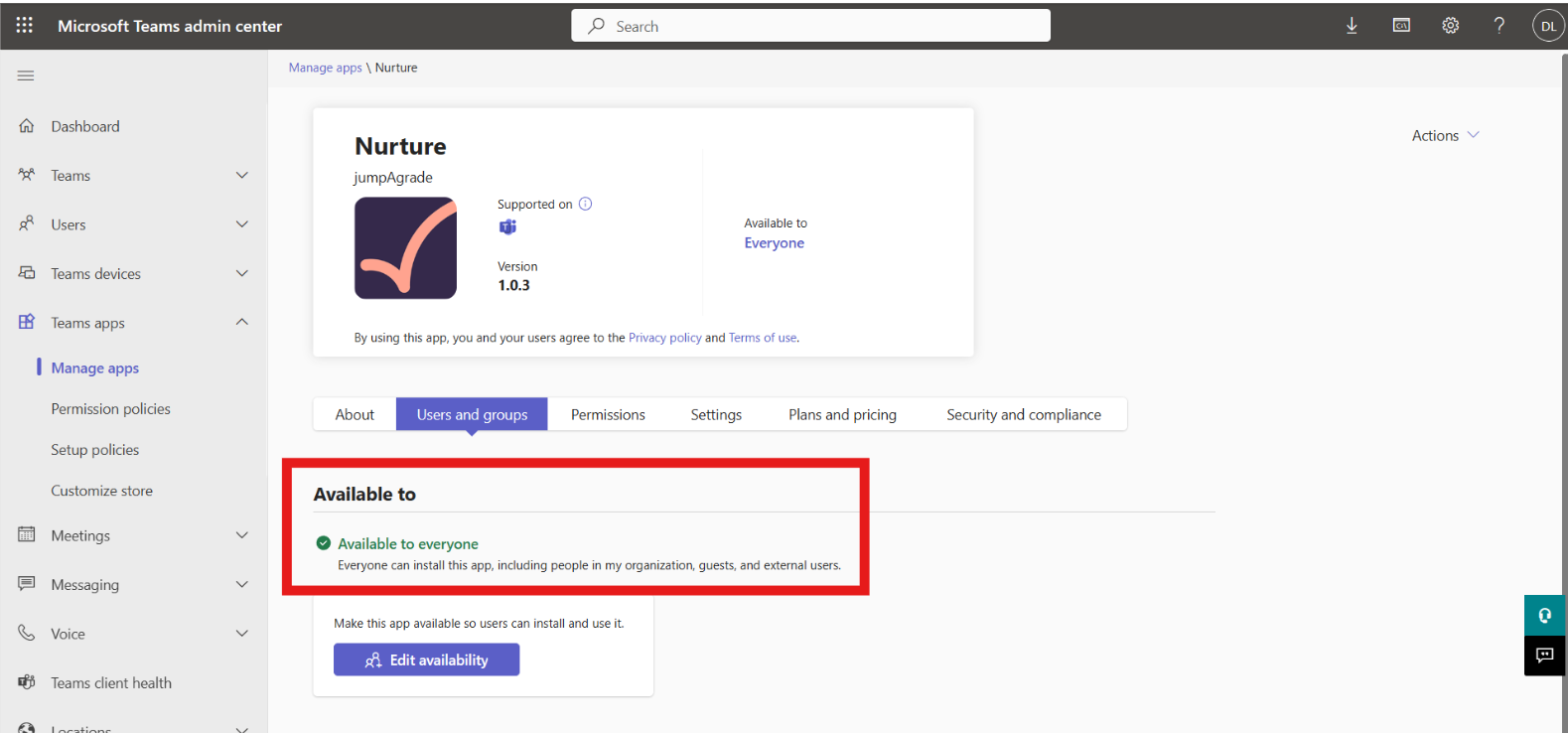
To limit who can use it, click Edit availability → Available to: Specific users and groups and choose the groups — but include both teachers and students, or students will not be able to access Nurture.
If teachers still cannot install Nurture
With the settings above in place, check your organisation’s app setup and permission policies — a custom app policy on the tenant can still block teachers from installing Nurture. If that is not the cause, contact the Nurture team and we will help with any further technical requests.
Once the app is allowed, teachers add Nurture as a tab in their class team — see the teacher tutorial — and everyone in the team gets access.
Questions your review will ask
Why does the publisher show as “jumpAgrade”? +
Nurture was built by the jumpAgrade team, and the Teams listing may still show jumpAgrade as the publisher. As long as the Custom app column says “No”, it is the correct app.
What permissions does the app need, and do we have to consent? +
Seven application permissions, all requiring admin consent: Channel.ReadBasic.All, ChannelMember.Read.All, Team.ReadBasic.All, TeamMember.Read.All, TeamsTab.Read.All, Teamwork.Migrate.All and User.Read.All. Grant admin consent on the app’s Permissions tab in the Teams admin center; the green banner confirms it is done.
Can we limit which users can install it? +
Yes. On the Users and groups tab, choose Edit availability → Specific users and groups, then pick the groups. Include both teachers and students, or students will not be able to access Nurture. Most schools leave it Available to everyone for simplicity.
Do teachers need admin rights to install it? +
No. Once you have allowed the app and granted admin consent, teachers install Nurture onto their own teams themselves, and everyone already in the team gets access.
Do students install anything? +
No. Students see the Nurture tab in their class team and open it with the school Microsoft account they are already signed in with.
Teachers still cannot install it after all this — what now? +
Check for a custom app setup or permission policy on your tenant that blocks installs. If that is not the cause, contact the Nurture team and we will help with any further technical requests.
Is Nurture Signal available on Teams too? +
Not yet — this guide covers Nurture Assessments. Nurture Signal runs in Canvas today; talk to us if you would like it in Teams.
Can we run Nurture in our own tenant? +
Yes. Some organisations run Nurture inside their own Microsoft tenant rather than the Nurture-hosted service. The teacher experience is the same, but the deployment is agreed with our team — see the on-tenant deployment page.
What happens if we change our mind? +
Block or remove the app in the Teams admin center and it stops appearing for your users. Your teams, channels and files remain exactly as Microsoft holds them.