
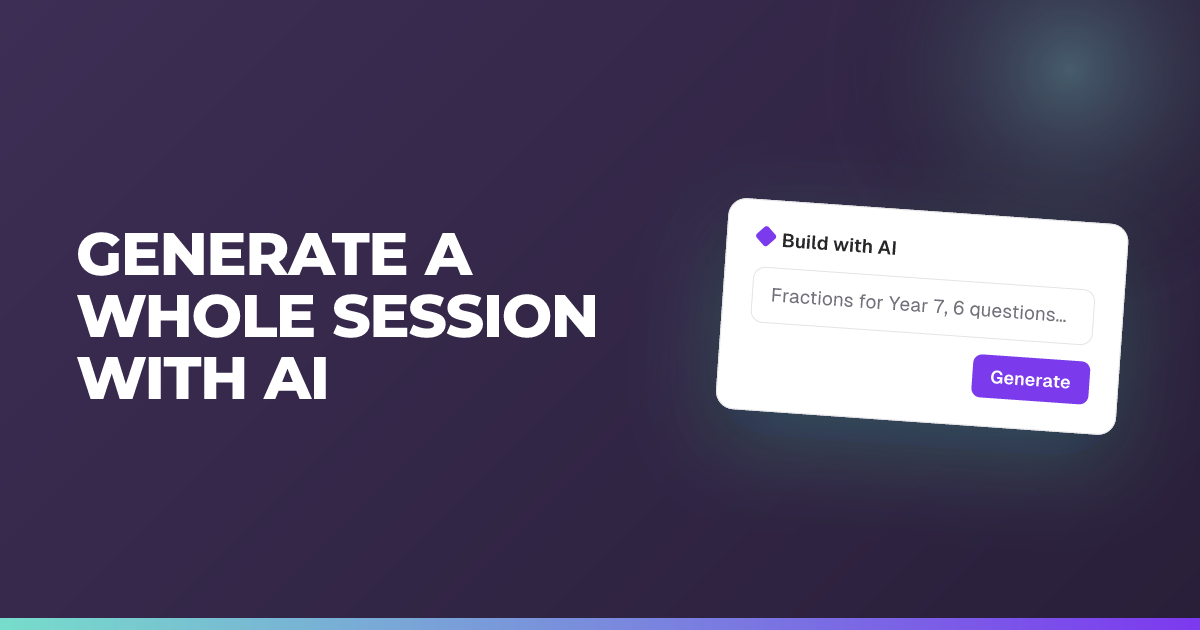
Generate a whole session with AI
Describe your lesson and let AI build the questions and prompts for you.
Updated 14 July 2026
Turn a short description of your lesson into a ready-to-run session, with the questions, answers, and prompts drafted for you.
When to use it: You know what you want to cover and would rather start from a draft than build every question by hand.
Steps
- On your dashboard, choose Create a session.
- Pick the kind of session you want to run.
- Enter a Session name (for example, “Chapter 3 review”).
- Leave Generate with AI switched on (it’s on by default).
- In the prompt box, describe what this session is about and include any details you want used: paste or type your lesson outline here.
- Set how much content to generate. What you see here depends on the session type — see the section below.
- For an engagement session, you can open Preferences and use Drafts to create to choose which types of content AI drafts (Comment, Question, Poll, Reflection, and so on).
- Choose Next.
- Wait while the Generating your session screen works. It opens the session for you with the content ready to review.
Tip: This is text-only: there’s no file to upload, so paste your lesson plan straight into the prompt (up to 1,500 characters). Everything arrives as editable drafts and questions, so you can adjust anything before you start. It’s available to every teacher, with no paid upgrade needed.
Choosing how much content to generate
What you see here depends on the type of session you are creating.
In an assessment session, set a separate count for each type of question you want:
- Quiz questions
- Polls
- Open answer questions
You can step each count up and down, or type a number straight in.
The counts share one budget. A single generation is capped at 20 questions or check-ins in total, so the numbers you set have to add up to no more than that. The form shows you how much you have left as you go.
This is a cap on one generation, not on the session. If you want more than 20, generate again before you start the session and the new content is added to what you already have.
If you set every count to zero, generation is unavailable. Set at least one.
In a live quiz or an Engage session, set a single total for how much content to generate, up to the same 20-item cap.
This does not mean a live quiz cannot contain polls or open answer questions. It can, and you can add either by hand in the question editor. It only means that at the point of generating, you set a total rather than a breakdown.
About this feature
Still stuck?
We're happy to help you directly. Get in touch with the Nurture team.