
How classrooms work
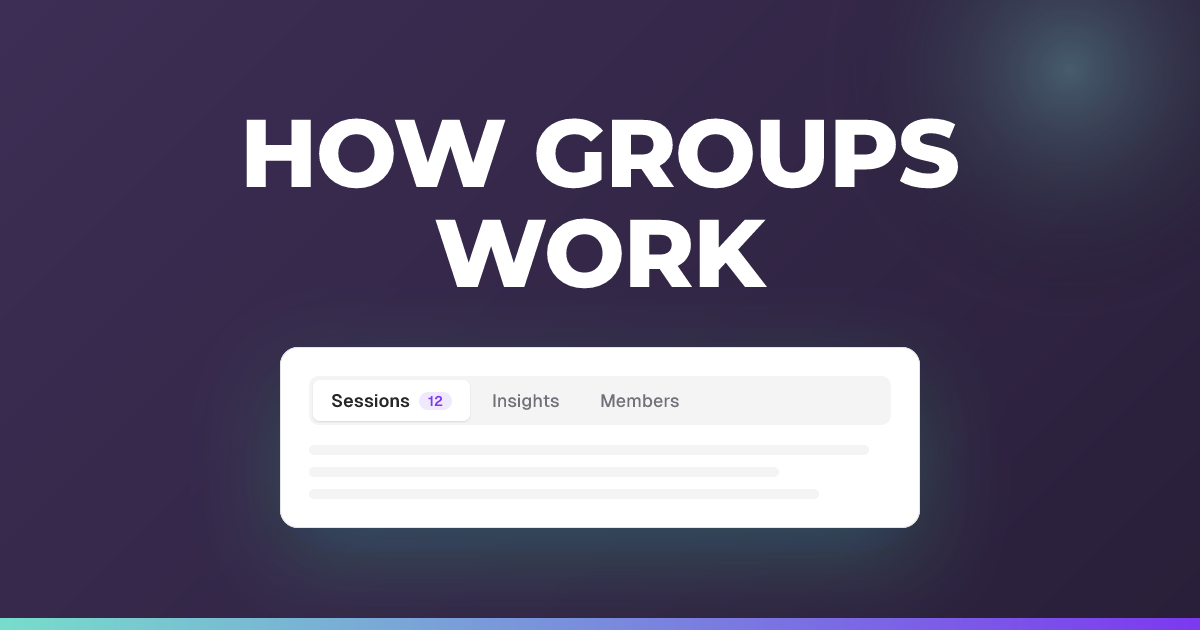
A classroom holds one class’s sessions. Open one and you get three tabs: Sessions, Insights and Members.
Updated 26 August 2026
A classroom holds the sessions for one class. Open one and you get three tabs.
When to use it: When you want class-level insight across several sessions, or you’re wondering what a classroom actually gives you.
Sessions
Every session in the classroom, in one list. This is the tab that solves the original problem — finding one class’s work without scrolling past every other class you teach.
Insights
Insight across the whole classroom rather than one session at a time. This is where class-level patterns show up: what a class has consistently found difficult across several sessions, rather than how they did on one.
It covers both understanding and engagement, and it does not use AI — nothing in this tab is premium.
It needs more than two closed sessions in the classroom. Until then there is not enough to compare and the tab will have little to show. Sessions also have to be closed to count, so a classroom full of sessions you never ended will look emptier than it is.
And the classroom has to be set up properly. Classroom insights are built from the sessions in the classroom, so a session you forgot to put in one is missing from the picture. If a class’s insights look thinner than you expect, check the Sessions tab first — it is usually the sessions that are missing, not the data.
Members
Everyone who has taken part in a session in this classroom.
Both signed-in students and guests appear here, as long as they took part in at least one session in the classroom. Using guest join does not keep a student out of the members list.
One caveat if your class joins as guests: guests are not reliably linked from one session to the next, so treat the member count as a rough picture of who has taken part rather than a class register.
If a classroom looks empty or incomplete
Almost always the sessions, not the classroom. A session only belongs to a classroom if it was put in one — either when you created it, or by creating it inside a Canvas course, which puts it in a classroom automatically. See organising sessions into classrooms.
About this feature
Related articles
Still stuck?
We're happy to help you directly. Get in touch with the Nurture team.