
My students can't join or log into a session
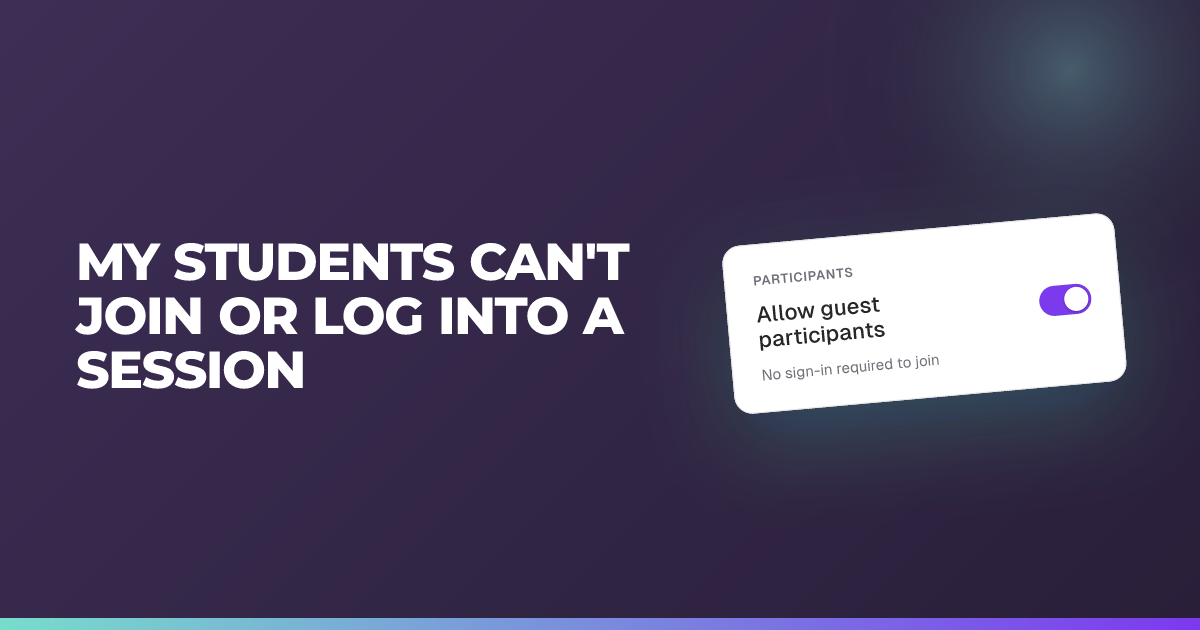
Stuck on a login screen? In most cases the fix is a two-click toggle: allow guest students.
Updated 26 August 2026
Students have your join link, join code or QR code and they’re stuck on a login screen.
When to use it: When students can’t get past sign-in and into your session.
In most cases the fix is to allow guest students. By default students are asked to sign in with an email address and verify it, whichever way they arrived at the session. If your class doesn’t have school email accounts, can’t access them in the room, or you simply don’t want to spend the first five minutes on logins, allow guest students.
Steps
- Open the session you want to run.
- Select the three dots menu.
- Choose Edit Session Details.
- Turn on Allow guest students.
- Save, then start your session as normal.
Students now enter their name instead of an email address and go straight into the session.
You can also do this mid-session
If you only discover the problem once the class is in front of you, you can still turn it on with the session running:
- Choose the three dots in the top right corner.
- Choose Edit Session Details.
- Toggle Allow guest students on.
Students who were stuck can then join without signing in.
It’s easier to set this from the start — you’re not changing settings with thirty students watching a login screen — but it’s not a decision you’re locked into once you’ve begun.
One limit: this can’t be changed after a session has ended. If a session is closed, you’ll need to duplicate it and allow guest students on the copy — see how do I run a session again after it’s ended?
What you give up
Guests aren’t tied to a student account, so their responses generally can’t be followed from one session to the next. Within a classroom, some guests may be linked across sessions in the insights, but don’t count on it.
If you want to compare a class’s answers reliably over time — this term against the same class next term — students should have their own accounts. That’s the best practice; guest join is the fast way in when accounts are the thing standing between you and starting.
If students are signed in and still can’t get through
- The verification email hasn’t arrived. It can be delayed. Switch that student to guest join rather than waiting.
- They’re using a school sign-in that Nurture doesn’t recognise. Nurture accounts may be independent of your school’s sign-in provider — EdPass is one example, but it isn’t the only one. Microsoft and Google sign-in should work. If a student’s usual school password isn’t getting them in, switch them to guest join rather than troubleshooting it in the room.
Related articles
Still stuck?
We're happy to help you directly. Get in touch with the Nurture team.