
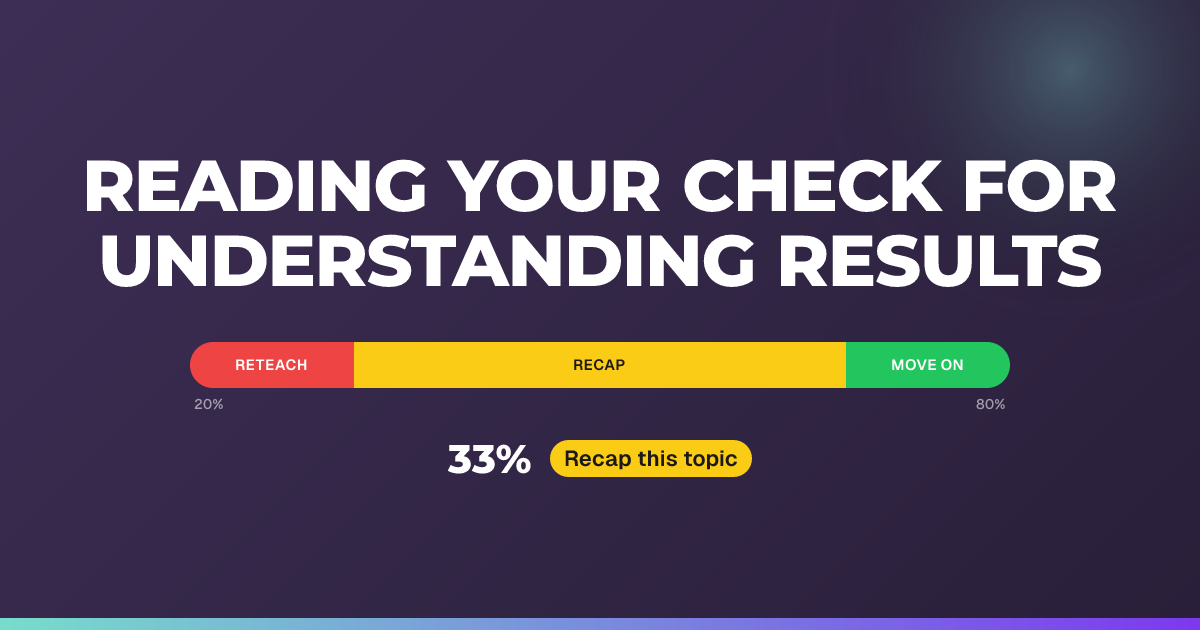
Reading your Check for Understanding results
Understand what the results panel is telling you and what to do next after each question.
Updated 14 July 2026
See at a glance how your group answered each question, and get a clear next step the moment responses come in.
When to use it: Right after you open (or close) a question and want to decide whether to move on, recap, or reteach.
Where to look
Open the question you want to review. The wide column on the left shows the answer distribution and every group response. The panel on the right is your insights rail, and it reads top to bottom in three parts:
- Nurture insights: your recommendation, first.
- Results: the numbers behind it.
- Engagement: who has answered and how quickly.
The recommendation comes first
At the top of the rail, under the Nurture insights heading, is the recommendation. It updates live as answers arrive, so you can watch it settle while the question is still open and see the final picture the instant it closes.
It shows:
- A coloured decision badge: Move on (green), Recap & check again (amber), or Reteach (red).
- The result band, for example Mostly correct (80%+) or Half correct.
- A sentence that leads with the live share in bold, for example “56% of the answers are correct,” followed by a short piece of guidance on what to do next.
The guidance is grounded in Dylan Barton’s (2019) approach to what to do after a checking question. Each band gives you one clear instruction, for example:
- All correct: “Move on. Consider checking explanations, or why the distractors are incorrect.”
- Mostly correct (80%+): “Work with the ~20% who missed it. Set extension work for the rest.”
- Half correct: “Pair up participants for peer work involving the whole group.”
- Mostly incorrect (under 20% correct): “Use peer coaching. Set extension work for the minority and reteach the rest.”
- All incorrect: “Decide how important this is, then reteach or skip.”
Select Other result levels to open the full set of bands and see where the current result sits.
The Results numbers
Under the Results heading, the key figure leads as a percentage with the raw count beside it, for example “56% (5/9).”
Single-answer questions (tagged Single answer) show two cards:
- correct answers: the share who got it right. Select it to see exactly who did.
- incorrect: how many got it wrong. Select it to see who.
Multiple-answer questions (tagged Multiple choice) show more detail, because picking every option shouldn’t count as full marks:
- choice accuracy: the share of option decisions the group got right. Selecting a correct answer and leaving a distractor unticked both count in your favour; missed correct answers and ticked distractors count against it.
- correct choices and incorrect: the correct options picked, and the distractors picked, across everyone.
- all correct, partially correct, and all incorrect: how many people got every option right, some right, or none.
Below the numbers, the group responses can be filtered by All, Correct (or All correct), Partially correct (multiple-answer only), and Incorrect.
Tip: The bold percentage in the recommendation and the leading figure in Results are always the same number, so the advice never disagrees with the stats. For polls there’s no right answer, so you’ll see a most-popular summary instead of Results.
About this feature
Related reading
Still stuck?
We're happy to help you directly. Get in touch with the Nurture team.