
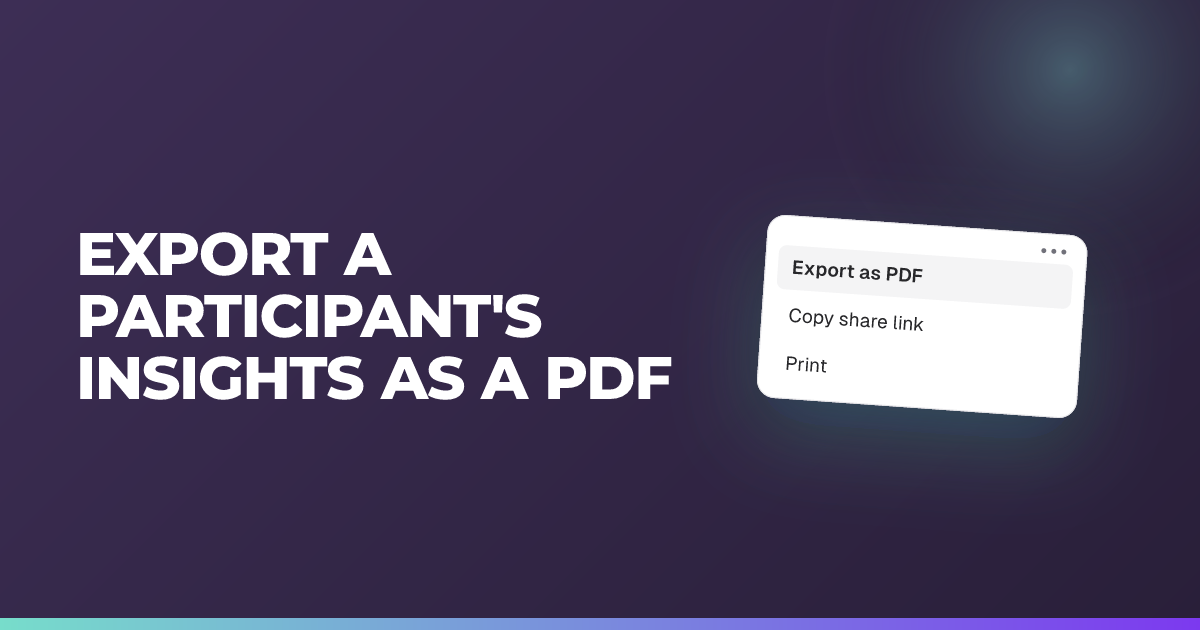
Export a student's insights as a PDF
Save a single student's insights view as a branded PDF to share or keep.
Updated 20 October 2026
Save any one student’s insights as a tidy, branded PDF: their engagement or their Check for Understanding results.
When to use it: After a session has ended, when you want a record of one student’s insights to file or share.
Steps
- End the session. Export becomes available only once the session has finished.
- Open Session insights and select the student you want from the list of students under Overall (on a phone, each student is a tab). Export is not offered on Overall itself. It’s per student.
- On that student’s panel, select the three-dot menu beside their name (labelled Insights actions).
- Choose Export as PDF. This opens a clean, print-ready page of that student’s insights, headed with your session name, teacher, session date, and export date.
- On that page, select Save as PDF to save the file using your browser’s built-in save dialog.
Tip: Exporting a student’s insights is a premium feature (marked with a crown). If your account is on the standard plan the option is locked. Students can always export their own insights from their Your insights view without a premium plan.
This exports one session. To see a student’s work across every session in a classroom, open their progress profile instead. Profiles can’t be exported as a PDF.
About this feature
Still stuck?
We're happy to help you directly. Get in touch with the Nurture team.