
Letting students make the text bigger
Students can make the words in a session larger from the top of their screen. Their choice stays on their device for the next session.
Updated 1 November 2026
Every student can make the words in a session bigger, from a button at the top of their own screen. It changes only their view, so a student who needs larger text can have it without anyone else’s screen changing.
When to use it: A student with low vision, a student reading on a small phone, or anyone who finds the questions hard to read. Show the class where the button is at the start of the year, and remind anyone who’s squinting.
There’s nothing to switch on. It’s there in every session, on every plan.
Make the text bigger
- In the session, choose the text size button at the top of the screen, beside the student’s name. It shows a large and a small letter A.
- Under Text size, choose Default, Large or Extra large. Each choice is written at the size it gives, so students can see the difference before they pick.
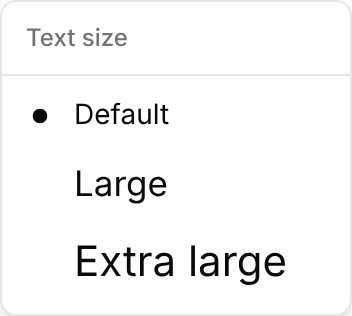
Large makes the words 25% bigger, and Extra large 50% bigger. Only the words grow: the questions, answers and buttons stay in the same places, so nothing moves out of reach.
The bigger text carries into everything the student opens in that session, including the questions and check-ins that open over the page.
It stays on their device
A student’s choice is kept on the device and browser they use, so the next session they open there starts at the same size. It’s their own setting, not the session’s: you can’t set it for the class, and it doesn’t follow them to a different device.
In a private browser window, or inside a learning platform that doesn’t let Signal remember things, the choice lasts until the page is closed. They choose it again next time.
Tips
- Check it on a phone. Extra large on a small phone makes long questions longer to scroll. Large is often enough.
- Keep questions short. Shorter questions and answer options read well at every size.
- Your view doesn’t change. The size a student picks affects their screen only, not yours or the presenter view.
Related articles
Still stuck?
We're happy to help you directly. Get in touch with the Nurture team.