Changing the correct answer after students have answered
Fix a wrong answer key on a question students have already answered. Every answer is marked again and results update.
Updated 20 October 2026
Marked the wrong option as correct? You can fix it even after students have answered. Every answer to the question is marked again against the new correct answer, and scores and results update straight away.
When to use it: You (or AI) keyed the wrong option, a class points out that a different answer is right, or two options are correct and the question should accept both.
What you can change
Once anyone has answered a question, its wording and options are locked, because they’re what students answered. The correct answer is the one thing you can still change, along with the explanation.
- Questions with a correct answer: single-answer and multiple-answer questions.
- Not polls or open answers. They have no correct answer to change.
- The question keeps its type. A single-answer question still has exactly one correct option. A multiple-answer question must keep at least two.
If nobody has answered the question yet, you don’t need any of this. Just edit it as usual.
Change the correct answer
-
Open the session and find the question.
- Live quiz or Assessment: select the question.
- Engage session: find the poll or quiz question in the timeline.
-
Open the question’s three dots menu and choose Edit.
-
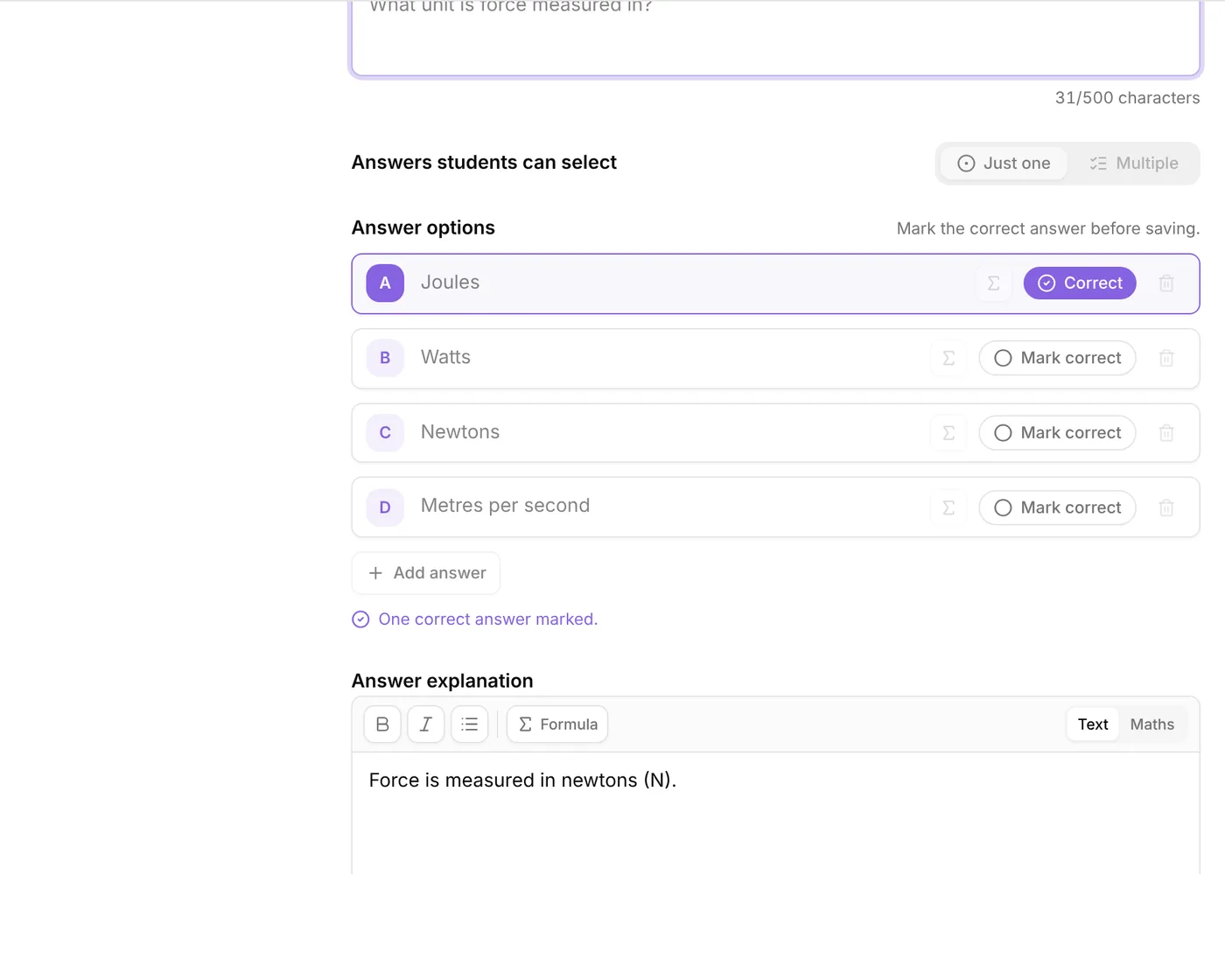
A note at the top confirms that the wording and options are locked but you can still change the correct answer and update the explanation.
-
Choose Mark correct on the right option. On a single-answer question, the mark moves from the old option to the new one. On a multiple-answer question, each option toggles on or off.
-
Update the explanation too if it refers to the old answer.
-
Choose Save question.
-
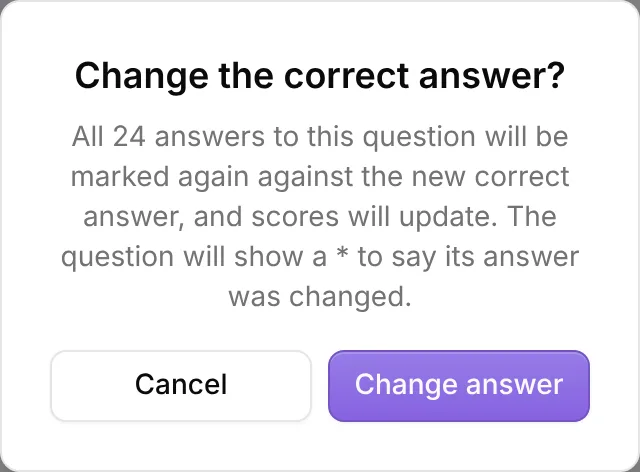
In Change the correct answer?, check how many answers will be marked again, then choose Change answer.
You see “Correct answer changed. Every answer has been marked again.”
What updates
- Marks and scores. Every answer to the question is marked again, so results, the recommendation, the right and wrong grid and each student’s score all reflect the new correct answer.
- Personalised feedback. Feedback written against the old answer is removed, and written again against the new answer the next time each student looks at it. Personalised feedback is a Premium feature for Assessments.
- Potential guess and Low effort tags. Signal’s automatic tags on that question’s answers are cleared, because they were judged against the old answer. Tags you set yourself stay. On Premium, choose Check for guessing from an answer’s menu to check it again.
- Canvas and Teams grades. Grades already sent are sent again for every student who answered the question. Grades not sent yet use the new answer.
- AI summary. An AI summary of the question’s answers written before the change is no longer shown. On Premium, choose Summarise to write a fresh one.
What you and your students see
The question is marked * Answer changed, for you in your results and for students on the question when they look back at it. In the row of question numbers, it carries a small amber *.
The badge only says the answer changed. It doesn’t tell students which option is now correct; they see that when the answer is shown to them in the usual way.
Students aren’t sent a message. Their results simply update.
The history is for you only. Open Edit on the question again and, under the lock note, you’ll see each change, for example “Correct answer changed from A to C · 20 Oct 2026”.
Good to know
- During or after a session. You can change the correct answer while the session is running or after it has ended, including from Signal inside Canvas.
- Co-teachers can change it too.
- Every plan. Changing the correct answer is included on every plan. Personalised feedback, Check for guessing and AI summaries are Premium.
- The wording can’t be fixed this way. If the question text or an option itself is wrong, it stays locked once students have answered.
Related articles
Still stuck?
We're happy to help you directly. Get in touch with the Nurture team.