Adding curriculum documents to a classroom
Upload your syllabus, scheme of work or rubrics to a classroom, and Signal draws on them when its AI writes sessions, questions and feedback.
Updated 2 November 2026
Add the material a class works from to its classroom once, and Signal’s AI draws on it whenever it writes for that classroom. Generated sessions, questions and feedback then follow your scope, depth and vocabulary rather than general knowledge.
When to use it: You want AI-generated questions and feedback to match your syllabus, scheme of work, glossary or marking criteria, without attaching the same files to every session.
Before you start
- You must own the classroom. Only the classroom’s owner sees the Curriculum tab. Co-teachers don’t, and neither do students or parents.
- Curriculum documents must be switched on for your school. If you own the classroom and there’s no Curriculum tab, they aren’t switched on for your school yet. Ask your school’s Nurture contact about switching them on.
Add a document
- Open the classroom from Classrooms in the side menu.
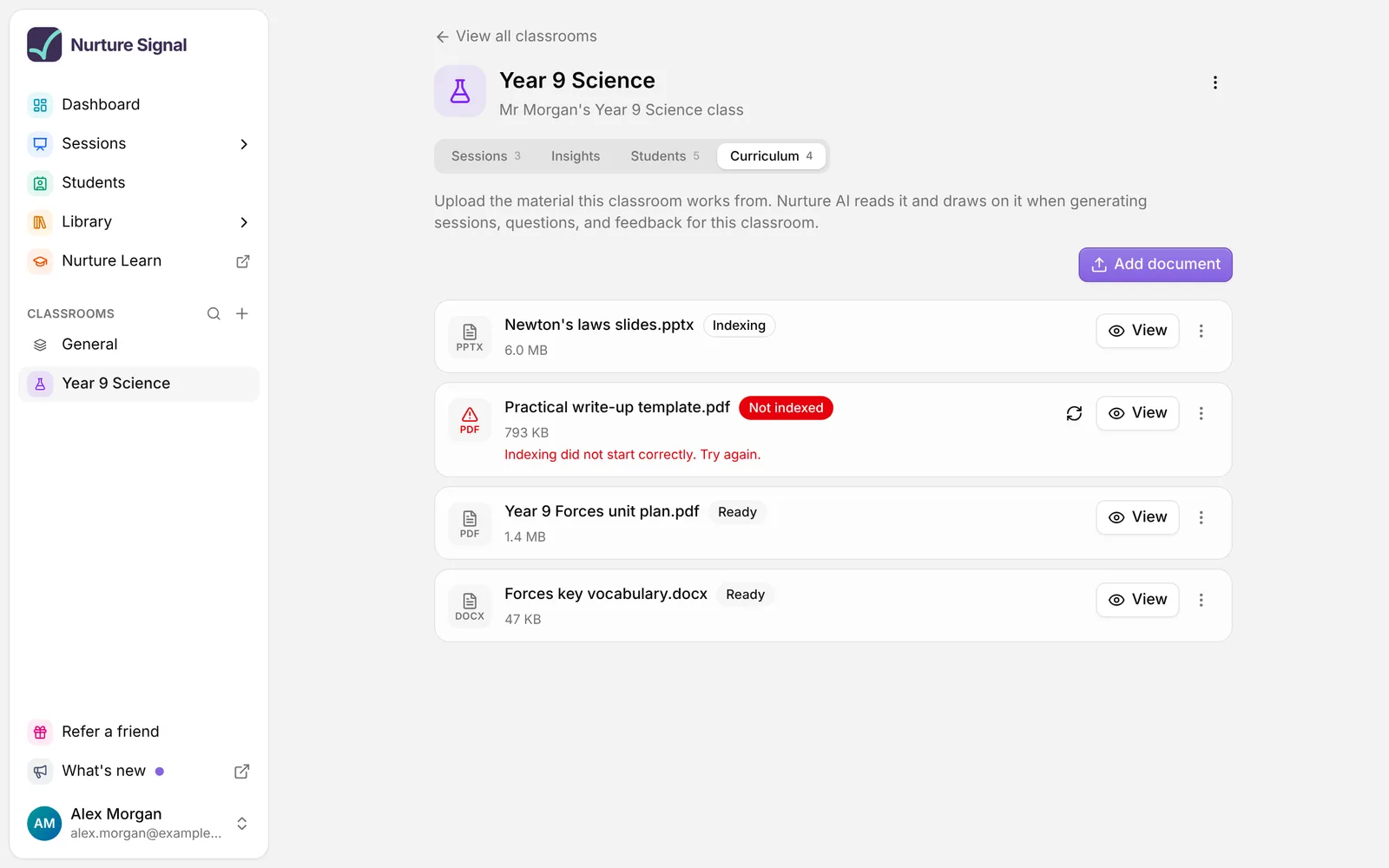
- Go to the Curriculum tab. It sits after Sessions, Insights and Students, and shows how many documents the classroom holds.
- Choose Add document and pick a file. You add one file at a time.
- The button shows Uploading… while the file is sent. The document then appears in the list marked Indexing.
- Wait for it to show Ready. Signal’s AI can use it from then on. The list updates by itself, so there’s no need to refresh.
Indexing usually takes a few minutes. You can leave the page and carry on working in the meantime.
Tip: Good documents to add are your syllabus or curriculum for the subject and year level, your scheme of work or unit plans, glossaries, rubrics and success criteria, and exemplars. The more clearly they describe what you teach and how you assess it, the closer the AI’s work will be to your classroom.
Which files you can add
- PDF, Word, PowerPoint, Excel and other spreadsheets, OpenDocument text, PNG and JPEG images, and plain text, Markdown or CSV files.
- Scanned pages and photos of printed material work too. Signal reads the text in them.
- WebP images, audio and video aren’t accepted.
- Each document can be up to 20 MB.
- A classroom can hold up to 20 documents. Once you reach 20, Add document is greyed out until you delete one.
What the statuses mean
Each document shows its file type, name, size and one of these statuses:
- Indexing: Signal is reading the document. It isn’t used yet.
- Ready: Signal’s AI can use it.
- Not indexed: Signal couldn’t read it. The reason shows under the file name.
To try a Not indexed document again, choose the round arrow button beside it. If the reason says no readable text was found, a retry won’t help: upload a clearer scan, or a version with selectable text, and delete the old one.
Long documents. If a document is very long, it still shows Ready, with the note “This document was long, so only its opening sections were indexed.” Only the start of it is used. To make sure the rest counts too, split it into smaller files and add each one.
What Signal’s AI does with your documents
When Signal’s AI works for this classroom, it looks for the parts of your documents most relevant to the task and writes from those. It uses them when it:
- generates a session with AI
- writes or rewrites a question with AI
- writes personalised feedback for students
- writes AI insights about a session’s results
The AI is told to stay within your material. It won’t bring in topics your documents don’t cover, and if they don’t cover enough for what you asked, it writes less rather than filling the gap from general knowledge.
What it doesn’t do:
- It doesn’t read every document in full each time. It picks the passages that best match the session’s name and what you asked for, so a clear request gets the most relevant material.
- It doesn’t mark open answers against your documents. Marking uses the success criteria you set on the question.
- It doesn’t name the document. Generated questions and feedback don’t say which file they came from.
- It only applies to your own sessions in the classroom. A session has to be in the classroom to use its documents, and AI work a co-teacher does there, such as generating their own session or writing a question with AI, doesn’t draw on your documents.
- It doesn’t change anything already generated. Adding or deleting a document only affects what the AI writes from then on.
View, download or delete a document
- View opens a read only preview of the document.
- The three dots menu beside it has Download and Delete.
When you choose Delete, Signal asks you to confirm. Choose Remove. The document disappears from the list straight away and Signal’s AI stops using it. Sessions, questions and feedback already generated from it are not changed.
Curriculum documents or a session’s own files?
Ask yourself whether the document is for the whole class or for one session.
- For the whole class, add it to the Curriculum tab. Your syllabus, scheme of work, glossary or rubrics. Signal draws on it for every session you create in the classroom.
- For one session, add it to that session. When you generate a session with AI, From files builds the session from up to five handouts, lesson plans or past assessments. On an Assessment with Personalised feedback switched on, Supporting documents guide the feedback and any new questions for that session only. Creating from a file includes three free generations a week on Standard and is unlimited on Premium; supporting documents are Premium.
You can use both together. A session’s own files and the classroom’s curriculum documents can shape the same generation.
Plans and your AI allowance
Curriculum documents are available on every plan. Uploading a document, indexing it and each time the AI draws on it all use your weekly AI allowance, so large documents use more of it. If your allowance runs out, Signal tells you “You’ve used all of this week’s AI allowance” and you can add or retry documents again once it resets.
Generating sessions and writing questions with AI use your curriculum on every plan. Personalised feedback and AI insights are Premium features, so your documents only shape feedback and insights on Premium. See Nurture Signal plans.
Good to know
- Students and parents never see your curriculum documents. They only see what Signal’s AI writes from them.
- Don’t upload personal information. Curriculum documents are for teaching material. Leave out student work, marks, assessment records and anything else about individual people.
- Only the relevant passages go to the AI. Whole documents aren’t sent with each request, and your documents aren’t used to train AI models.
- Deleting isn’t erasing. A deleted document stops being shown and used straight away, but Nurture keeps a copy so problems can be investigated. If you need a document erased, ask your school’s Nurture contact.
Troubleshooting
There’s no Curriculum tab. Check that you own the classroom. If you do, curriculum documents aren’t switched on for your school yet, so ask your school’s Nurture contact about switching them on.
Add document is greyed out. The classroom already has 20 documents. Delete one you no longer need.
My file was refused. Signal tells you why. Check that it’s one of the accepted formats and no bigger than 20 MB. If Signal says “The document contents do not match its file type.”, open the file and save it again in its proper format, then add that copy.
A document has been on Indexing for a long time. Indexing usually takes a few minutes. If a document still hasn’t finished after a day, it changes to Not indexed and you can try again.
The AI’s work doesn’t seem to follow my documents. Check that each document shows Ready, that the session is in this classroom, and that it’s your own session. A specific session name and request help Signal find the right passages.
About this feature
Related articles
Still stuck?
We're happy to help you directly. Get in touch with the Nurture team.