
Asking students to upload files as their answer
Let students answer with photos of their written work or PDFs, open each file from their answer, and have it marked on Premium.
Updated 25 October 2026
A File upload question asks students to hand in files instead of typing: a photo of their working, a scanned worksheet or a PDF. You open each file from their answer. On Premium, Nurture AI reads the files and marks them against your success criteria, just as it does a written answer.
When to use it: The work is easier on paper than on a keyboard. A worked maths solution, a labelled diagram, a graph, a mind map or a page from an exercise book.
Where you can use it. Live quizzes and Assessments. Not in Engage sessions.
Add a file upload question
- Open the session and select + (Add question).
- Choose File upload from the question types, beside Quiz, Poll and Open answer. On a phone, you pick the type first.
- Write your question. If students need a passage, diagram or instructions to work from, add a description or image (see adding descriptions and images to questions).
- Under the question, the Students upload files box reminds you what students can hand in.
- On Premium, add Success criteria and a Model answer if you want the files marked (see below).
- Choose Save question. Save & add another starts the next question as a file upload too.
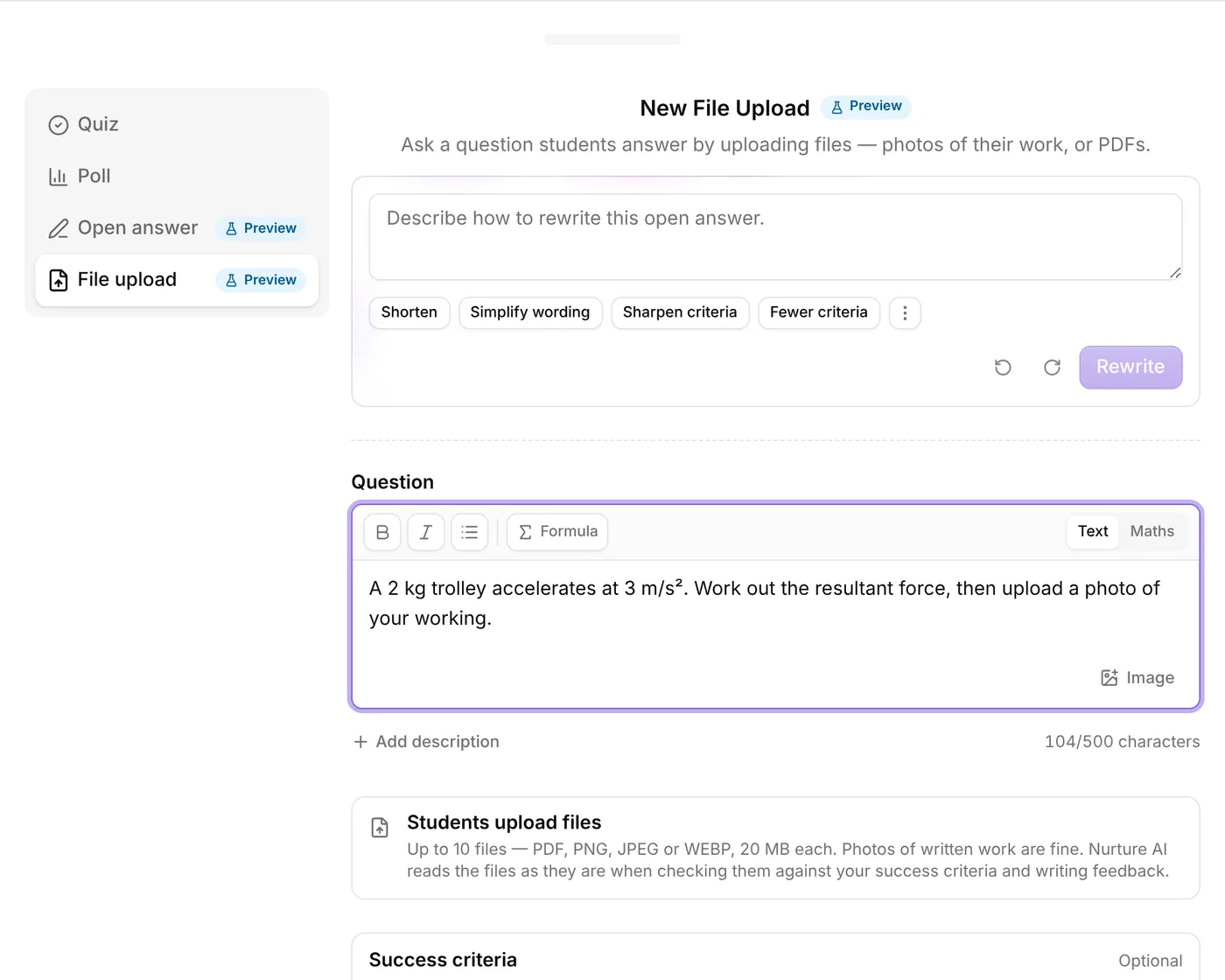
There is no Student answer length setting, because students don’t type an answer.
Once any student has answered, the question can’t be switched to another type.
What students see
Under the question, students see Your files and a box to Upload files. They can tap it to choose files, or drag files onto it on a computer. If you’ve shown your success criteria, they appear above the box under What a good answer does.
Each file uploads as soon as it’s added. Students see its name, type and size. They can View a file to check it before handing it in, or remove it with the cross. The box shows how many files they’ve used, for example “3/10 files”.
Students can’t submit until at least one file has finished uploading. Photos are made smaller on the student’s device before they upload, so a phone photo of a page goes up quickly.
What students can upload
- Formats: PDF, PNG, JPEG or WEBP. Word documents, slides and spreadsheets can’t be uploaded, so ask students to save them as a PDF first.
- Up to 10 files per answer.
- Up to 20 MB per file.
- Up to 40 MB for all of an answer’s files together.
- Up to 20 pages in one PDF, and 40 pages across the whole answer. Each image counts as one page.
Photos of written work are fine.
When a file is refused
Students are told straight away, so nobody finds out at the end of a quiz. The messages they might see:
- Wrong type: the file “can’t be uploaded. Use a PDF, PNG, JPEG or WEBP file.”
- Too big: the file “is too large. Each file can be up to 20 MB.”
- Too many: “You can upload up to 10 files.”
- PDF too long: “This PDF has 26 pages. Upload a PDF of up to 20 pages.”
- Answer too big: the file would take their answer past 40 MB or 40 pages, so they’re asked to remove a file or upload a smaller or shorter one.
- Damaged or password-protected PDF: “This PDF couldn’t be read. Save it again and try once more.”
- Left the question mid-upload: “An upload stopped when you left the question. Add that file again.”
Open students’ files
In the question’s results, each student’s answer lists their files in the order they handed them in.
- Find the student’s answer.
- Select View next to a file. On a phone, View shows as an eye icon.
- The file opens in Signal with its name at the top. Choose Close to go back.
In an Assessment, work a student hasn’t submitted yet appears under Not submitted yet with the names of the files uploaded so far. You can open the files once they submit.
Co-teachers can open students’ files too.
Marking and feedback (Premium)
On Premium, add success criteria and Nurture AI reads each student’s files as they are, photos and PDFs alike, and checks them against your criteria. You see which criteria each answer met, as you would for a written open answer.
- Marking works in live quizzes and Assessments.
- Personalised feedback works in Assessments. Turn on Generate personalised feedback for the question. It needs at least one success criterion and a model answer, and personalised feedback switched on for the Assessment.
- A file that can’t be read in full leaves the answer unmarked, rather than marking only part of the work.
- Anything written in a file is treated as the student’s work, never as an instruction to the AI.
- Your weekly AI allowance covers reading and marking the files, and storing them. Students are never stopped from uploading because your allowance has run low.
On Standard, you can still ask for files and open them, but they aren’t marked. Students see your model answer alongside the files they uploaded.
See creating open answer questions for how success criteria, model answers and feedback work. A file upload question uses them in exactly the same way.
Who can open the files
- You and your co-teachers, once the student has submitted.
- The student who uploaded them.
- Parents who follow the student in your classroom. They can open files the student submitted, never work still in progress.
Guests can upload files like any other student.
Good to know
- Previewing as a student: files you pick stay in your browser. Nothing is uploaded or saved. See previewing a session as a student.
- AI insights don’t summarise file upload answers.
- Exports don’t include students’ files.
- Duplicates and the Library keep the question as a file upload.
- Deleting the question deletes every file students uploaded to it.
Troubleshooting
I can’t see File upload. It isn’t offered in Engage sessions. Use a live quiz or an Assessment.
A student’s answer wasn’t marked. Marking needs Premium and at least one success criterion. An answer is also left unmarked if one of its files couldn’t be read in full, or if your weekly AI allowance had run out.
A student can’t upload. Uploads stop when the question is closed or the session has ended. In an Assessment, they also stop once the due date passes, unless you allow late work. A student set to view-only can’t answer at all.
Related articles
Still stuck?
We're happy to help you directly. Get in touch with the Nurture team.