
Saving and sharing sessions in the Library
Save a session you have built so you can run it again, and share it with other teachers at your school or by link.
Updated 20 October 2026
Built a session that worked well? Save it to your Library and you never have to build it again. Start a fresh copy whenever you need it, and share it with colleagues so they can run it with their classes too.
When to use it: You want to reuse a lesson starter, quiz or exit ticket next term, or a colleague has asked for the session you ran with your class.
Only teachers can open the Library. Students never see it, or anything in it, including answer keys.
What gets saved
A library item is a snapshot of a session’s setup and content.
- Saved: the session type (Engage, live quiz or Assessment), its settings, every question with its options and answer key, and any check-ins you prepared for an Engage session.
- Not saved: students’ answers, reactions and replies, and dates. You set the due date or schedule fresh each time you use the item.
- Answer cards are not saved. A live quiz that used low-tech answer cards becomes an ordinary live quiz with the same questions.
The snapshot never changes after you save it. If you edit the original session later, the library item keeps the version you saved. To keep a newer version, save the session again.
Save a session to your Library
- Find the session on your dashboard or the Sessions page.
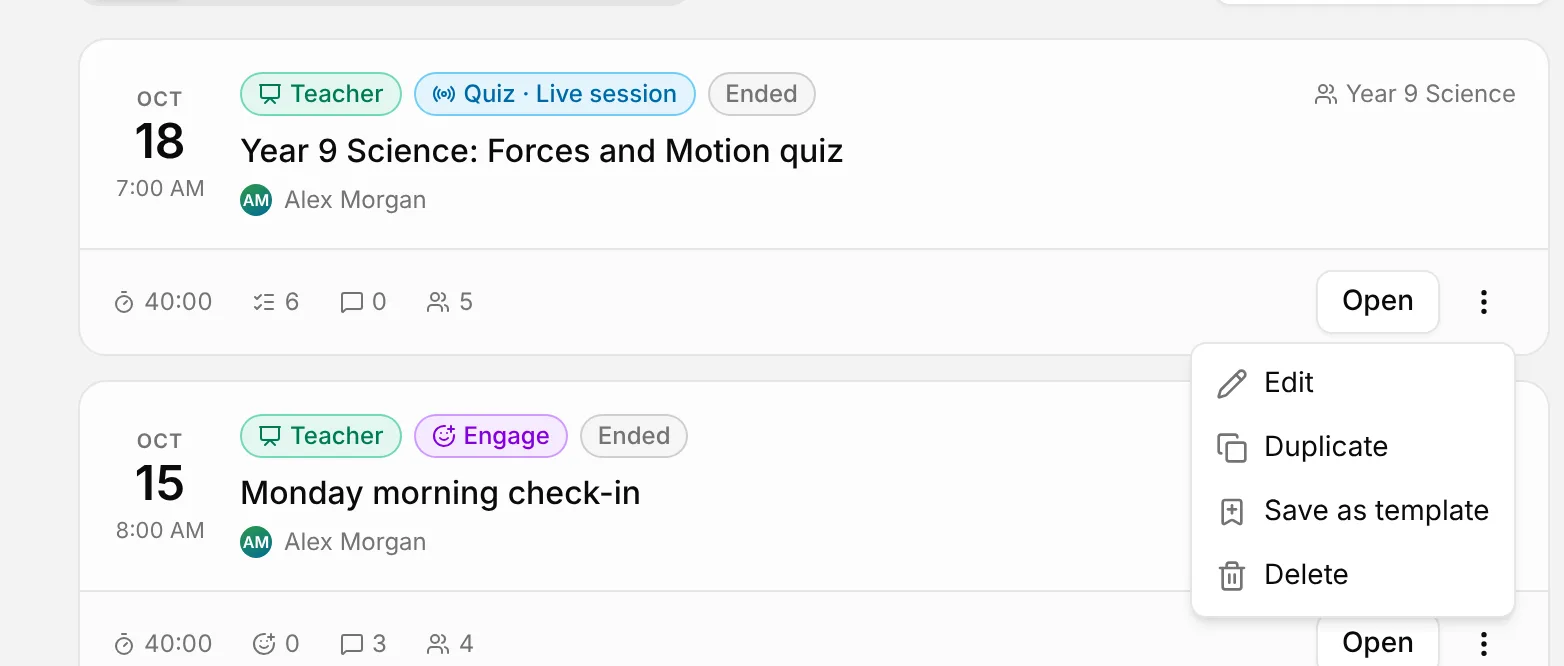
- Open the three dots menu on its card, or at the top of the session page.
- Choose Save as template.
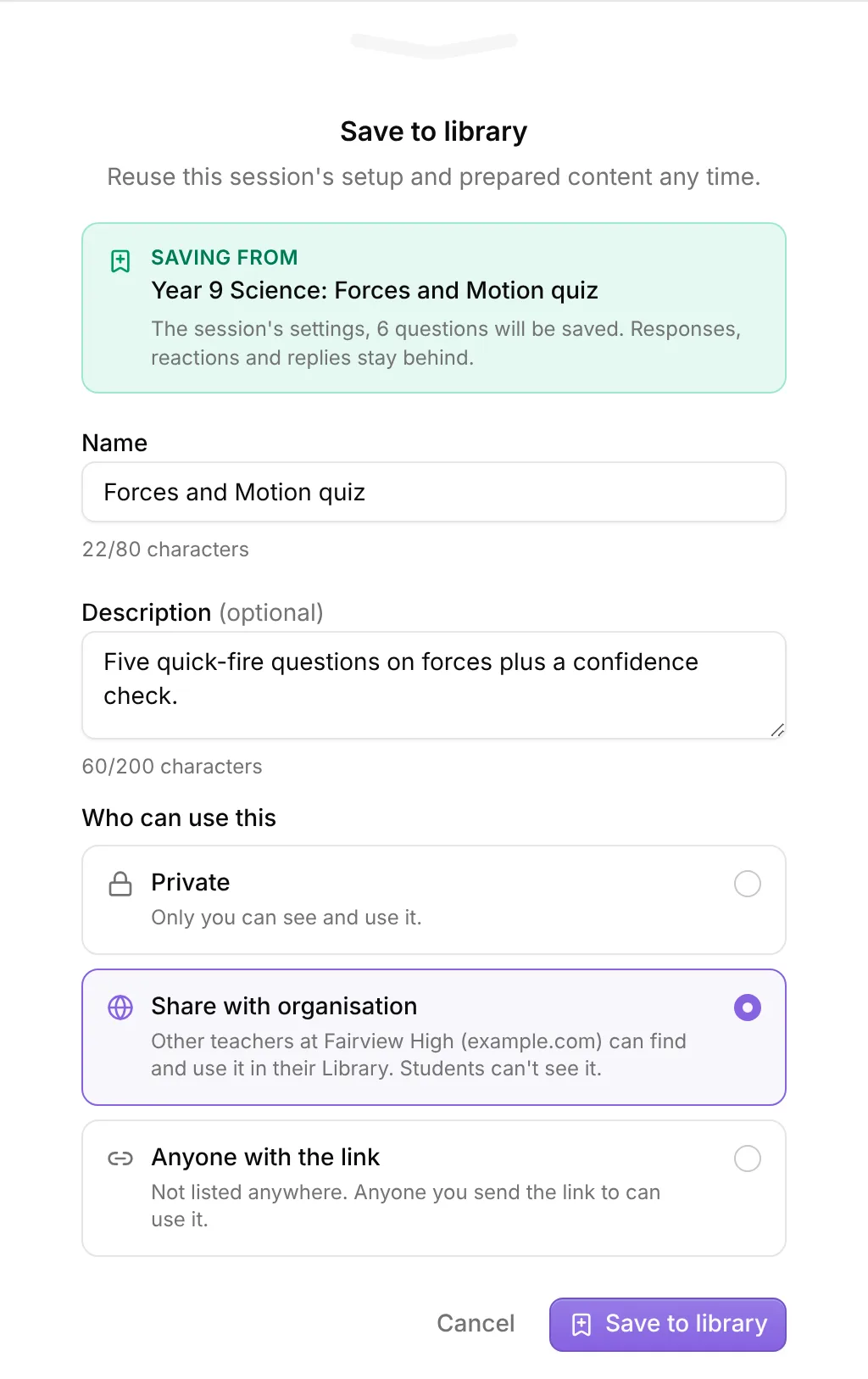
- In Save to library, check the green box to see what will be saved.
- Give it a Name and, if you like, a Description that tells colleagues what it is for.
- Under Who can use this, choose how to share it (see below).
- Choose Save to library.
Can’t see Save as template? You can only save sessions you created yourself. Assessments set through Canvas Assignments can’t be saved either, because Canvas manages them.
Choose who can use it
You pick one of three options when you save, and you can change it at any time.
- Private: only you can see and use it. It appears in your My library tab.
- Share with organisation: every other teacher at your school can find and use it in their Library. Students can’t see it.
- Anyone with the link: it isn’t listed anywhere. Any teacher you send the link to can use it. They sign in first, and a student who opens the link is told it is for teachers only.
If Share with organisation is greyed out, your account isn’t linked to your school’s organisation yet. The option tells you to ask an admin to set up your organisation’s domain, so contact your Nurture team and they will sort it out.
Find things in your Library
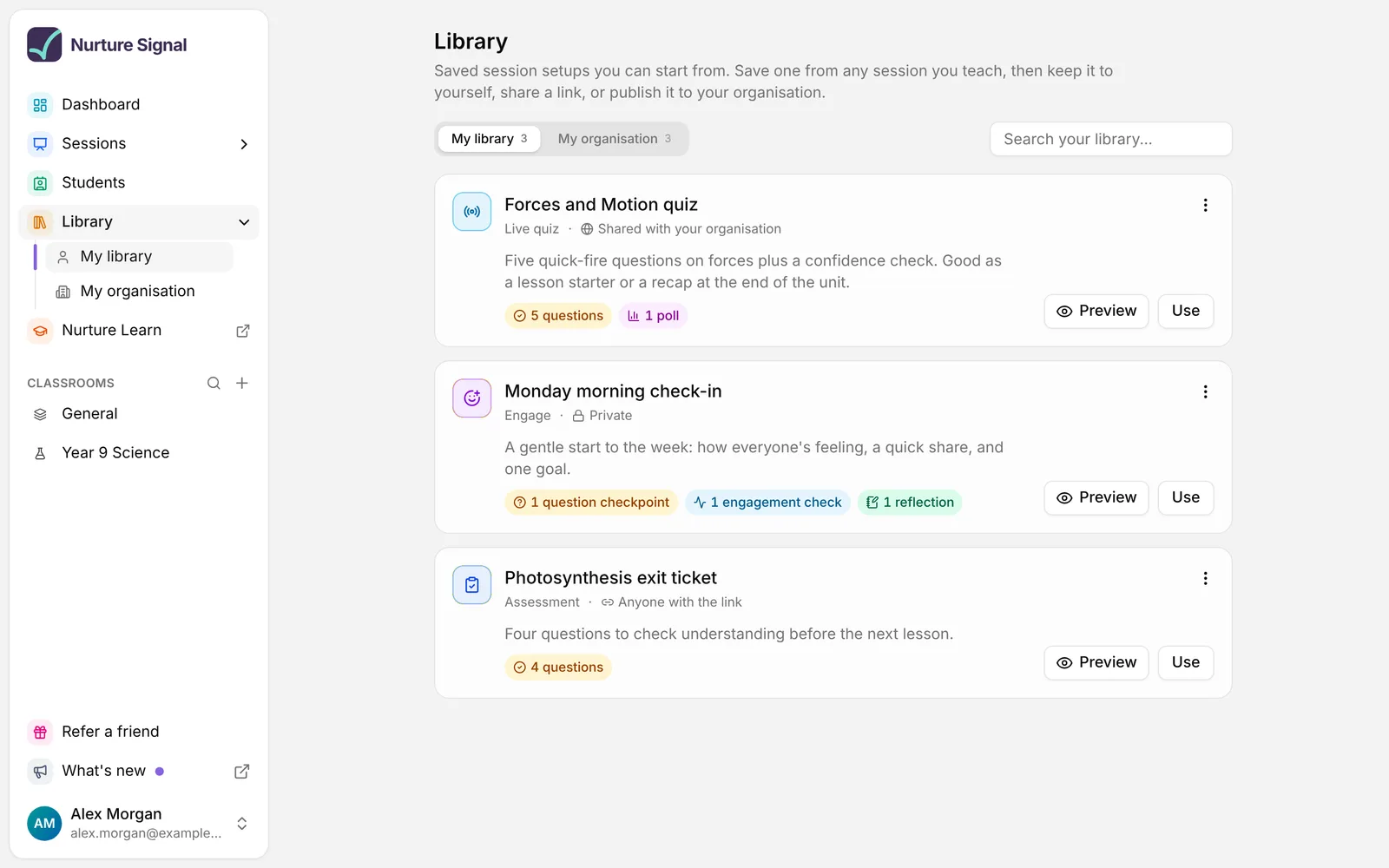
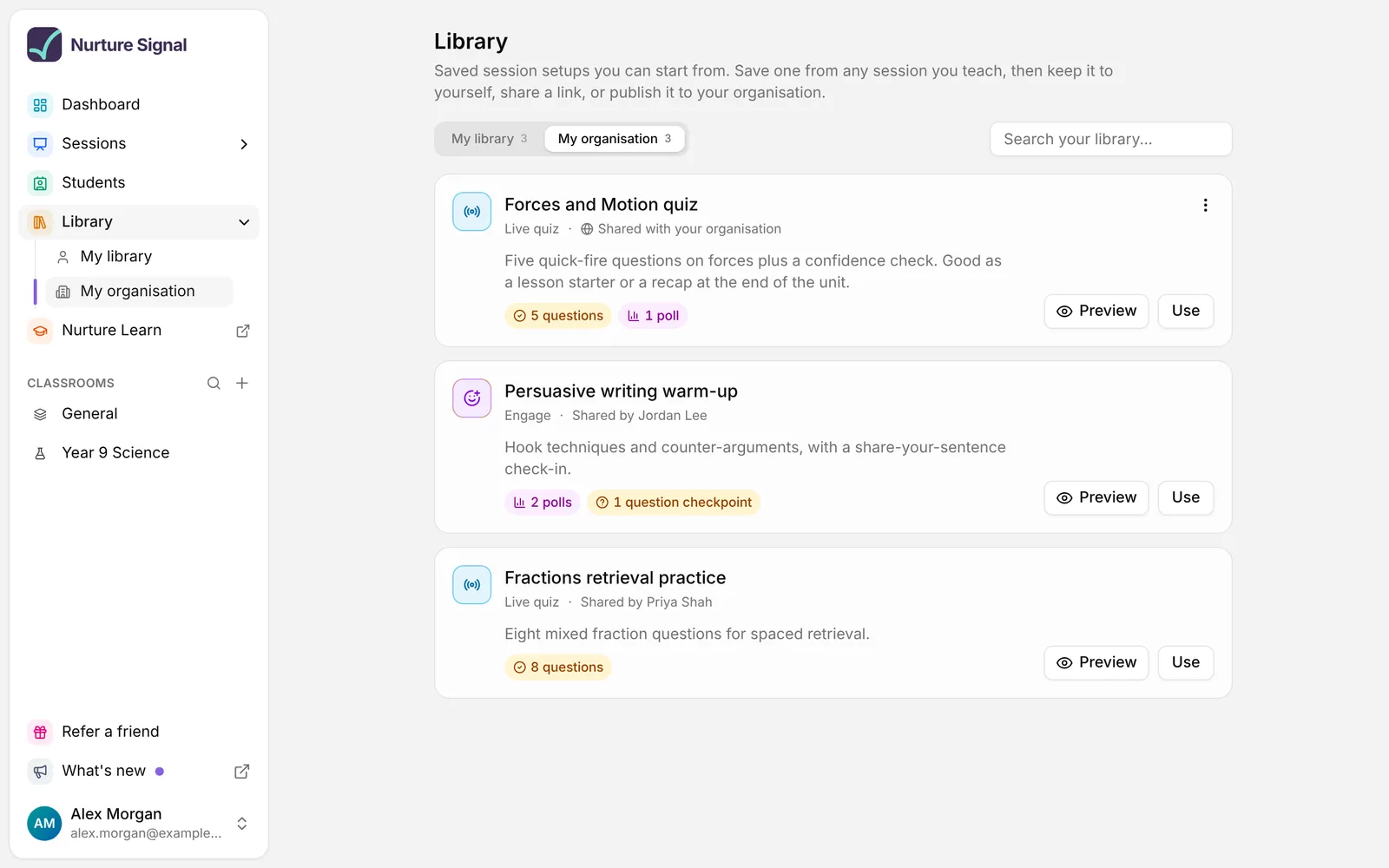
Open Library in the sidebar, or the Library card on your dashboard. There are two tabs:
- My library: everything you have saved, with how each item is shared.
- My organisation: everything colleagues have shared with your school, with who shared it.
Each card shows the session type and what is inside, for example “5 questions · 1 poll”. Use the search box to find an item by its name, its description or who shared it.
Preview an item
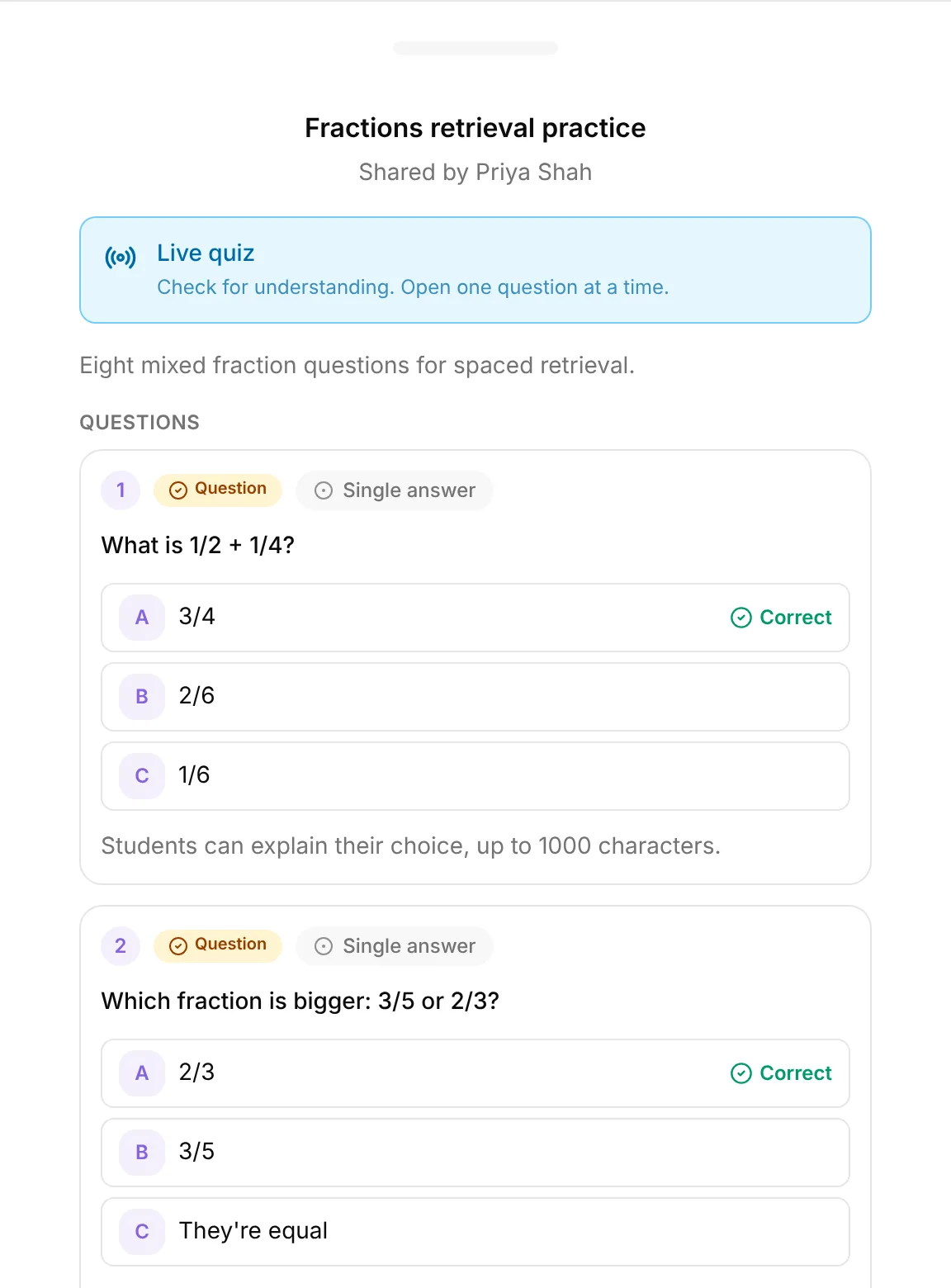
Choose Preview on a card to look inside without creating anything. You see every question with its options and the correct answers marked, plus any check-ins. If it is what you want, choose Use template at the bottom.
Start a session from the Library
- Choose Use on the card, or Use template in the preview.
- In Start from library, check the session name and the name students will see you as.
- For an Engage session or live quiz, choose Start now or Prepare for later. For an Assessment, set when students see feedback and the due date.
- Open Settings if you want to change comments, reactions, guest access and so on.
- Choose Create session.
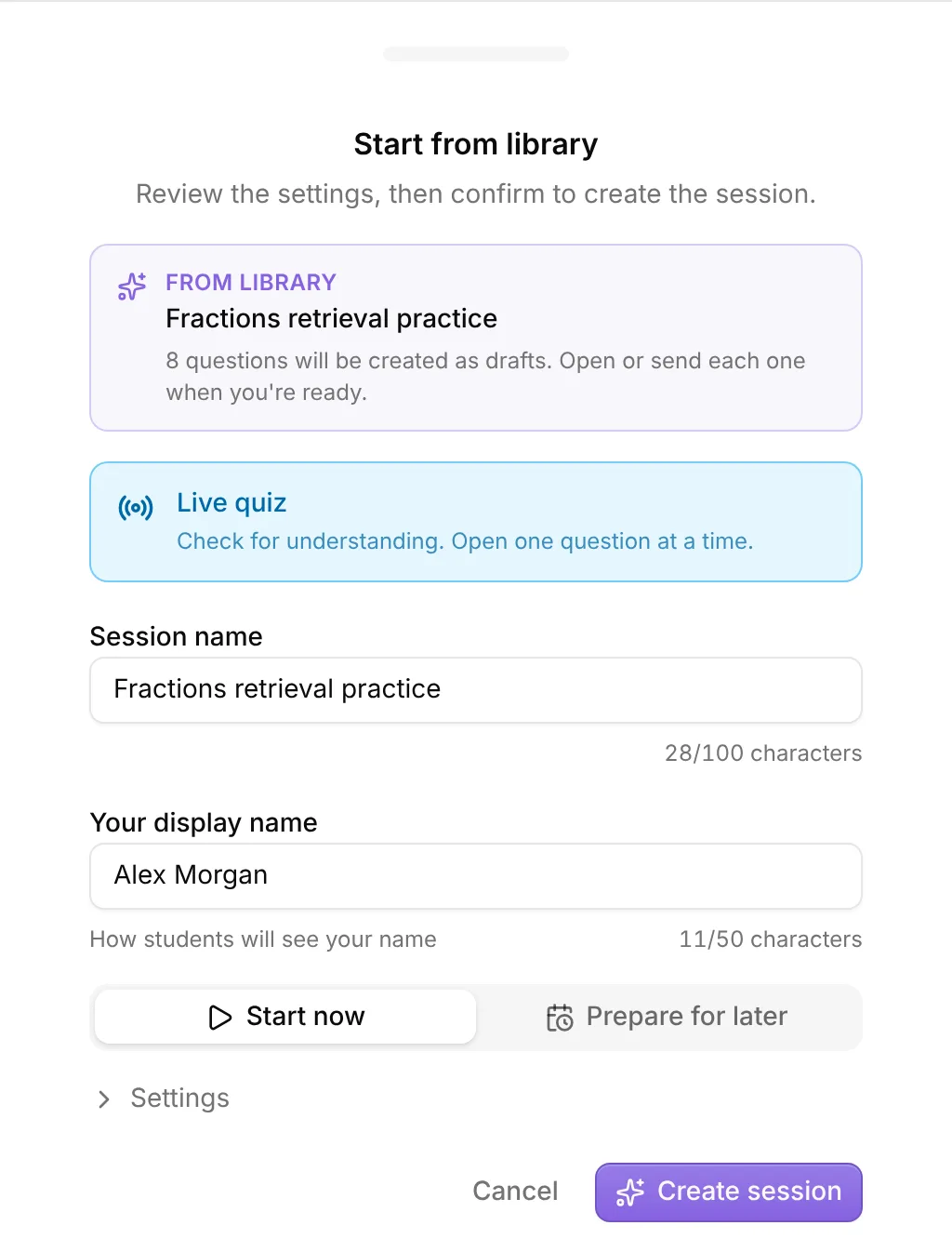
Your new session opens straight away. Its questions arrive as drafts, so open or send each one when you’re ready. The original session, and any other copies, are not touched.
When your copy differs. A session always follows the settings of the teacher who creates it, so an item a colleague shared can come out slightly differently for you. The drawer tells you before anything is created:
- If you can’t create that session type, or it uses a question type your school hasn’t turned on, it explains why and Create session stays unavailable.
- If your plan doesn’t include grading, questions keep their wording and model answers but aren’t marked against success criteria. The drawer lists every change like this.
- A check-in type your school doesn’t use is left out, and the drawer says so.
Edit, share or delete an item
Only the teacher who saved an item can change it. On a card in My library, open the three dots menu:
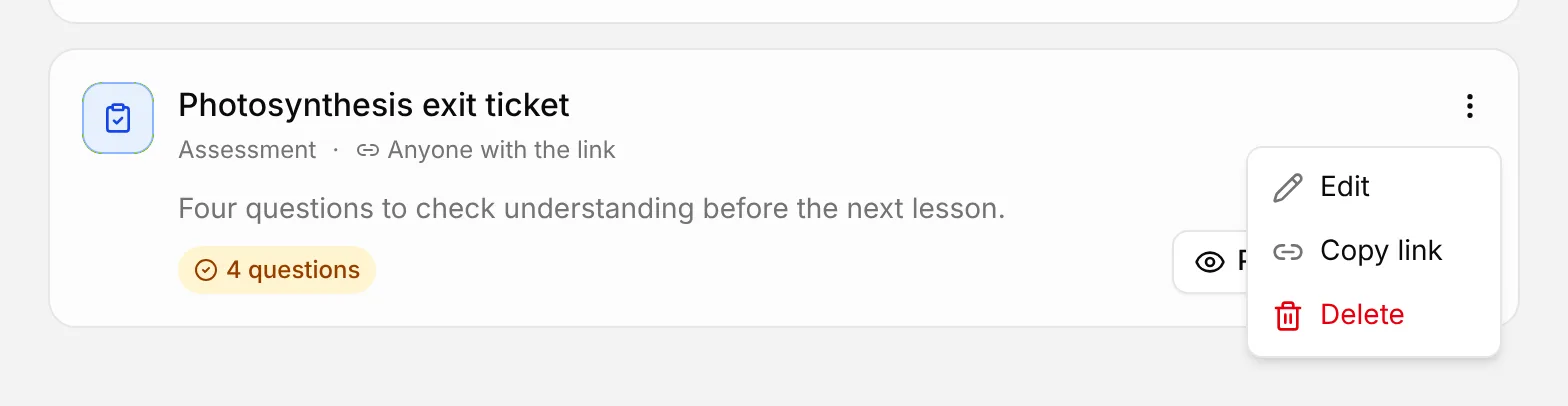
- Edit: change the name, description or who can use it. The saved questions and settings can’t be edited; to change those, save a new item.
- Copy link: shown when the item is shared with Anyone with the link.
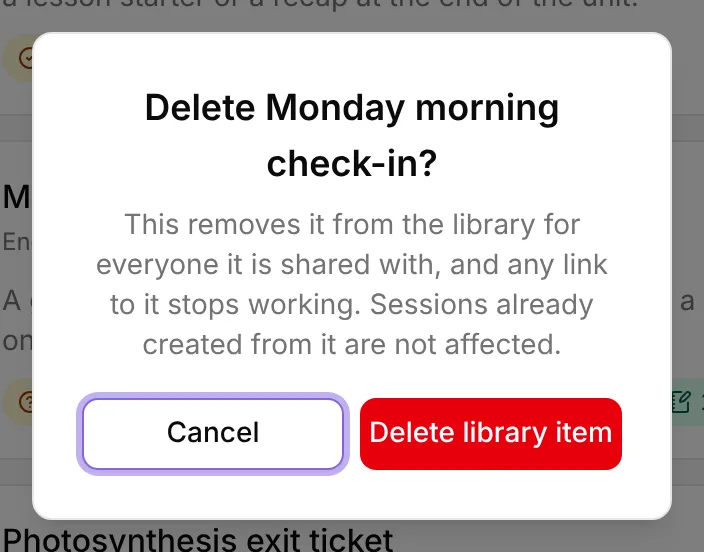
- Delete: removes it from the Library for everyone it is shared with, and any link to it stops working. Sessions already created from it are not affected.
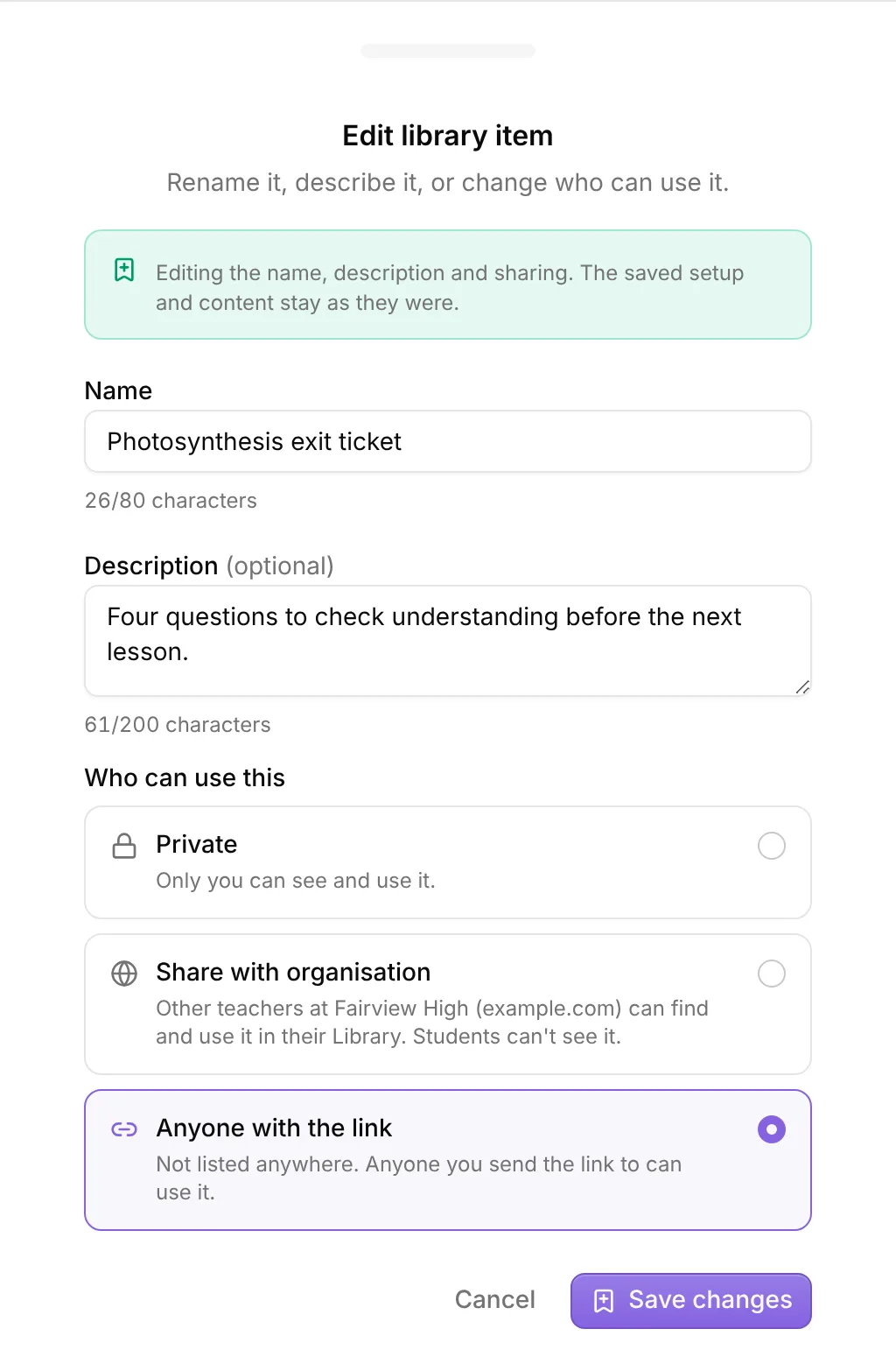
Turning off link sharing is final for that link. If you change an item from Anyone with the link to Private or Share with organisation, the old link stops working. Switch it back to link sharing and you get a new link, so send that one to anyone who needs it.
Good to know
- Link previews follow your sharing. Paste a link into Teams, Slack or an email and the preview shows the name, description and who shared it only for items shared by link. Library links never appear in search engines.
- Links work within your region. Library items stay on the Nurture region they were saved in. Colleagues at your school are always in the same region; a teacher in another region can preview a linked item but can’t create a session from it.
Related articles
Still stuck?
We're happy to help you directly. Get in touch with the Nurture team.