
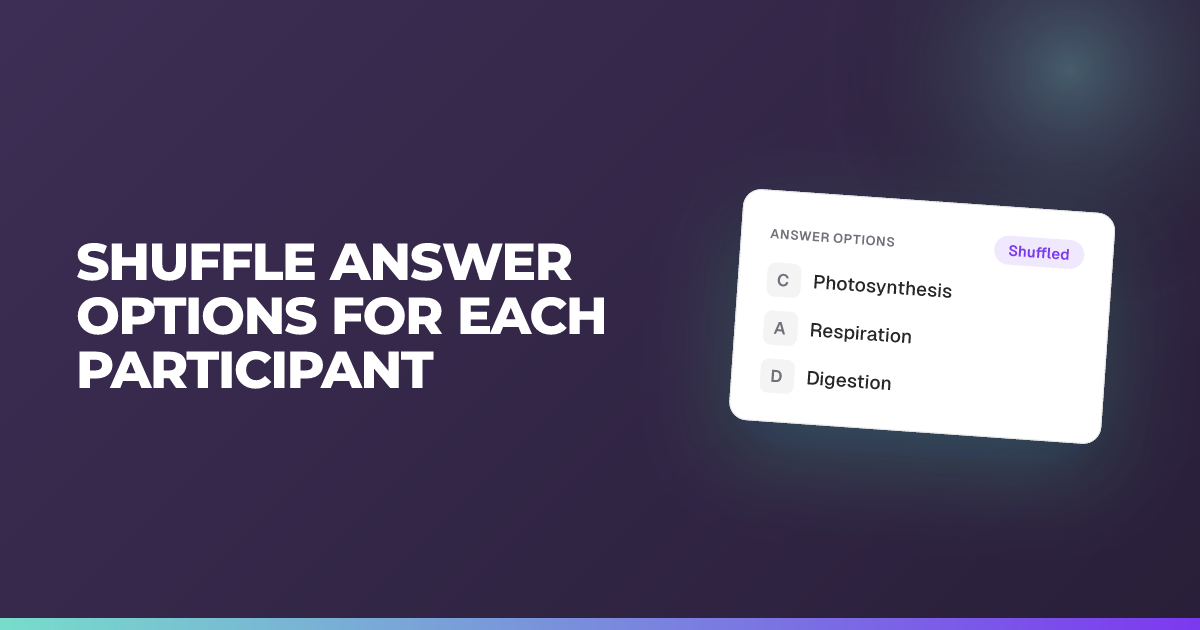
Shuffle answer options for each student
Show quiz and poll options in a different order to every student.
Updated 14 July 2026
This gives every student their own shuffled order of the answer options, so no two people see the choices in the same sequence.
When to use it: When you want to discourage copying or reduce the chance that students just call out “the answer is B”.
Steps
- Open your session’s settings (when creating, editing, or duplicating a session).
- Find the Students section.
- Turn on Shuffle quiz & poll answer options.
- Save the session.
Tip: It’s off by default and applies to both quizzes and polls. Each student keeps the same shuffled order for the whole session, so options never jump around on them when reviewing. Your teacher, presenter, and printed views still show the options in the order you wrote them.
Still stuck?
We're happy to help you directly. Get in touch with the Nurture team.