
Sharing a classroom with co-teachers
Add a colleague to a classroom by email so they can help run it and every session in it, even before they have an account.
Updated 20 October 2026
Add a colleague to one of your classrooms by email and they become a co-teacher of it. They can run every session in the classroom with you, create their own sessions there, and see the class’s insights and students. They don’t need a Signal account before you add them.
When to use it: You team-teach a class, share it with a learning support teacher or teaching assistant, or want a colleague to cover your lessons while you’re away.
Before you start
- The classroom must have been created in Signal. Classrooms that come from a Canvas course or a Microsoft Teams class don’t have co-teachers, because those platforms decide who teaches the class.
- You need your colleague’s email address, the one they sign in to Signal with (or will sign in with).
- Up to 25 co-teachers per classroom.
- Every plan. Sharing a classroom works on both Standard and Premium.
Add a co-teacher
-
Open the classroom from Classrooms in the side menu.
-
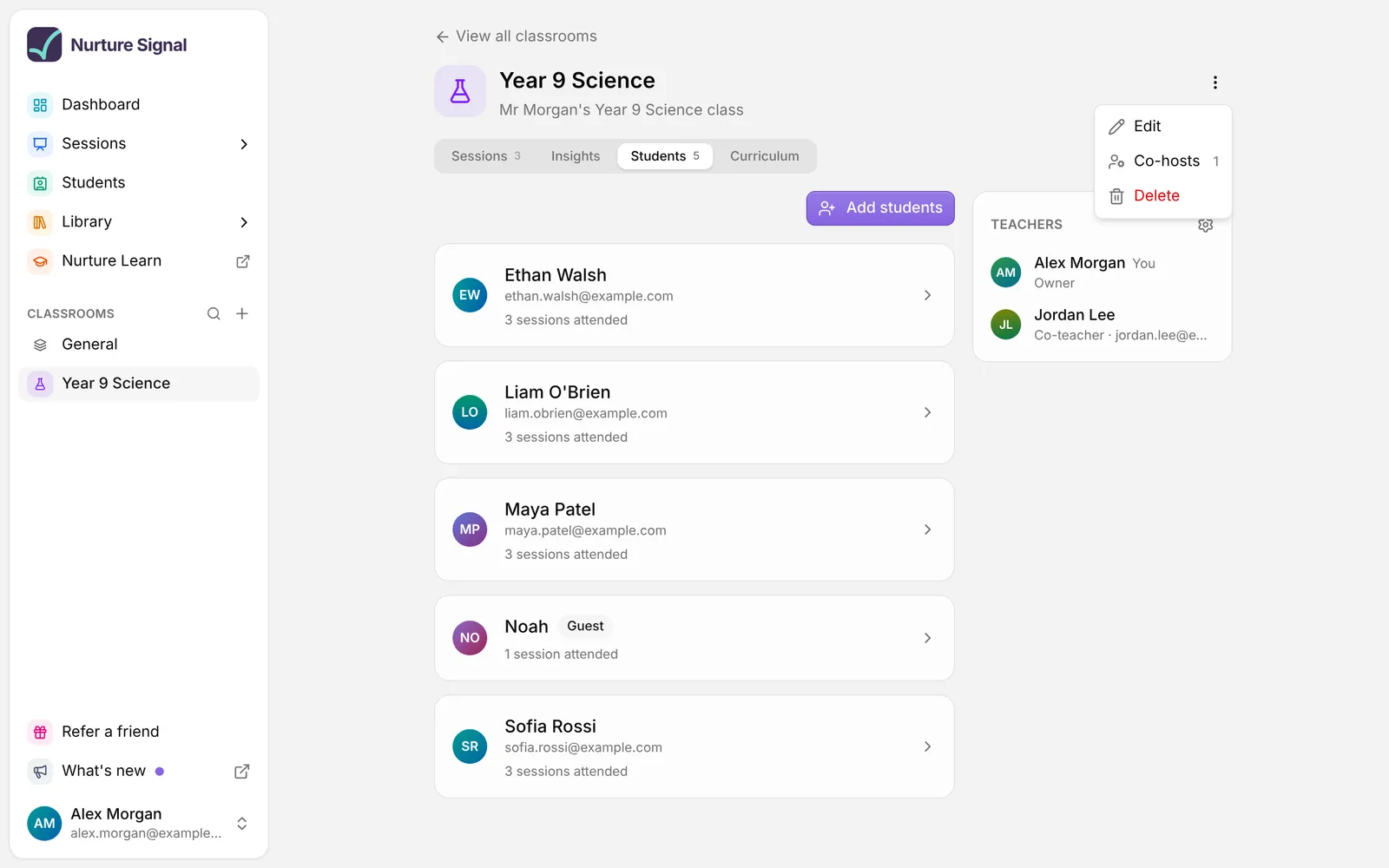
Open the three dots menu at the top of the classroom and choose Co-hosts.
You can also go to the Students tab and select the settings button (Manage teachers) on the Teachers panel beside the list.
-
The Group co-hosts drawer opens. Enter your colleague’s Name and Email.
-
Choose Add co-host.
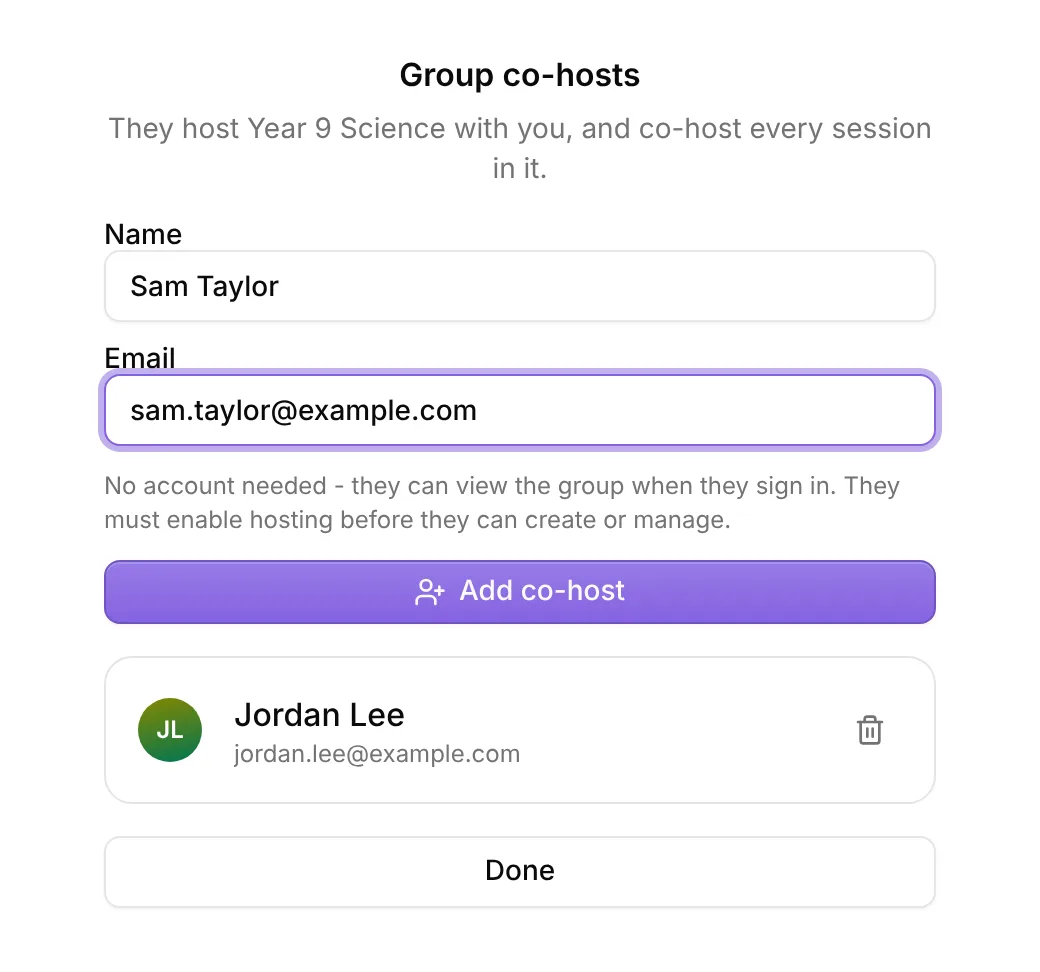
Signal confirms they’ve been added, and they appear in the list in the drawer. Choose Done to close it.
The drawer’s wording is general: co-host means co-teacher, and group means your classroom.
The number next to Co-hosts in the three dots menu shows how many co-teachers the classroom has.
Let your colleague know
Signal doesn’t email your colleague, so tell them yourself. They don’t need an account first.
They go to Signal and sign in with exactly the email address you added. The classroom then appears on their Classrooms page with a Co-host badge.
If they don’t have teacher access yet
A colleague who is new to Signal, or who has only ever joined sessions as a student, needs to turn on teacher access before they can do anything in the classroom. Until then they can see the classroom and its sessions, but they can’t run, create or change anything.
- They open the classroom. A notice reads Enable hosting to create here.
- They choose Enable hosting.
- On the page that opens, they choose Enable Hosting.
After that, the classroom is also listed under Classrooms in their side menu, and everything below is open to them.
What a co-teacher can do
- Start, run and moderate every session in the classroom, including the ones you created, and see their results.
- Edit the details of those sessions.
- Create their own sessions in the classroom.
- Use the Insights and Students tabs, and open each student’s progress.
- Edit the classroom’s name, icon, colour, description and AI context (three dots menu, then Edit).
- Add and remove other co-teachers.
What a co-teacher can’t do
- Delete the classroom. Only its owner can.
- Delete sessions they didn’t create. Each teacher can only delete their own sessions, so you can’t delete a session a co-teacher created either.
- Change Allow guest students on a session they didn’t create. Only the teacher who created a session can change it.
- Add students to the class list, or see students you’ve added who haven’t joined yet.
- Let a parent follow a student. Only the owner can.
- See the Curriculum tab.
- Remove the owner. The owner always keeps access.
See who teaches the classroom
Open the Students tab. The Teachers panel sits beside the list (below it on a phone):
- The owner is marked Owner. A co-teacher sees this row as Classroom owner.
- Each co-teacher is marked Co-teacher.
- You appears next to your own name.
A co-teacher also sees a Co-host badge on shared classrooms on their Classrooms page, and in the classroom list when they create a session.
Remove a co-teacher
- Open the three dots menu at the top of the classroom and choose Co-hosts, or select Manage teachers on the Teachers panel.
- Select the bin button next to their name.
They lose their access to the classroom, and to the sessions in it that they didn’t create. Sessions they created stay in the classroom and stay theirs: you can still run them, but you can’t delete them.
Any co-teacher can remove other co-teachers, or remove themselves the same way. To add someone again, add their email as before.
Co-teach a single session instead
To share just one session, not the whole classroom, make someone a co-teacher of that session.
- Open the session.
- In the list of students, open the three dots next to the person and choose Make co-teacher.
They must have joined that session and be signed in. Guests can’t be made co-teachers. They must also be at your school; if they aren’t, Signal says Only people at your organisation can be made a co-teacher. This check doesn’t apply if you use Signal with a personal email account, such as Gmail.
They move to the Teachers section at the top of the list, marked Co-teacher. They can run, moderate and edit that session, but they can’t delete it, and it gives them nothing in any other session.
To undo it, open the three dots next to their name under Teachers, choose Remove as co-teacher, then confirm. They go back to being a student in that session, and you can make them a co-teacher again at any time.
Troubleshooting
My colleague can’t see the classroom. Check the list in the Group co-hosts drawer. They must sign in with exactly that address. If they use a different one, remove them and add the right address.
They can see the classroom but can’t do anything. They need teacher access first. See If they don’t have teacher access yet above.
There’s no Co-hosts option. The classroom comes from Canvas or Teams. Those classrooms can’t be shared this way.
Add co-host stays greyed out. The drawer says why under the Email box: they’re already a co-teacher, it’s your own email address, or the classroom already has 25 co-teachers.
Related articles
Still stuck?
We're happy to help you directly. Get in touch with the Nurture team.