
Creating true/false questions
Ask whether a statement is true or false. True and False are set up for you: write the statement and mark the right one.
Updated 25 October 2026
A true/false question asks students whether a statement is true or false. Choose True/false and the two options are already there, so all you write is the statement.
When to use it: A quick check that a fact or a common misconception has landed. “Plant cells have a cell wall, but animal cells do not.” True/false questions are fast to answer, so they suit a starter, a check partway through a lesson, or an exit ticket.
Where you can use them. Anywhere you can add a quiz question: live quizzes and Assessments.
Add a true/false question
- Open the session and select + (Add question).
- Choose True/false from the question types, beside Quiz and Poll. On a phone, you pick the type first.
- Write your statement in the Question box. To give students a passage or diagram to work from, use Image or Add description (see adding descriptions and images to questions).
- Under Answer options, True and False are already written. Choose Mark correct on the right one.
- Add an Answer explanation if you’d like students to see why when you reveal the answer.
- Choose Save question.
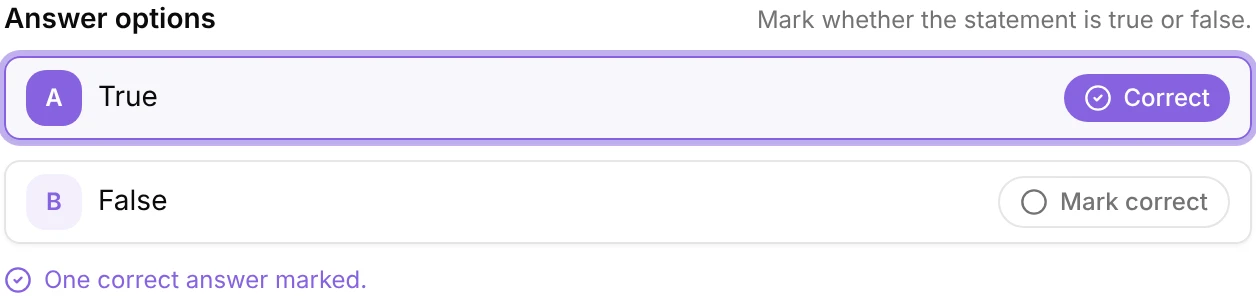
You can’t edit the words True and False, and only one of them can be correct. If you need different options, use a Quiz question instead.
Write it with AI
Type what you want in the AI box at the top of the editor (“Describe the true/false question you want to create.”) and choose Create. Nurture AI writes the statement, marks the right answer and adds an explanation, keeping True and False as they are.
Once there’s a statement, the button changes to Rewrite. Type how you want it changed, or use a quick option such as Shorten, Simplify wording or Increase difficulty. Check the statement and the marked answer before you save: everything AI writes is a starting point.
Switching between Quiz and True/false
Choosing True/false replaces a quiz question’s options with True and False. If you switch back to Quiz before saving, the options you had come back.
Signal recognises a true/false question by its two options. Open one later and it opens on True/false. Change the wording of either option and it becomes an ordinary quiz question.
What students see
Your statement, with True and False as the two answers to choose from. If the session asks students why they chose their answer, they see that box too, as they would for any quiz question.
What you see back
A true/false question is a quiz question, so its results, scores and insights work exactly the same. If you key the wrong answer, you can still fix it after students have answered (see changing the correct answer after students have answered).
Tips
- One idea per statement. “Plant cells have a cell wall and chloroplasts” is true or false in two ways at once. Split it into two questions.
- Make the false ones plausible. A false statement built on a common misconception tells you more than one nobody would believe.
- Ask why. With an explanation box on, a correct answer that comes with the wrong reasoning shows up in the results instead of hiding behind a lucky guess.
Related articles
Still stuck?
We're happy to help you directly. Get in touch with the Nurture team.