Marking open answers with a mark scheme
Mark open answers out of a set number of marks with your own mark scheme. Each answer shows its mark, what earned it and what was missing.
Updated 25 October 2026
Already have a mark scheme? Use it to mark open answers out of a set number of marks, instead of listing success criteria. Nurture AI marks every answer against your scheme and shows you what earned each mark and what was missing.
When to use it: You’re setting an exam-style question and already have its mark scheme, or the marks matter more than a met or not met checklist.
Where you can use it. On Open answer and File upload questions in live quizzes and Assessments. Marking is part of Premium: on Standard, answers are collected but not marked.
Mark scheme or success criteria?
On Premium, an open answer can be marked one of two ways, never both. With neither, answers are collected but not marked.
- Success criteria: a short list of things a good answer does. Each answer shows which ones it met. See creating open answer questions.
- Mark scheme: your own scheme and a number of marks. Each answer gets a mark out of that number.
You can switch between them while you write the question. The one that’s showing when you save is the one that counts.
Add a mark scheme
- Add an Open answer or File upload question (or open one with Edit) and write your question.
- Under Marking, choose Add mark scheme. If success criteria are already showing, choose Mark scheme instead.
- Set Marks available with - and +: what the question is out of, from 1 to 50.
- Add the scheme itself in the Mark scheme box. Either:
- type or paste it, or
- choose Upload a document to read it in from a PDF, Word, PowerPoint, spreadsheet, OpenDocument, image or text file. Check what was read in, and remove anything that belongs to a different question.
- Decide whether students see the scheme with their result (below).
- Choose Save question.
Write the scheme the way you would for a colleague marking it: what earns each mark, what to accept and what not to. For example:
1 mark: the cell wall gives support and keeps the cell’s shape. 1 mark: the cell membrane controls what enters and leaves the cell. 1 mark: the wall lets most substances through, so the membrane is needed to control them. Max 3 marks.
A mark scheme can be up to 6,000 characters.
One scheme for a whole Assessment? Add it once as a supporting document in the Assessment’s settings, where it guides personalised feedback on every question. Use the Mark scheme box for the part that belongs to this question: it’s what this question’s answers are marked against.
Show the mark scheme to students?
Under the scheme, Show to students is off by default. Hidden, only you see the scheme, and it still does the marking. Turn it on and students see the scheme with their result after they answer, along with any model answer.
A model answer is optional with a mark scheme. If you add one, it’s used as guidance on what a full answer covers, without students needing to match its wording.
What you see back
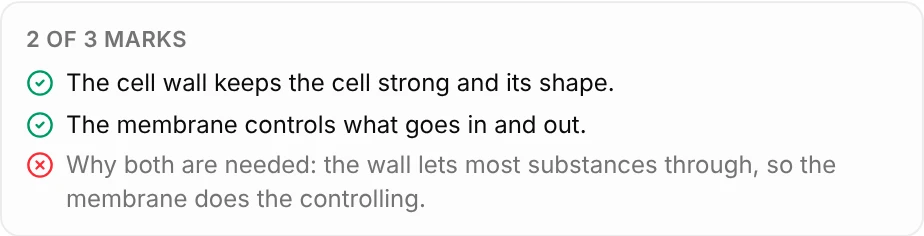
When a student answers, Nurture AI marks it against your scheme. Each answer in Responses then shows:
- the mark, for example 2 of 3 marks;
- a tick beside each part of the answer that earned a mark;
- a cross beside each part of the scheme the answer didn’t show.
Until an answer has been marked, it says Not marked yet.
Nurture Insights adds up the class: the average mark, and how many answers got each mark, from full marks down to none.
What students see
Students see their mark with their result, at the same point they’d see the result of any open answer question (see creating open answer questions). If you’ve turned on Show to students, they see the scheme too.
Personalised feedback (Assessments)
In an Assessment, Generate personalised feedback can write each student feedback on their answer. With a mark scheme, it needs either the mark scheme or supporting documents on the Assessment before it can be turned on.
Tips
- One mark, one point. A line that earns a mark for two things at once is hard to mark consistently. Split it.
- Say what not to accept. “Do not accept: more collisions (on its own)” saves a lot of generous marking.
- Read a few by hand. Check the first answers against your own judgement, especially on a new scheme, before you rely on the marks.
Related articles
Still stuck?
We're happy to help you directly. Get in touch with the Nurture team.