
Seeing every answer at once: the right and wrong grid
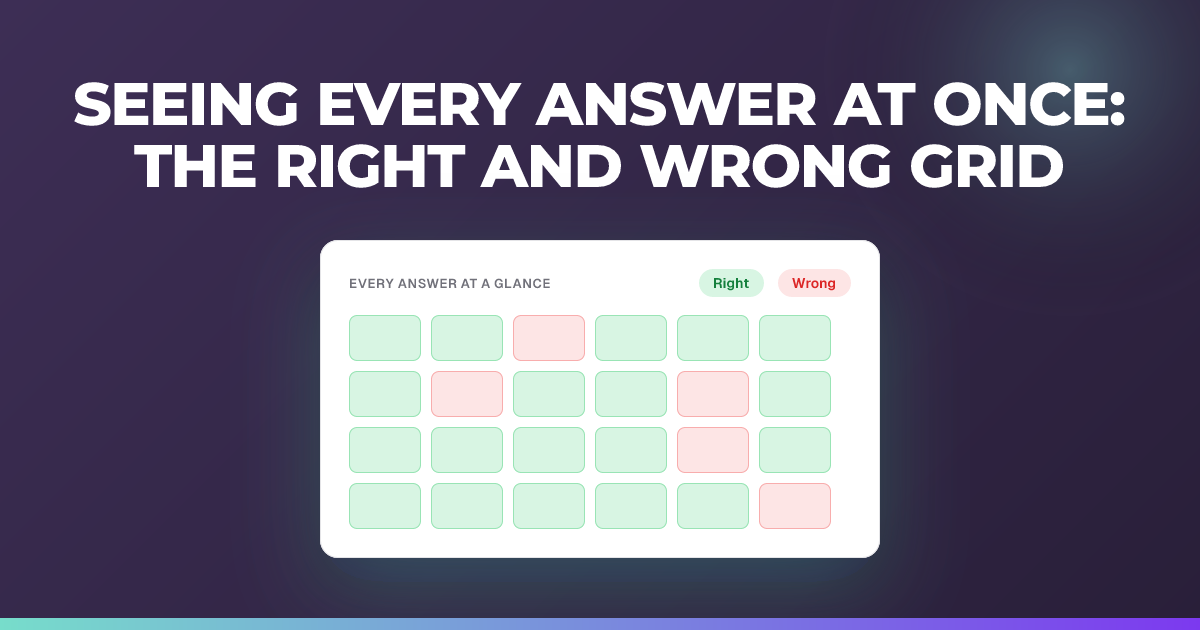
The grid shows every student against every question in one view, filling in live as answers arrive.
Updated 26 August 2026
Working through a live quiz question by question tells you how the class did on each question. It does not easily tell you which students are struggling across the board, or which question quietly lost half the room.
When to use it: Mid-lesson, when you want a single view of how the whole class is doing across every question so far.
The right and wrong grid shows every student against every question in one view.
Finding it
Choose Insights to open the session insights panel. The grid is under the Overall view. That is the only place it lives — it is not a step in the question stepper.
It appears once at least one student has answered a question. You will not see it before that, and it fills in as more answers arrive — you do not have to wait for the session to end, or for everyone to finish a question. That is what makes it worth opening mid-lesson rather than afterwards.
Reading the grid
Students run down the side. Questions run across the top, numbered. Each cell is one student’s answer to one question.
Each cell shows one of five states:
- Not answered
- Answered but not graded
- Fully correct
- Partially correct
- Incorrect
A legend on the grid tells you which is which, so you do not need to memorise the colours.
Hovering a question number shows you the question text, so you do not have to remember which number was which. Choosing a question number takes you to that question.
Totals are shown for each question, so you can see at a glance how many answered it and how many got it right.
What to look for
A column that is mostly wrong is a concept to go back over. That is the clearest signal the grid gives you, and it is easier to spot here than by clicking through questions one at a time.
A row that is mostly wrong is a student to check on. Worth noticing whether it is the whole row or only the questions after a certain point, which tells you different things.
A row that is mostly blank is usually not a learning problem. Someone joined late, lost a connection, or is on a device that is struggling.
Scattered partially correct across a column often means the question had more than one defensible reading, which is worth knowing before you reteach anything.
A note on partially correct
Correctness in the grid uses the same rules as everywhere else in Signal, which includes the half credit applied to correct answers that look like guesses. If a cell surprises you, the FAQ on why a correct guessed answer counts as half explains why.
Tips
- Use it before you decide what to reteach, not after the lesson. The point of a live view is that you can still act on it.
- Do not project it. It shows every named student’s results to the room. If you want something on the board, use presenter view instead.
Related articles
Still stuck?
We're happy to help you directly. Get in touch with the Nurture team.