
Letting parents follow a student's progress
Give a parent read only access to one student's sessions, answers, feedback and progress in your classroom.
Updated 20 October 2026
Link a parent to a student and they can follow that student’s work in your classroom, read only. They see the student’s sessions, answers, feedback and progress exactly as the student does. They can’t change anything, and they never see another student’s work.
When to use it: A family wants to support learning at home, you’re preparing for parent-teacher interviews, or a mentor or tutor is helping a student keep on track.
Parents don’t need an account or a password. They sign in with the email address you add, using a code sent to that address.
Before you start
- You must own the classroom. Only the teacher who created the classroom can add, rename or remove parents. Co-teachers can’t.
- The classroom must have been created in Signal. Classrooms that come from a Canvas course or a Microsoft Teams class get their students from that platform, so the option isn’t offered there.
- The student must have signed in. They need to have joined at least one session in the classroom while signed in. A student who joined as a guest has no account to follow.
- Up to four parents per student. You can’t add the student’s own email address, or your own.
Add a parent
- Open the classroom and go to its Students tab.
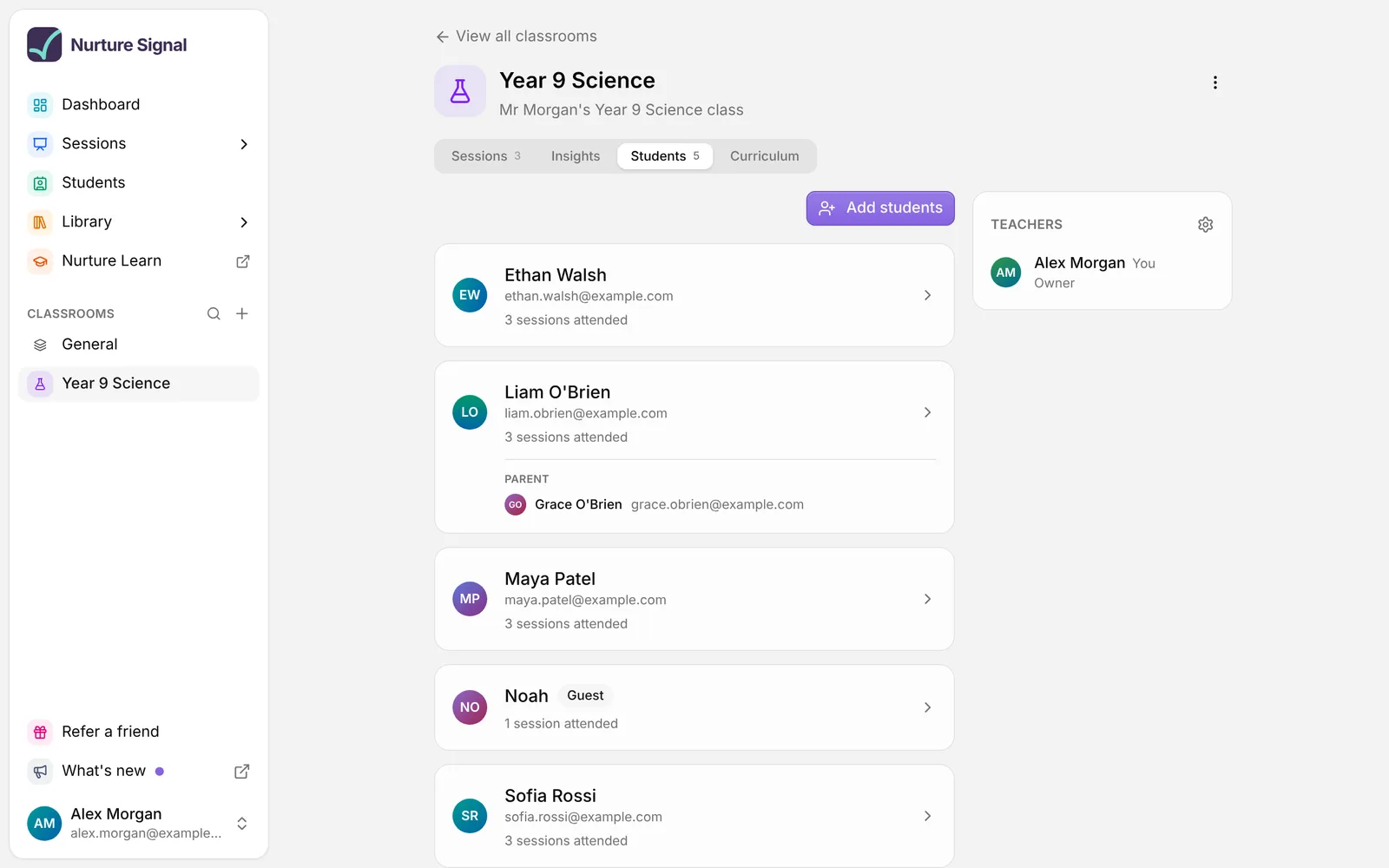
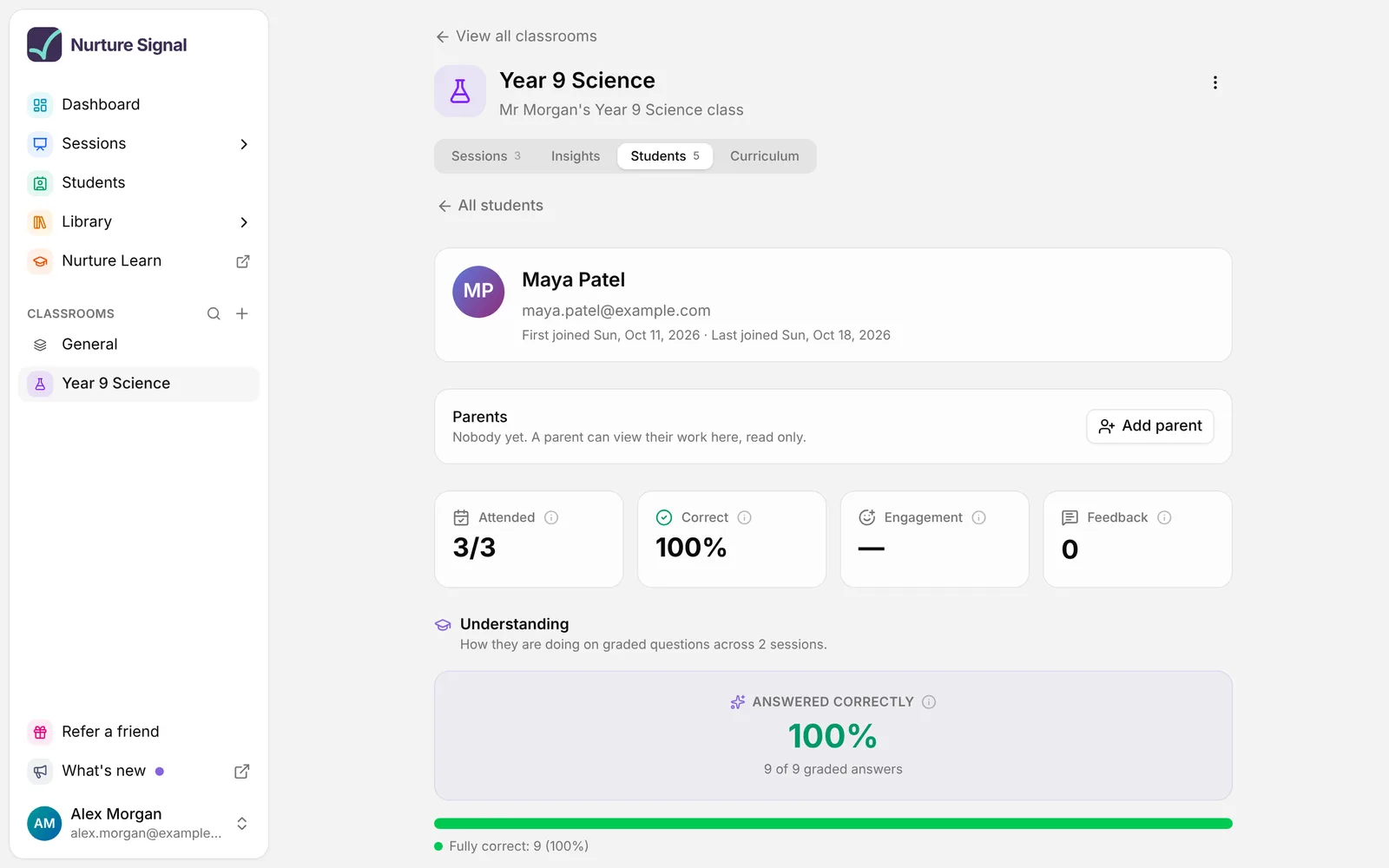
- Select the student. Their progress opens, with a Parents panel just under their name.
- Choose Add parent.
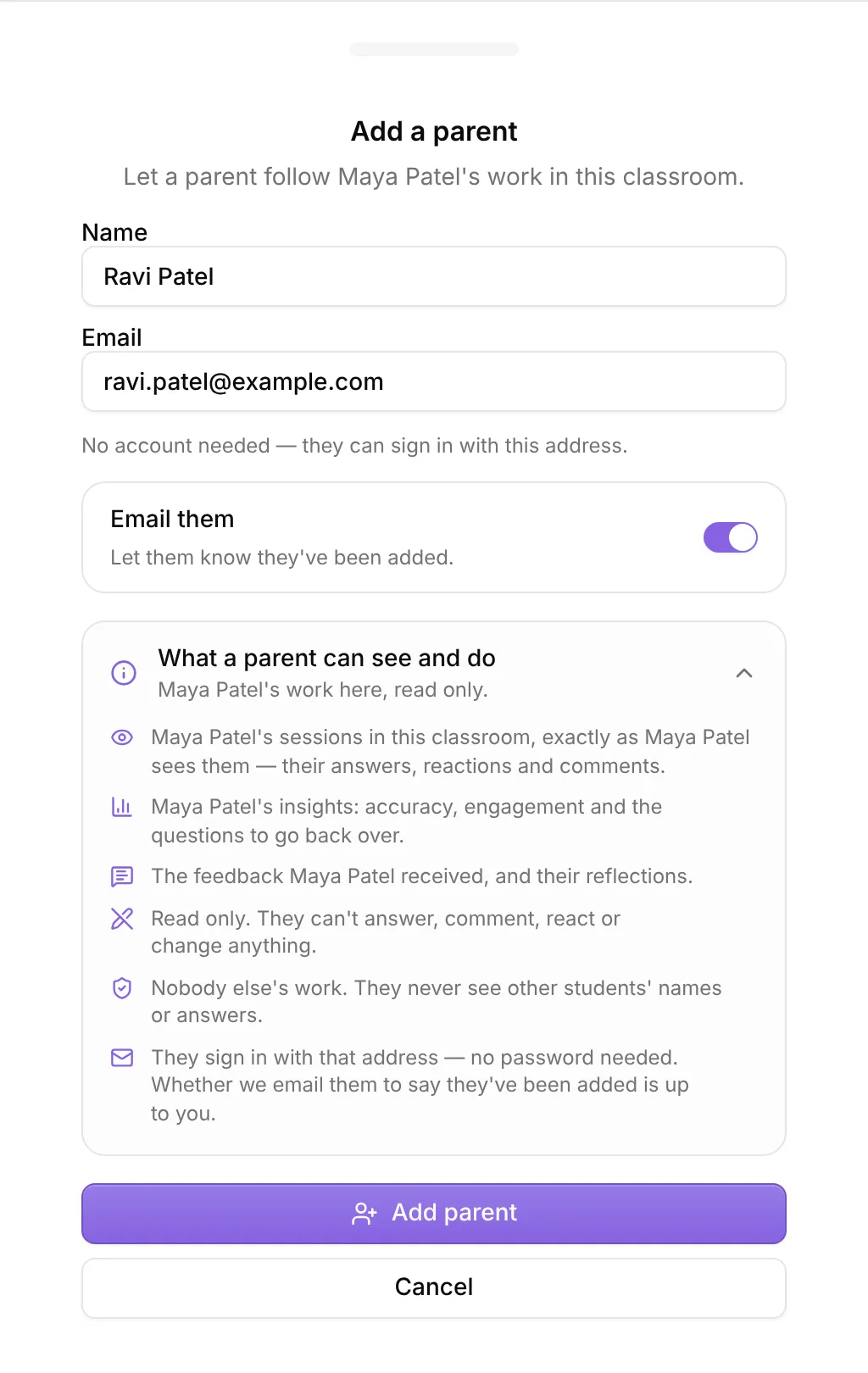
- Enter the parent’s Name and Email.
- Leave Email them on to let them know they’ve been added, or turn it off if you would rather tell them yourself.
- Open What a parent can see and do if you want to check exactly what they will get.
- Choose Add parent.
The parent now appears in the student’s Parents panel, and under the student’s name on the Students tab.
Can’t find the Parents panel? Make sure you opened the student from the Students tab inside a classroom. The Students page in the sidebar lists everyone across all your classrooms, and parents can’t be added from there.
What the parent receives
With Email them on, the parent gets an email titled “You can now follow [student]‘s progress on Nurture Signal”. It says who added them and what they can see, and has a Sign in to view button.
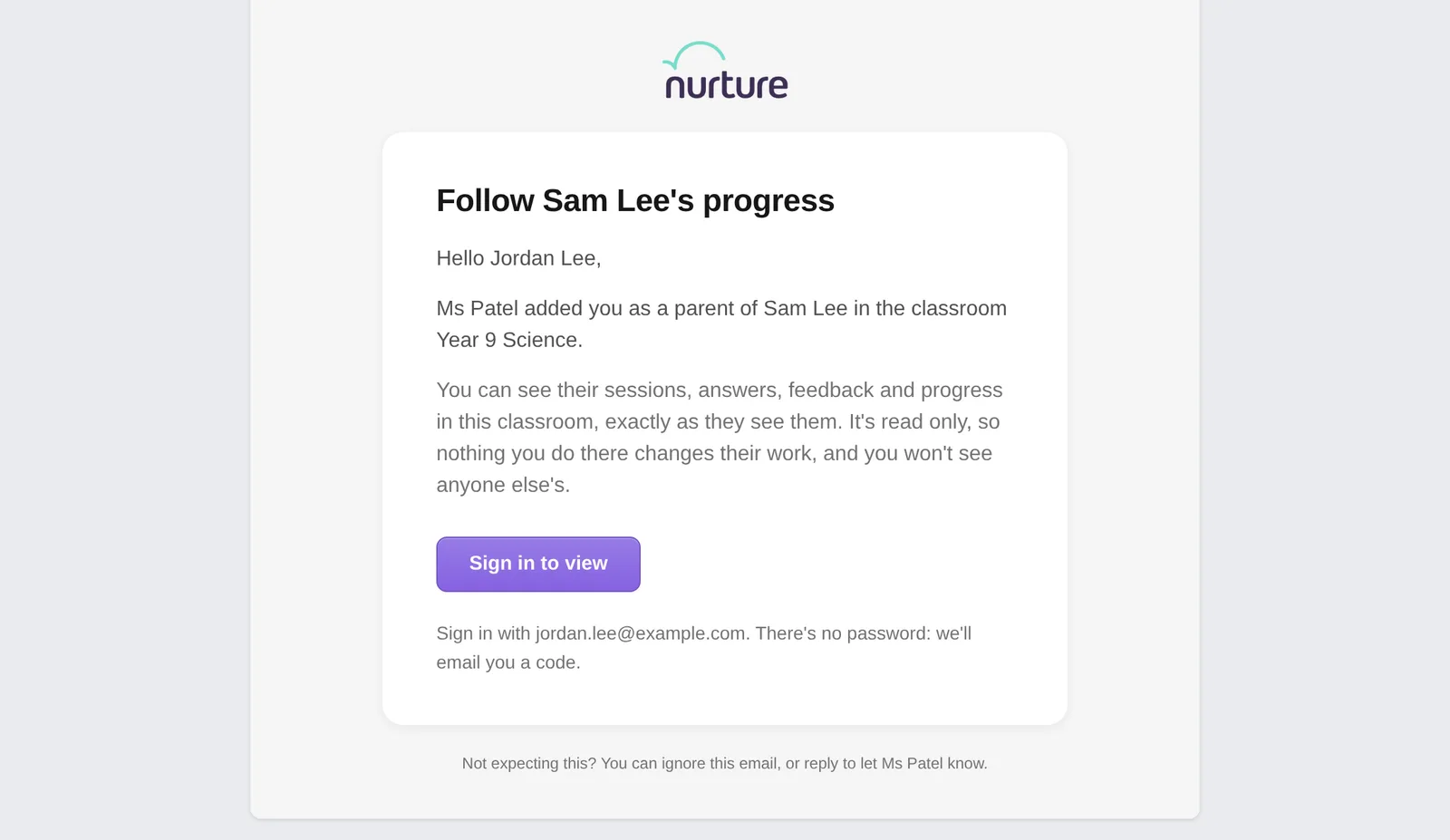
The email is only a heads up. Access comes from the email address you entered, so a parent who never got the email can still go to Signal and sign in with that address.
Daily email limits. Each teacher can send up to 60 parent emails a day, and each address can receive up to 10. If you reach a limit, the parent is still added but no email goes out, and Signal tells you so. Let them know yourself, or add the rest the next day.
What the parent sees
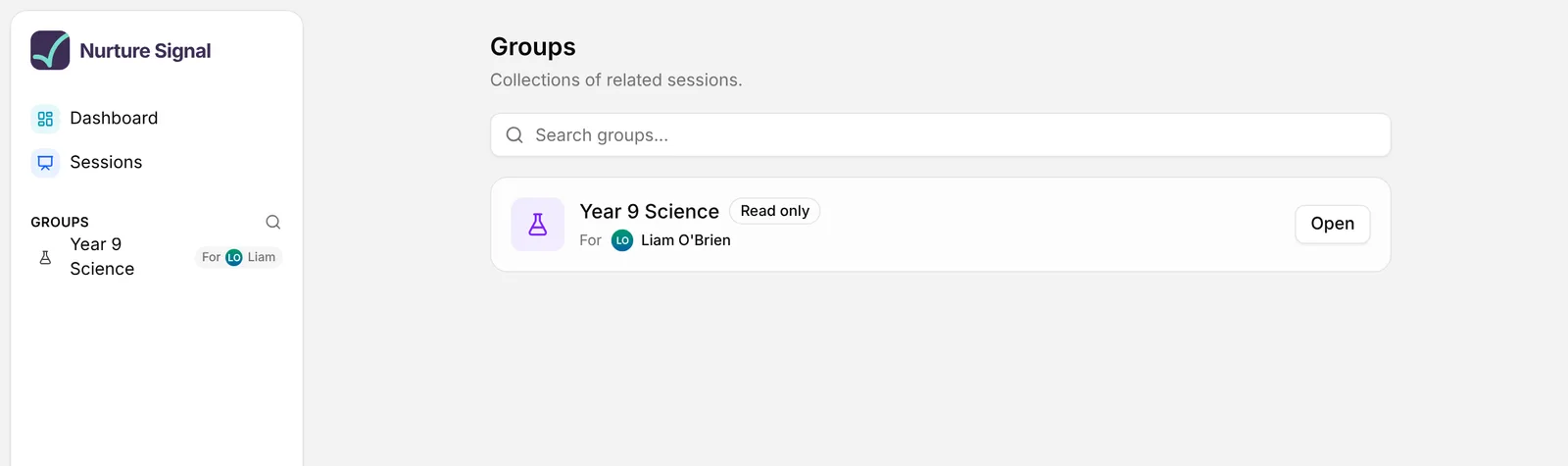
Once they sign in with the address you added, the classroom appears in their sidebar and on their groups page, tagged For the student they follow and marked Read only.
Opening the classroom shows a You’re following notice, the sessions the student joined, and a Students tab with the student they follow.
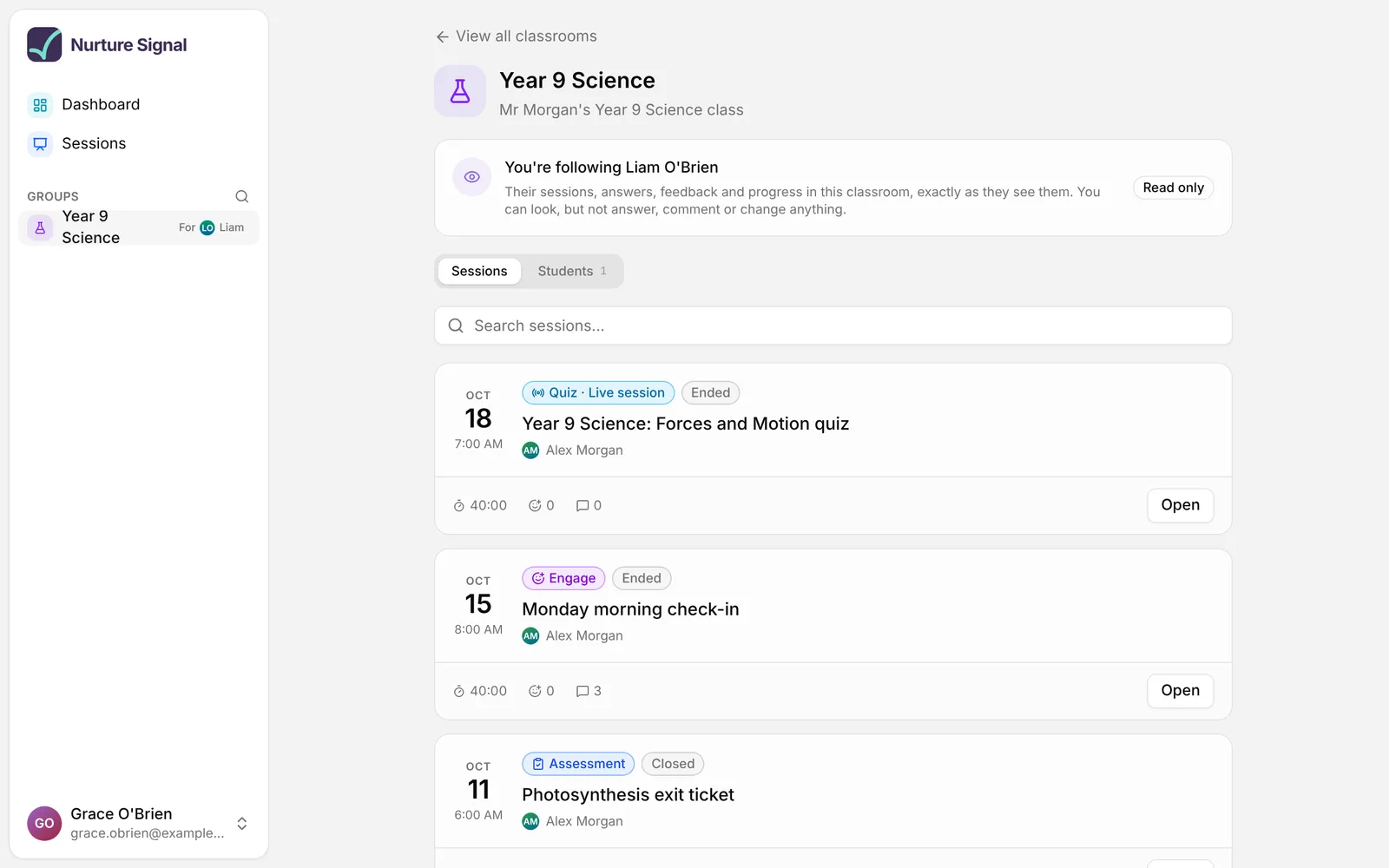
- Sessions: each one opens exactly as the student sees it, with their answers, reactions and comments, the feedback they received and their reflections. Files the student handed in as answers open too.
- Progress: the student’s accuracy, engagement and the questions worth going back over.
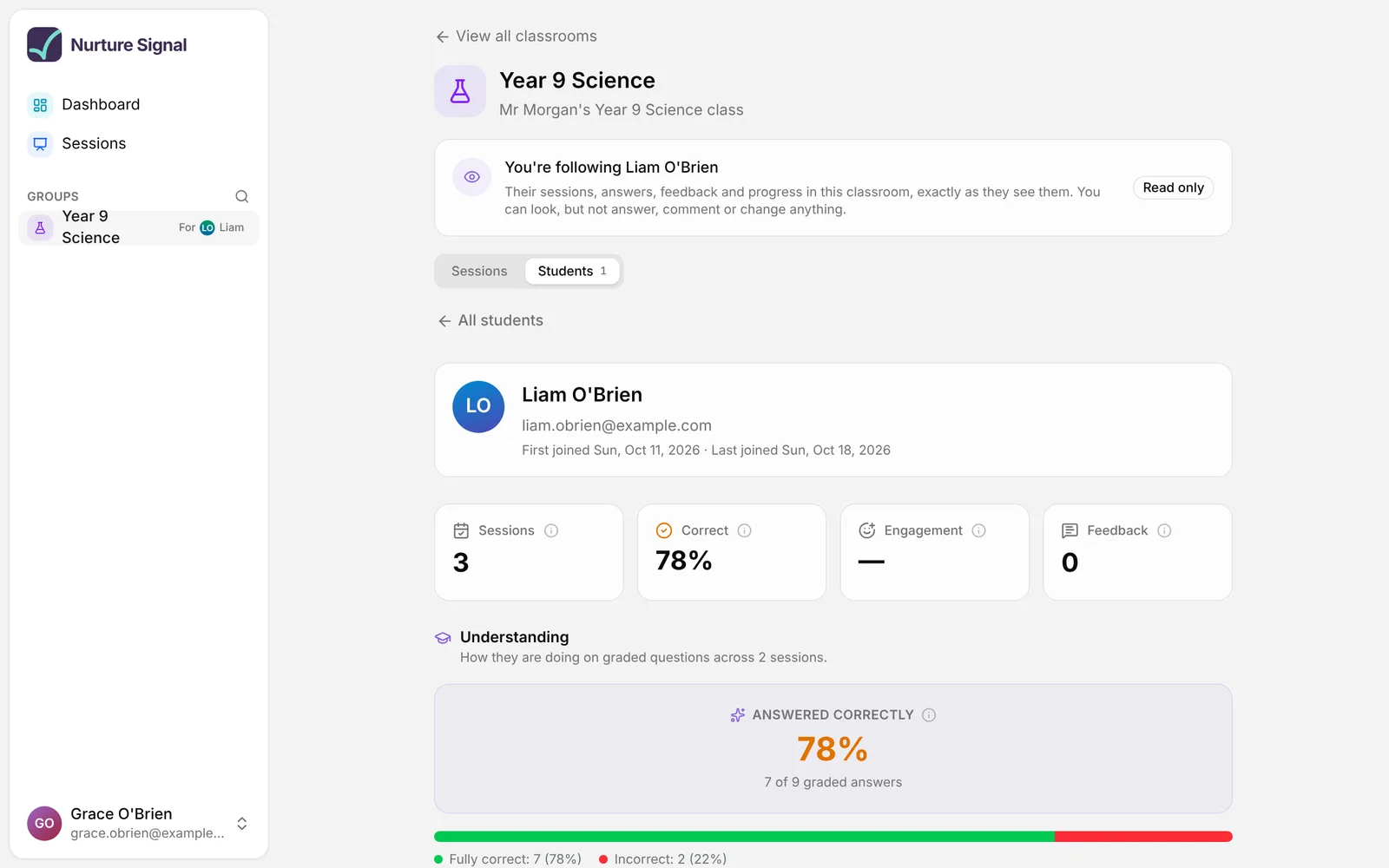
A parent can’t answer, comment, react or change anything, join sessions, or see other students’ names or answers. Where a poll’s results were shown to the class, they see the vote counts only.
The page shows the student’s work as it was when the parent opened it. Refreshing the page shows anything newer.
If a parent follows more than one student in the classroom, such as twins in the same class, they see all of them.
Rename or remove a parent
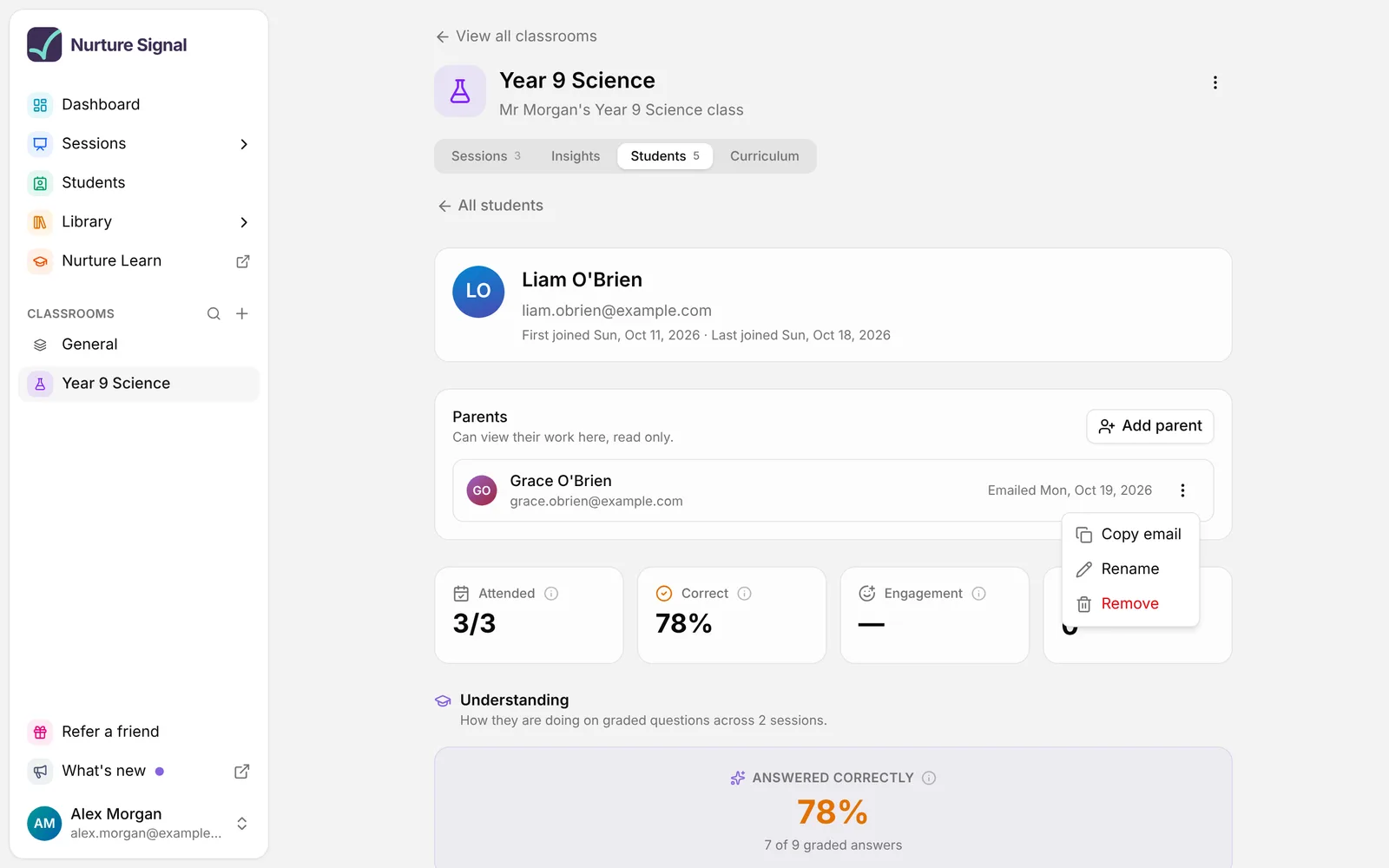
Open the student from the classroom’s Students tab and use the three dots menu next to the parent:
- Copy email
- Rename: changes the name only.
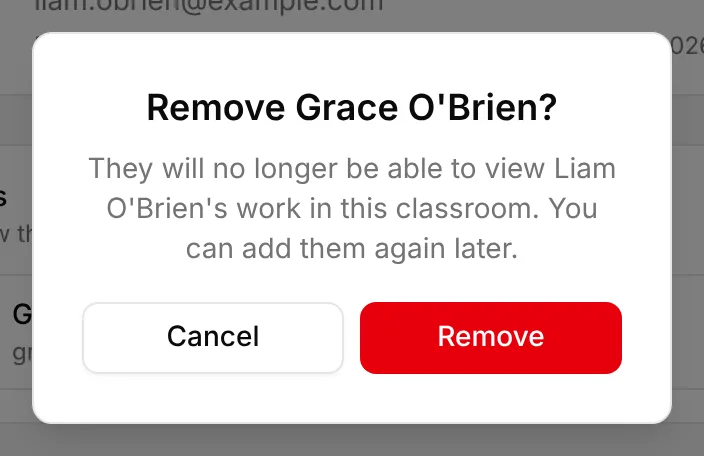
- Remove: asks you to confirm, then removes their access the next time they load the page. You can add them again later.
To change a parent’s email address, remove them and add them again with the new address.
Next to each parent you’ll see Emailed and the date if Signal sent their email, or Added and the date if it didn’t.
Troubleshooting
There’s no Add parent button. Check that you created the classroom yourself and that it isn’t a Canvas or Teams classroom, that you opened the student from the classroom’s Students tab, and that they don’t already have four parents.
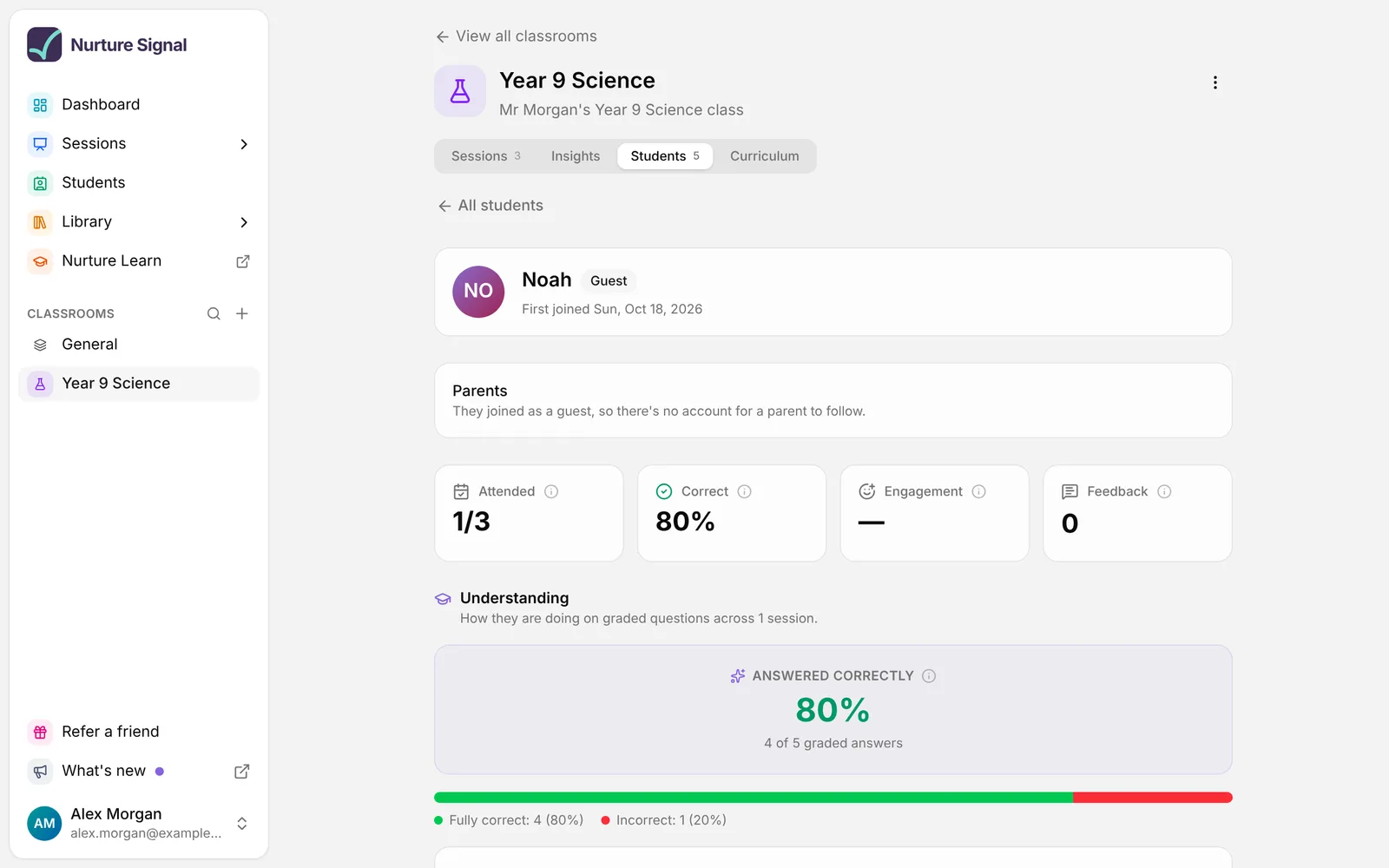
The panel says the student joined as a guest. Parents can only follow students with an account. Ask the student to sign in when they next join a session in the classroom. Their signed-in entry then appears on the Students tab, separate from the guest one, and you can add the parent there.
The parent didn’t get the email. Check their junk folder, and check the date next to their name: Emailed means it was sent, Added means it wasn’t. Either way, they can go to Signal and sign in with the address you entered.
The parent signed in but can’t see anything. They need to sign in with exactly the address you added. If you entered a different one, remove them and add the right address.
A session is missing from the parent’s view. Sessions you deleted are hidden. If you removed the student from a session, the parent sees that they were removed but nothing inside it.
Related articles
Still stuck?
We're happy to help you directly. Get in touch with the Nurture team.