
Following a student's progress in a classroom
Open a student from a classroom's Students tab to see their accuracy, engagement, feedback and reflections across every session.
Updated 20 October 2026
Every student in a classroom has a progress profile. It brings their accuracy, engagement, the feedback they’ve received and what they’ve said about their own learning together on one page, across every session in that classroom.
When to use it: Before parent-teacher interviews (parents’ evening, or a parent-teacher meeting), when you’re writing reports, or when a student has gone quiet and you want to know whether they’re struggling.
Open a student’s profile
- Open the classroom from Classrooms in the side menu.
- Go to the Students tab.
- Select the student’s name.
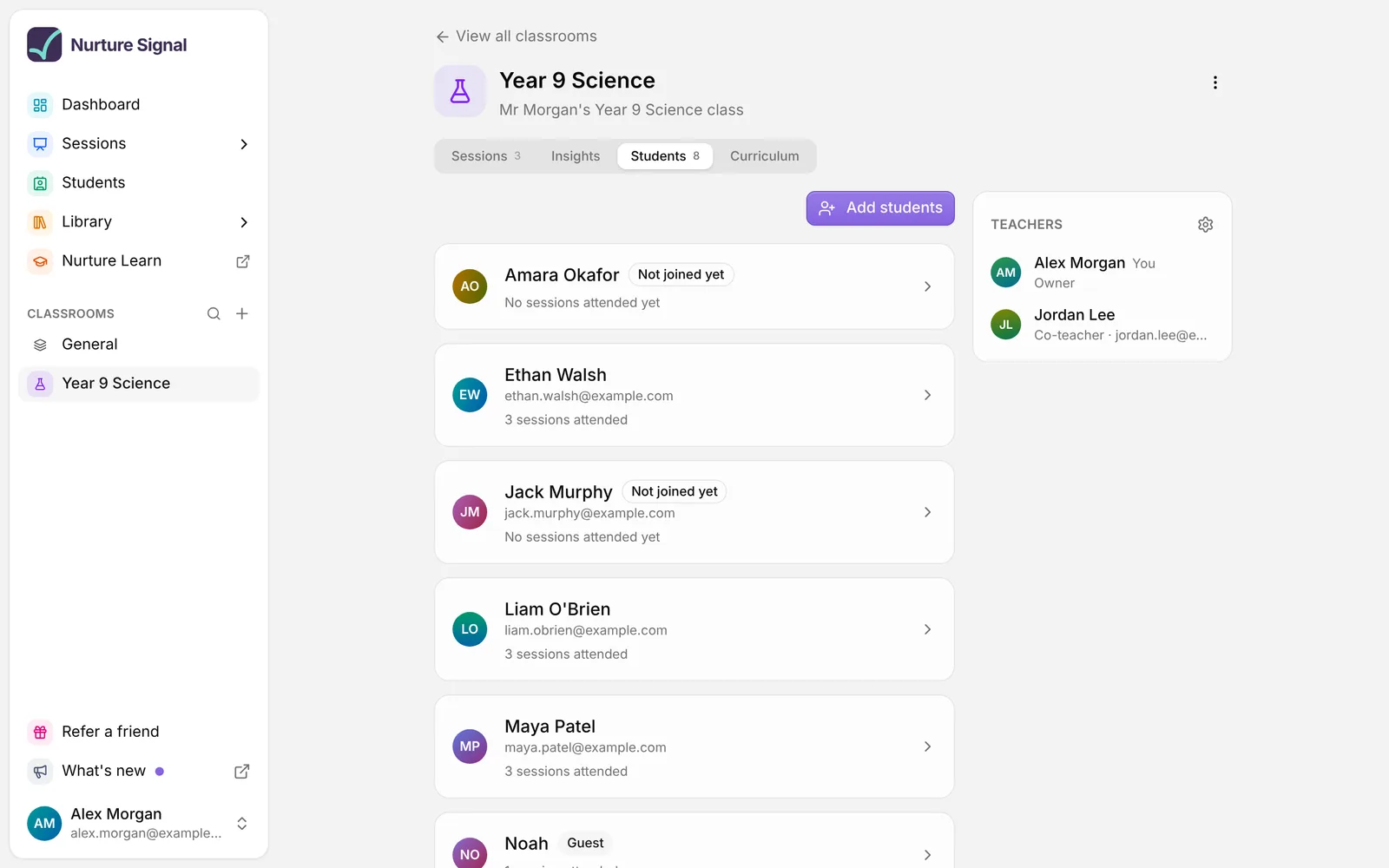
Their profile opens. Choose All students at the top to go back to the list.
A student you added to the classroom who hasn’t joined a session yet is marked Not joined yet. Their profile fills in once they join.
What’s on a profile
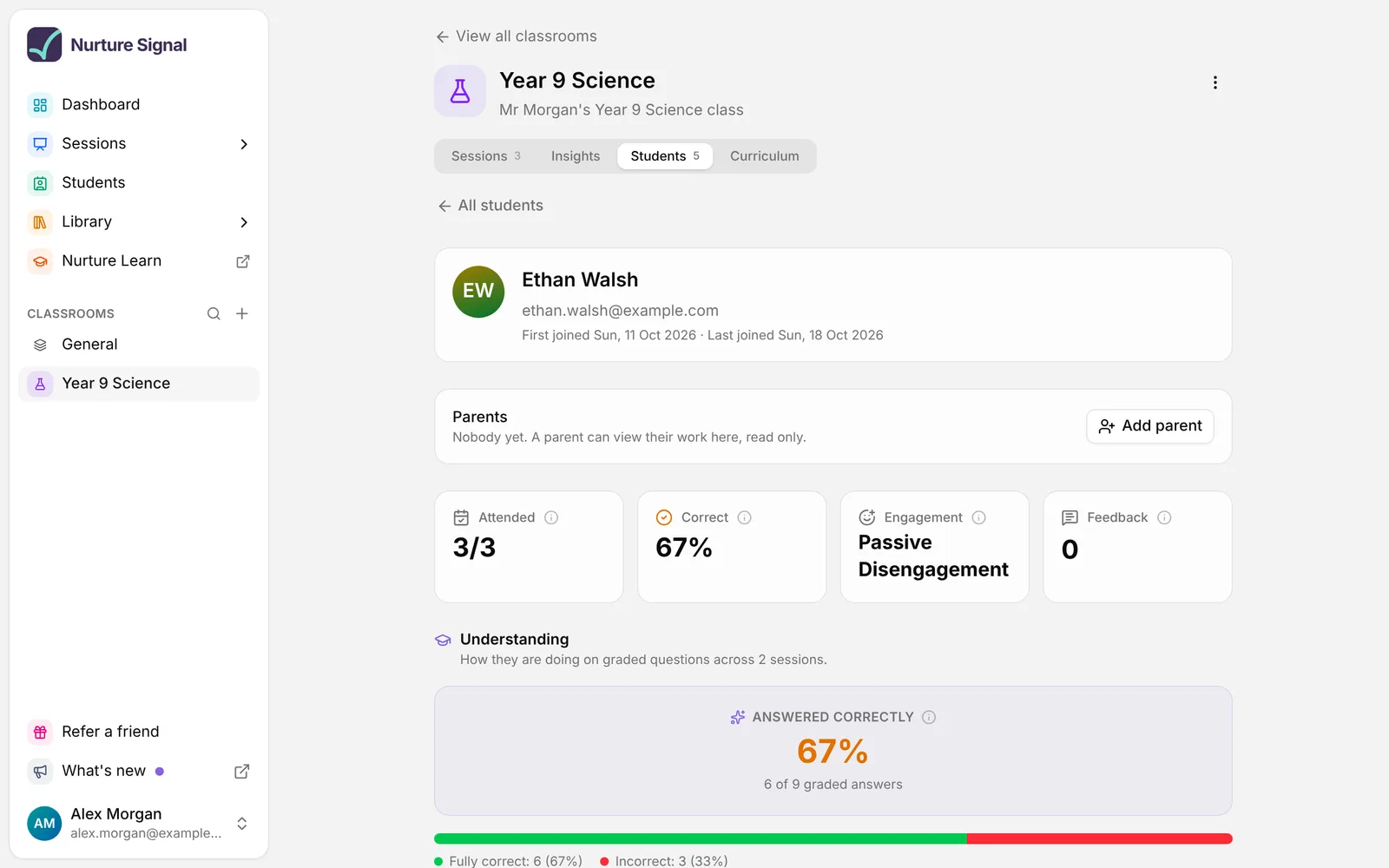
The top of the profile shows the student’s name, their email if Signal knows it, and when they first and last joined. Under that is the Parents panel, where the classroom’s owner can let a parent follow the student, read only.
Four figures sit across the top:
- Attended: how many of the classroom’s sessions they joined, for example 4/6.
- Correct: the share of their graded answers they got fully right.
- Engagement: where their engagement usually sits.
- Feedback: how many pieces of feedback they’ve received.
Understanding
This section appears once the student has joined at least one live quiz or Assessment.
- Answered correctly shows their accuracy, with how many graded answers it’s based on.
- Their accuracy by session charts it over time, once two or more sessions have graded answers.
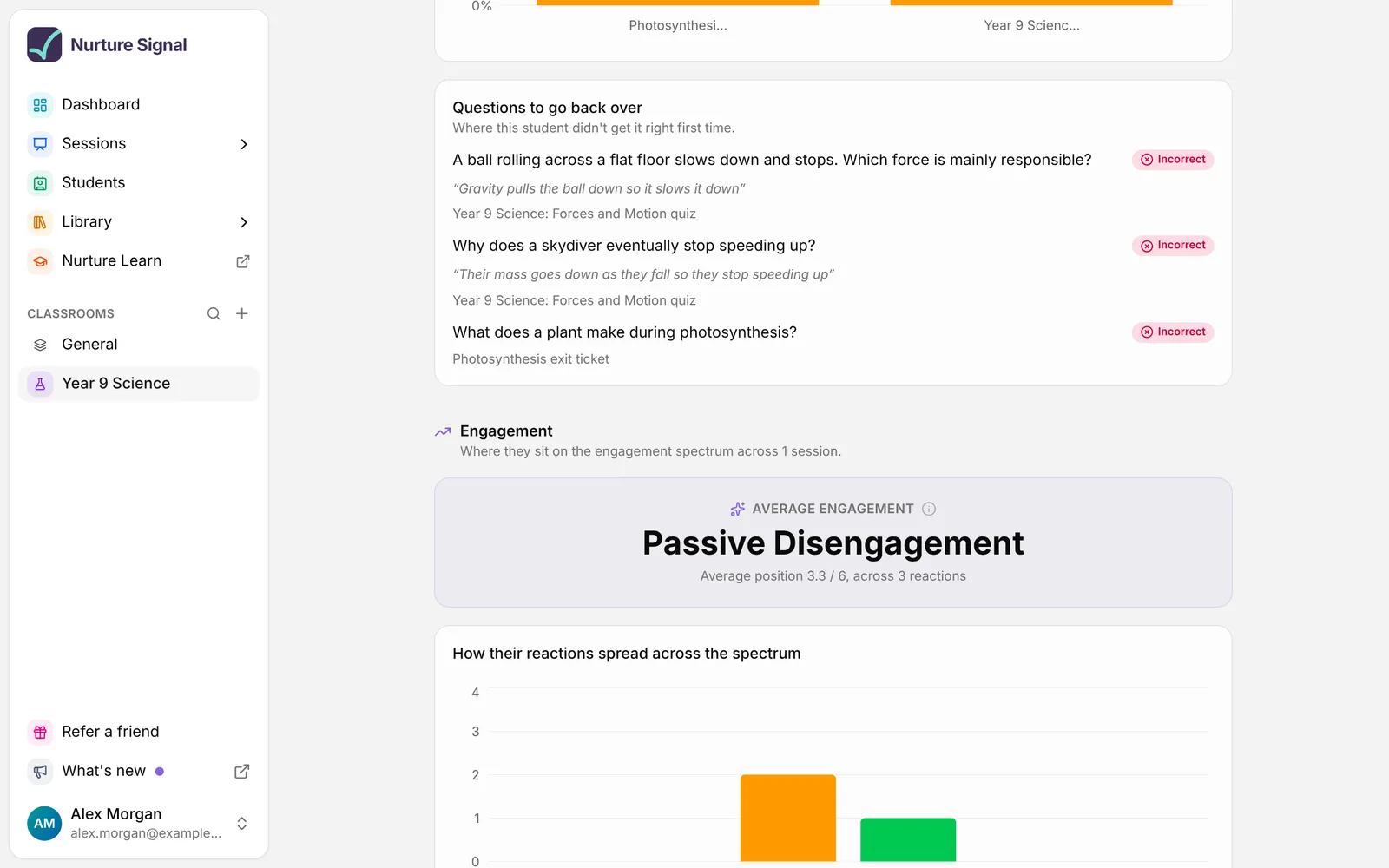
- Questions to go back over lists up to five recent questions they didn’t get right first time, marked Incorrect or Somewhat (partly right). Each one shows the question, the session it came from, and what the student wrote: the reason they gave, or their answer to an open question. That’s where you see the thinking behind the mistake.
What counts towards accuracy:
- Only questions with a correct answer that the student answered. Polls never count.
- Getting some, but not all, of a multiple-answer question right counts as partly correct, not correct.
- Open answers count once they’ve been marked against your success criteria: all criteria met counts as correct, some as partly correct, none as incorrect. Open answers without criteria, or not yet marked, don’t count.
- Correct answers flagged as potential guesses count in full here. Only the recommendation on a single question counts them as half (see why a correct guessed answer counts as half).
Engagement
This section appears once the student has joined at least one Engage session. It averages the engagement reactions they’ve shared and places them in a band: Active Engagement, Passive Engagement, Passive Disengagement or Active Disengagement.
With two or more sessions, Their engagement by session shows how it’s changing. How their reactions spread across the spectrum shows whether they’re consistent or up and down. Reactions in quiz sessions aren’t included.
Feedback received
Every piece of feedback on the student’s answers: AI feedback, and replies from you or a co-teacher.
In their own words
What the student has said about their own learning: their confidence at the end of a quiz, their reflections, and the comments and questions they’ve posted. It only appears once there’s something to show.
Sessions attended
Every session they joined in this classroom, most recent first, with how they did in each. Select a session to open it.
See every student on the Students page
Students in the side menu lists everyone who has joined your sessions, across all your classrooms, including sessions you co-teach.
- Search by name or email.
- Filter by classroom, or choose Not in a classroom.
- Sort by Name, Recently active or Most sessions.
Select a student to open the same profile, this time across every session of yours they joined. The first figure becomes Sessions (how many they joined), and each session shows which classroom it belongs to.
Parents can only be added from a classroom’s Students tab, so the profile on this page has no Parents panel.
What students see
Signed-in students get a My insights tab on each classroom they’ve joined. It shows the same profile, about themselves: their accuracy, the questions to go back over, their engagement, feedback and sessions.
Students never see anyone else’s work or figures for the class as a whole. Questions whose correct answer hasn’t been shown to them yet stay hidden from their profile too.
Students who join as guests
A student who joins without signing in appears with a Guest badge. Their profile only covers the sessions they joined as that guest.
If they sign in later, their signed-in work shows up as a separate student, and the two aren’t merged. Guests also can’t have a parent added. To keep a student’s progress in one place, ask them to sign in each time they join.
Good to know
- Every plan. Profiles, the Students page and My insights are included on every plan. On the Standard plan, open answers aren’t marked against success criteria and there’s no AI feedback, so those parts of a profile have less in them.
- Co-teachers see the same profiles as you.
- Deleted sessions drop out of a profile.
- No PDF. Profiles can’t be exported. To save one session’s insights for a student, export them as a PDF.
About this feature
Related articles
Still stuck?
We're happy to help you directly. Get in touch with the Nurture team.