
Adding students to a classroom before they join
Paste your class list into a classroom so every student is on the Students tab, even before they've joined a session.
Updated 20 October 2026
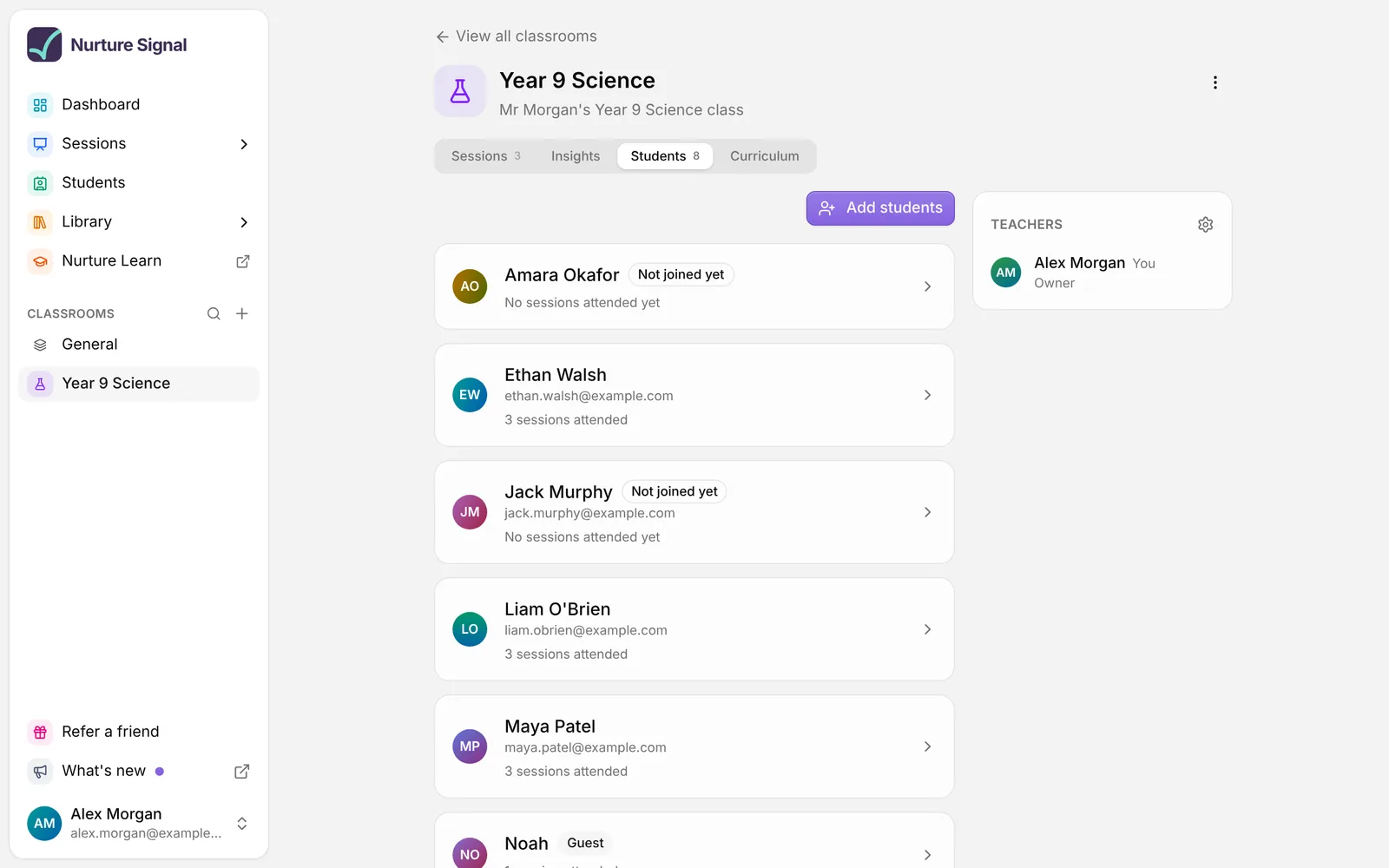
A classroom’s Students tab lists the students who have joined its sessions. Add your class list and the whole class is there from the start. Students who haven’t joined yet are marked Not joined yet, and Signal links each one up automatically once they join a session.
When to use it: You’re setting up a classroom at the start of term, or you want to see at a glance who in the class hasn’t joined yet.
Before you start
- You must own the classroom. Only the teacher who created it can add students. Co-teachers can’t.
- The classroom must have been created in Signal. Classrooms that come from a Canvas course or a Microsoft Teams class get their students from that platform, so the option isn’t offered there.
- Every plan. Adding students works on both Standard and Premium.
Add students
-
Open the classroom and go to its Students tab.
-
Choose Add students.
-
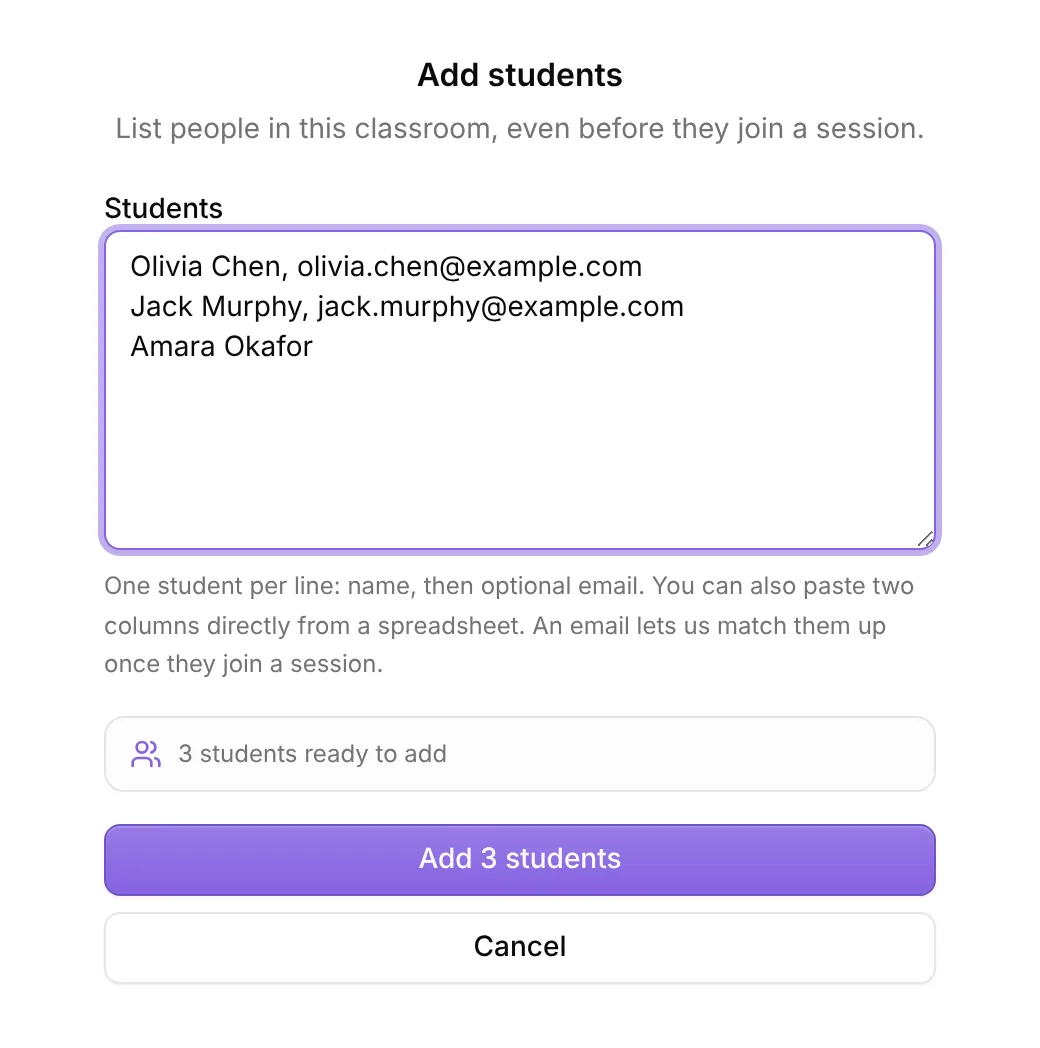
In the Students box, put one student per line: their name, then a comma and their email address if you have it. For example:
Alex Morgan, alex@example.com
Sam Lee
Taylor Green, taylor@example.com
You can also copy a names column and an emails column from a spreadsheet and paste them straight in.
-
Check the count under the box, for example 28 students ready to add.
-
Choose Add 28 students (the button shows your number).
The students appear on the Students tab, marked Not joined yet, with No sessions attended yet.
Tip: Add email addresses where you can. Signal matches by email first, so students with an email are linked up reliably.
Limits
- Up to 50 students at a time. For a bigger list, add it in batches.
- Names must be 2 to 50 characters. Email addresses are optional.
- Nobody is added twice. Anyone already in the classroom (matched by email, or by name when there’s no email) and any repeats in your paste are skipped. Signal tells you how many were already listed.
If a line has a problem, the drawer shows it under Fix this line (or Fix these lines) with the line number and what to change, and nothing is added until it’s fixed.
How students are linked up when they join
There’s nothing for you or your students to do. When a student joins a session in the classroom, Signal lines them up with your list:
- By email first. If the email you entered is the one on the account they sign in with, they’re linked.
- Otherwise by name, but only when exactly one student on your list and one student who joined share that name, and their email addresses don’t differ. Guests don’t have an email, so this is how a guest is linked.
Once linked, Not joined yet disappears and the sessions they attended show against their name.
This only changes what you see on the Students tab. It doesn’t create or change anyone’s account, it doesn’t give students access to anything, and nobody is emailed. Students still join each session with its code as usual.
Remove a student who hasn’t joined
- On the Students tab, select a student marked Not joined yet.
- Choose Remove from classroom.
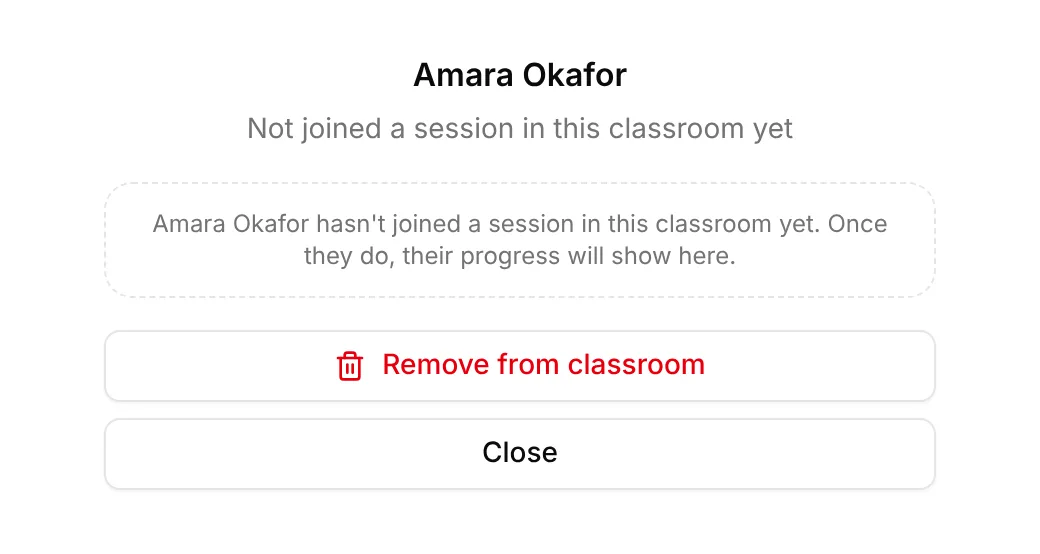
You can only remove students who haven’t joined a session. Students who have joined are in the classroom because they attended, so there’s no remove option for them.
Good to know
- Only you see students who haven’t joined. Co-teachers see the students who have joined a session, but not the Not joined yet entries.
- Insights start when they join. A student who hasn’t joined has nothing to chart, so they don’t appear in Insights until they do.
- Parents need a student who has joined. You can’t let a parent follow a student marked Not joined yet.
Troubleshooting
There’s no Add students button. Check that you created the classroom yourself and that it isn’t a Canvas or Teams classroom.
A student joined but still shows Not joined yet. They probably signed in with a different email address from the one you entered, or another student has the same name. If they now appear twice, once with their sessions and once as Not joined yet, remove the Not joined yet entry.
Some lines weren’t added. They were already in the classroom. The message after adding tells you how many were already listed.
About this feature
Related articles
Still stuck?
We're happy to help you directly. Get in touch with the Nurture team.